Permissions & Access Control
Access control in RapiDesq is permission-based, not role-based. When the platform decides whether a user can do something, it checks for the specific permission required — not whether the user holds a particular role. Roles exist, but they're just convenient starting bundles of permissions. This distinction matters because it means fine-grained control is available from day one without the "edit the role and hope nothing else breaks" problem that pure role-based systems have. This guide covers how the permission model works, the built-in roles, creating custom permission sets, team-level scoping, and best practices for least privilege.
Overview
In a role-based access control system, "can user X view reports?" is answered by checking whether user X has a role (like "Supervisor") that is allowed to view reports. This conflates two different things: who the user is, and what they're allowed to do.
In RapiDesq's permission-based model, the same question is answered by checking whether user X has the specific "view reports" permission — regardless of what role or combination of roles grants it to them. Roles provide permissions; permissions determine access.
The practical consequence: you can grant a single permission to a specific user without changing their role, change what a role grants without redesigning users, and audit permissions clearly (the list of who can do X is a direct permission query, not a role dump). For organizations that need fine-grained access control for compliance or operational reasons, this is significantly easier to work with than pure role-based systems.
Built-in Roles
RapiDesq ships with five standard roles, each a pre-bundled set of permissions sized for a common support-organization function.
| Role | Scope | Typical use |
|---|---|---|
| Owner | Entire account | The account owner. Full administrative access plus billing, subscription, and licensing management. Typically the person who signed up. |
| Admin | Entire account | Platform administration without billing access. Good for IT or operations leads who configure the platform but don't manage finances. |
| Supervisor | Assigned teams | Team-level management: queue oversight, user coaching, reporting for their teams, and the supervisor dashboard. |
| User | Assigned teams | Front-line customer work: handling conversations, managing tickets, using internal chat. |
| Internal User | Limited | Employee self-service access to the internal portal and team chat. Cannot handle external customer work. |
Every user has exactly one platform-level role. The role grants a baseline set of permissions. Additional permissions can be layered on through permission sets (see below).
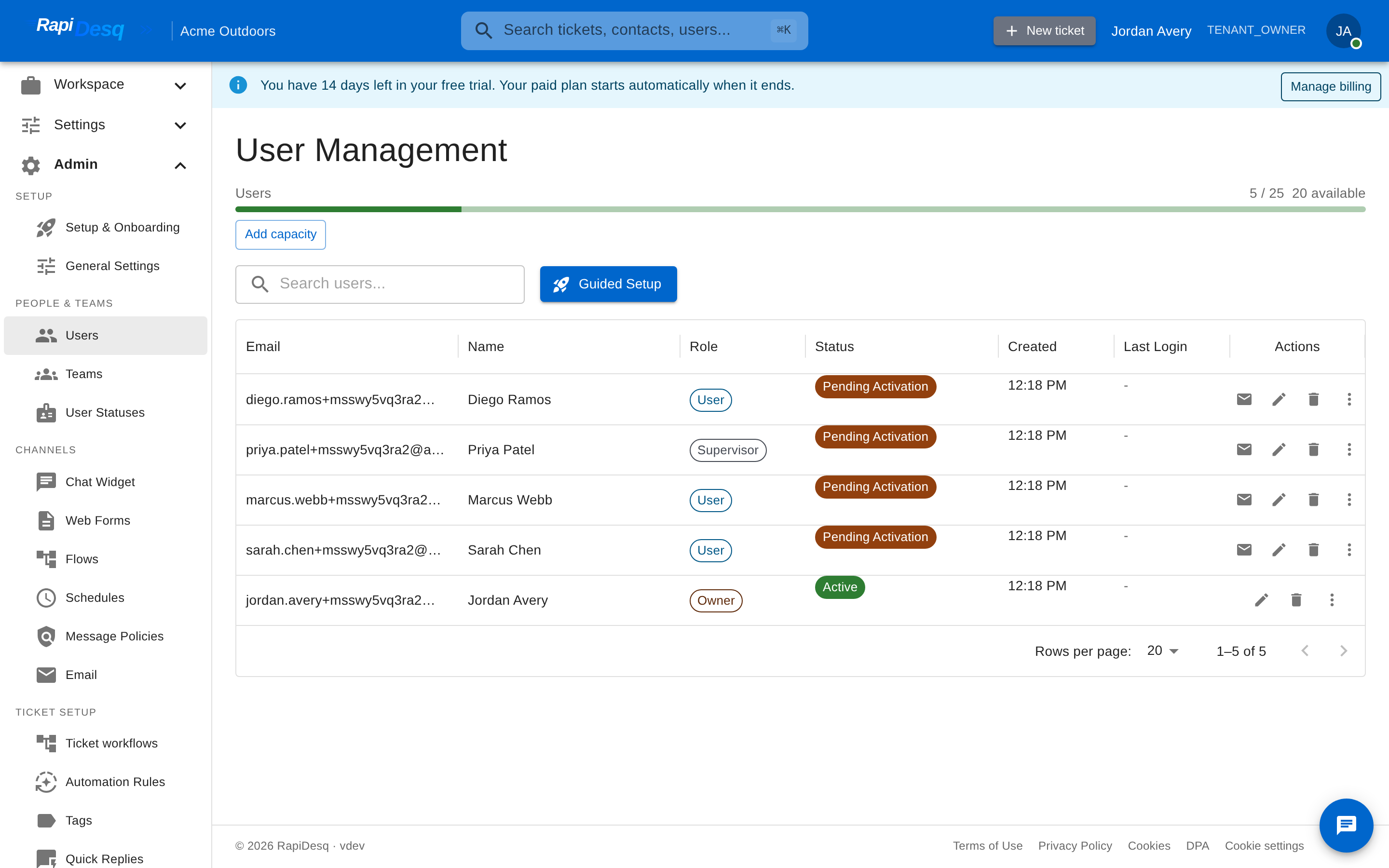 The Users page in the admin portal, showing each user's role.
How Permissions Work
The platform has a catalog of specific permissions covering every significant action. When a user attempts to do something, the platform checks whether they have the relevant permission — from their role, from any assigned permission sets, or from team-level assignments.
Examples of specific permissions:
- Create users
- Edit users
- View teams
- Manage teams (create, edit, delete)
- Edit tickets
- Delete tickets
- View reports
- Export reports
- Manage channels (chat widgets, email, web forms)
- Manage flows
- Manage bots
- View audit log
- Manage retention policy
- Manage billing
This is a partial list. The full catalog is visible in the admin interface when configuring permission sets.
Permission Sets
A permission set is a named bundle of specific permissions that can be assigned to users. Permission sets let you grant capabilities beyond what a user's role provides, without changing their role.
Built-in permission sets
RapiDesq ships with a few common permission sets you can assign as-is or use as templates for your own:
- Report Viewer — view reports and export report data. Useful for users who need visibility into team performance metrics without full supervisor privileges.
- Channel Manager — manage channels and flows. Good for a team lead responsible for chat widget configuration and conversation flows without needing full admin access.
- User Manager — create and edit users plus manage teams. Suited for an HR or operations contact who handles onboarding.
- Read-Only Auditor — view teams, view reports, view tickets. Suited for compliance or QA personnel who need to observe without modifying.
- Audit Log Reviewer — view the audit log without other admin access. For security or compliance roles that need visibility but shouldn't be able to change settings.
Custom permission sets
To create your own, navigate to Admin > Permission Sets:
- Click Create Permission Set.
- Enter a name (e.g., "Billing Team Lead", "External Auditor").
- Select the permissions to include.
- Click Save.
Once created, the permission set can be assigned to any number of users. A user's effective permissions are the union of everything they get from their role plus every permission set they have.
Team-Level Scoping
Some permissions are naturally scoped to teams — a supervisor managing one team shouldn't automatically have visibility into another team's queues. RapiDesq handles this by associating user-to-team assignments with a team-level role (User or Supervisor) that determines what the user can do within that team.
- A user with the platform-level User role and a User assignment on Team A can handle conversations routed to Team A but has no access to Team B.
- A user with the platform-level Supervisor role and Supervisor assignments on Teams A and B can oversee both teams.
- A user can have different team roles on different teams — for example, User on Team A (handling conversations) and Supervisor on Team B (managing it). The platform respects the scoped team role for each team.
Auditing Permissions
Regular permission review is important for security hygiene. The admin interface provides:
- Permission inventory — for any user, see the full list of permissions they effectively have and where each comes from (role, permission set, team assignment).
- Reverse lookup — for any permission, see who has it. Useful for questions like "who can delete tickets?" or "who can view the audit log?"
- Change history — every permission change is recorded in the audit log with actor, target, and timestamp.
Best Practices
Follow the principle of least privilege
Grant users only the permissions they need for their day-to-day work. A user whose job doesn't require exporting reports doesn't need the export permission even if granting it would be convenient. It's much easier to expand access when someone needs something than to notice they had too much access after an incident.
Use named permission sets for common patterns
Rather than granting individual permissions one at a time, bundle them into named sets that reflect actual organizational roles. "Billing Team Lead" as a permission set is clearer in intent and easier to audit than a list of fifteen checkboxes.
Review permissions regularly
Organizational changes, departures, and role shifts produce permission drift over time. A quarterly review of who has which permissions catches the accumulation before it becomes a problem. Auditors also appreciate seeing evidence that review happens on a schedule.
Treat offboarding as security work
When someone leaves the organization, their user access should be deactivated immediately, their permission set assignments removed, and any API keys they owned rotated. A formal offboarding checklist that covers these steps prevents the "they left a year ago but their account still works" scenario.
Use the Internal User role for non-support staff
Employees who only need the internal portal (for submitting IT requests, HR questions, etc.) should have the Internal User role, not User or Supervisor. It gives them exactly the access they need without exposing customer-facing functionality they shouldn't see.
Document custom permission set decisions
When you create a custom permission set, record the rationale somewhere your team will remember — the set's description field is a good place. "Billing Team Lead: grants channel management and user creation but not settings, because billing team leads need to onboard new team members and configure channel-level routing but shouldn't change account-wide settings." A future admin trying to understand whether to give this permission set to someone new benefits enormously from this kind of explanation.
Plan for emergency access
If the Owner is unreachable (vacation, leaving the company, locked out), someone needs to be able to step in. Designate at least one Admin as a backup with enough permissions to take the critical actions needed in an emergency, and document the escalation path. The audit log records who did what if emergency access is used, providing accountability without impeding urgency.
Related Topics
- Team Management — creating teams and assigning users with team-level roles.
- SSO Setup — mapping identity-provider groups to RapiDesq roles and permission sets for automatic provisioning.
- Audit Logs — viewing permission changes and other access control events.