Team Management
Teams are the core organizational unit in RapiDesq. They control how conversations are routed to users, how tickets are prioritized and distributed, and how your support organization is structured. This guide covers creating teams, choosing an assignment mode and routing strategies, configuring offers and queues, inviting users, managing permissions, setting user statuses, controlling capacity, and defining business hours.
Overview
Every customer conversation in RapiDesq ultimately reaches a user through a team. Teams connect three fundamental concepts:
- Channels — inbound conversations from the chat widget, email, or web forms are routed to a team via conversation flows.
- Routing — the team's user selection strategy determines which user receives each conversation, while the ticket selection strategy determines the order in which queued tickets are served.
- Permissions — user roles and permission sets govern what each team member can see and do across the platform.
A typical organization has multiple teams—for example, Billing Support, Technical Support, and Sales Inquiries—each with its own routing rules, capacity limits, ticket prefix, and business hours schedule. Users can belong to more than one team, and supervisors can oversee multiple teams simultaneously.
A conversation flow's Route to Team node directs a conversation to a specific team. The team's user selection strategy then picks a user. If no user is available, the conversation enters the team's queue and is served according to the ticket selection strategy when a user becomes free.
Creating Teams
To create a new team:
- Navigate to Admin > Teams.
- Click Create Team.
- Fill in the configuration fields described below.
- Add team members and assign each a team role (User or Supervisor).
- Click Save.
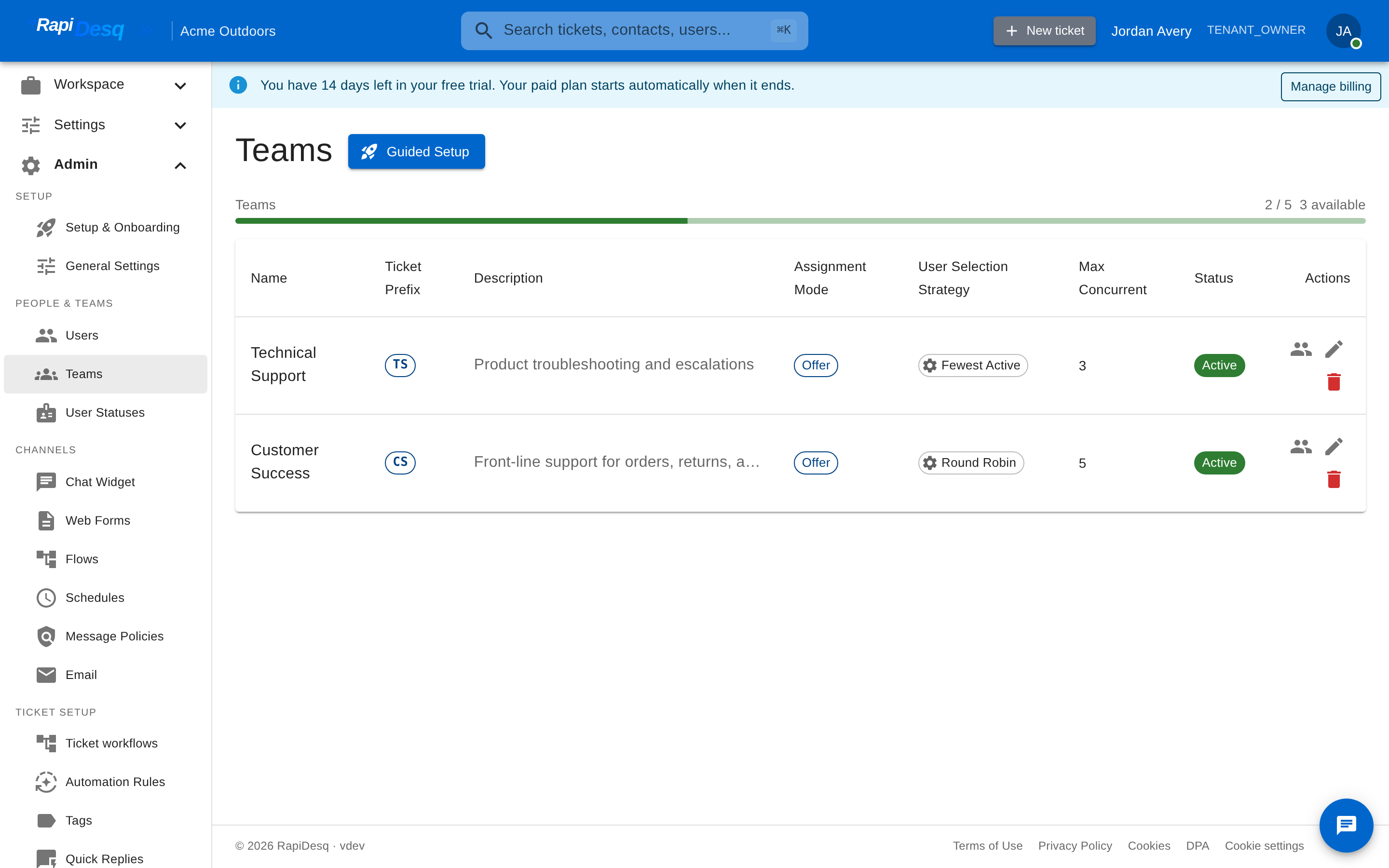 The Teams page in the admin portal, where teams and their routing configuration are managed.
Configuration Fields
| Field | Description |
|---|---|
| Team Name | A human-readable name displayed throughout the platform (e.g., "Billing Support", "Technical Support"). |
| Description | An optional summary of the team's purpose, visible to admins and supervisors. |
| Assignment Mode | Determines how work reaches the users on the team—via broadcast offers, automatic assignment, or a manual backlog. See Assignment Mode below. |
| User Selection Strategy | Determines how an incoming conversation is assigned to an available user. See User Selection Strategies below. |
| Ticket Selection Strategy | Determines the order in which queued tickets are served when a user becomes available. See Ticket Selection Strategies below. |
| Max Concurrent Conversations Per User | The maximum number of active conversations a user on this team can handle simultaneously. See Capacity Management. |
| Ticket Prefix | A short string prepended to all ticket IDs created for this team (e.g., "SUP" produces SUP-0001, SUP-0002). See Custom Ticket Prefixes. |
Assignment Mode
The assignment mode is the most fundamental routing choice a team makes: it determines how work reaches the users on the team. Each team uses one of three modes:
Offer
Incoming conversations are presented to users as offers that they explicitly accept. The offer is broadcast to the users chosen by the user selection strategy, and the first user to accept handles the conversation. Users stay in control of their workload, and supervisors can see who accepted or declined each offer.
Auto-Assign
The system automatically assigns each conversation to the best available user—no acceptance step. The user selection strategy determines who "best" is. Use this mode when speed matters more than user choice, or when you want guaranteed pickup without waiting for someone to accept.
Manual Queue
Tickets accumulate in a backlog and users pull work themselves rather than having it pushed to them. The ticket selection strategy still controls the order in which the backlog is served. Use this mode for teams that work asynchronously—for example, an email or back-office team that processes a queue at its own pace.
User and ticket selection strategies apply on top of the assignment mode. In Offer and Auto-Assign modes, the user selection strategy decides which user receives the offer or assignment. In Manual Queue mode there is no user selection—users choose their own work—but the ticket selection strategy still orders the backlog. Offer-specific settings (see Offer Settings) apply only in Offer mode. Some assignment modes may not be available on every plan.
User Selection Strategies
The user selection strategy controls how the routing engine chooses which available user receives an incoming conversation—the offer in Offer mode, or the assignment in Auto-Assign mode. Only users whose functional status is Available and who have not reached their maximum concurrent conversations per user limit are considered.
Broadcast
The conversation offer is sent to all available users on the team simultaneously. The first user to accept the offer is assigned the conversation.
- Best for: Small teams where speed-to-answer matters most. Every user sees the offer immediately, minimizing wait time.
- Trade-off: Can be distracting on larger teams because every user is interrupted for every conversation. Not recommended for teams with more than about eight users.
Round Robin
Conversations are distributed to users in a circular sequence. The routing engine tracks who received the last assignment and offers the next conversation to the next user in the rotation.
- Best for: General-purpose support teams where an even distribution of work is the primary goal.
- Trade-off: Does not account for how busy each user currently is. A user who just finished a quick chat and a user who is juggling three complex issues both get the same share.
Fewest Active
The conversation is offered to the user with the fewest currently active conversations. If multiple users are tied, the system selects among them using a round-robin tiebreaker.
- Best for: Teams where conversations vary in complexity and duration. Keeps workload balanced in real time.
- Trade-off: A user who quickly resolves conversations will tend to receive more total assignments over a shift, which may or may not be desirable.
Longest Idle
The conversation is offered to the user who has been idle the longest—that is, the user whose most recent conversation assignment or completion was the furthest in the past.
- Best for: Organizations that prioritize fairness and want to ensure no single user is continuously loaded while others wait.
- Trade-off: Does not consider the number of active conversations a user already has, only when they last received one.
Skill Match
The conversation is offered to the user whose configured skills best match the requirements identified for the conversation (typically set by conversation flow logic or ticket metadata).
- Best for: Specialized teams where users have distinct areas of expertise (e.g., a technical support team with specialists in networking, databases, and security).
- Trade-off: Requires upfront configuration of user skills and conversation skill requirements. If skills are not well maintained, routing quality degrades.
If you are setting up your first team and are unsure, start with Round Robin or Fewest Active. Both provide reasonable workload distribution out of the box. You can change the strategy at any time without disrupting active conversations.
Offer Settings
When a team's assignment mode is Offer, three additional settings control the lifecycle of each offer:
| Setting | Range | Description |
|---|---|---|
| Offer Timeout (seconds) | 5–300 | How long users have to accept an offer before it expires. |
| Max Offer Attempts | 1–10 | The maximum number of times an offer is re-sent before escalation. |
| Decline Exclusion Period (seconds) | 0–3600 | How long a user who declines an offer is excluded from re-offers. |
Short offer timeouts (15–30 seconds) keep conversations moving for live chat. Longer timeouts suit slower channels like email. If users frequently decline and immediately receive the same conversation again, increase the decline exclusion period.
Ticket Selection Strategies
When a user becomes available and there are multiple conversations waiting in the team's queue, the ticket selection strategy determines which conversation is served next.
First In, First Out
The oldest waiting ticket is served first, regardless of priority or SLA status.
- Best for: Teams where all requests carry roughly equal urgency and simplicity is valued.
- Trade-off: High-priority tickets wait behind lower-priority ones if they arrived later.
Priority First In, First Out
Tickets are grouped by priority level—Urgent > High > Normal > Low—and within each priority level, the oldest ticket is served first.
- Best for: Most support teams. Ensures that critical issues are addressed before routine requests while still maintaining fairness within each priority tier.
- Trade-off: Low-priority tickets can be delayed significantly during high-volume periods if urgent tickets keep arriving.
SLA Breach
Tickets closest to breaching their SLA response or resolution deadline are served first, regardless of when they entered the queue.
- Best for: Organizations with contractual SLA commitments where SLA compliance is a key metric.
- Trade-off: Tickets without SLA targets may be deprioritized indefinitely. Ensure all ticket types have appropriate SLA policies configured.
Round Robin by Contact
The queue is distributed across contacts (customers) so that a single customer with many open tickets cannot monopolize user availability. The system rotates between contacts, serving one ticket per contact before moving to the next.
- Best for: Teams where a small number of contacts generate a disproportionate volume of tickets and fairness across customers is important.
- Trade-off: Does not account for priority or SLA status. A low-priority ticket from a customer with one request may be served before an urgent ticket from a customer with many requests.
Changing the ticket selection strategy takes effect immediately for all conversations currently in the queue. Active conversations already assigned to users are not affected.
Custom Ticket Prefixes
Each team can define a ticket prefix—a short alphanumeric string that is prepended to every ticket ID generated for that team. The ticket number auto-increments after the prefix.
| Team | Prefix | Example Ticket IDs |
|---|---|---|
| Billing Support | BIL |
BIL-0001, BIL-0042, BIL-0183 |
| Technical Support | SUP |
SUP-0001, SUP-0127, SUP-0904 |
| Sales Inquiries | SAL |
SAL-0001, SAL-0015, SAL-0062 |
Ticket prefixes serve several purposes:
- Instant identification — anyone viewing a ticket ID immediately knows which team owns it.
- Cross-team communication — when users reference tickets in internal chat or handoff notes, the prefix removes ambiguity.
- Reporting and filtering — prefixes make it straightforward to filter exports and reports by team.
- Customer communication — customers can quote a ticket ID in follow-up emails or chats, and users can locate it instantly.
Keep prefixes short (two to four characters) and descriptive. Avoid prefixes that could be confused with one another (e.g., "SUP" and "SPT" for the same department).
Inviting Users
To add a new user to your organization:
- Navigate to Admin > Users.
- Click Invite User.
- Enter the user's email address.
- Select a role that defines their base set of permissions (see below).
- Optionally assign one or more additional permission sets to extend their access beyond the base role.
- Assign them to one or more teams, selecting a team role (User or Supervisor) for each.
- Click Send Invitation. The user receives an email with a link to set up their account.
User Roles
Each user is assigned exactly one platform role. The role provides a default set of permissions, but authorization throughout the platform is always checked at the permission level, not the role level. This means two users with the same role can have different effective permissions if different permission sets have been applied.
| Role | Scope | Description |
|---|---|---|
| Owner | Entire account | The owner of the account. Has full administrative access plus access to billing, subscription management, and licensing. Typically the person who created the account. |
| Admin | Entire account | Full administrative access, including user management, team configuration, channel setup, and all settings. Does not have billing or licensing access. Use this role for IT administrators or operations managers. |
| Supervisor | Assigned teams | Can manage users within their assigned teams, monitor queues and user statuses in real time, view reports, and assist with ticket reassignment. Cannot modify account-wide settings or manage users outside their teams. |
| User | Assigned teams | Handles customer conversations and tickets routed to their teams. Can view and update tickets, use internal chat, and manage their own status. Cannot access administrative or reporting functions beyond their own performance metrics. |
| Internal User | Limited | Restricted access limited to the service desk portal (for submitting and tracking internal requests) and team chat. Cannot handle customer-facing conversations or access admin functions. Ideal for employees outside the support organization who need to submit IT requests or participate in internal collaboration. |
Authorization in RapiDesq is permission-based, not role-based. The platform never checks "is this user a Supervisor?" to grant access. It checks whether the user has the specific permission required for the action (for example, the "view reports" permission). Roles simply provide a convenient starting set of permissions. You can extend or restrict any user's effective permissions by assigning additional permission sets.
Users can belong to multiple teams. Within each team, they hold a team-level role of either User or Supervisor, which is independent of their platform-wide role. For example, a user with the User platform role could be a Supervisor in a small side team they help manage.
Permission Sets
Permission sets are named collections of individual permissions that can be assigned to users. They provide fine-grained control over what each user can do, independent of their base role.
Individual Permissions
Permissions control specific capabilities across the platform. Here are some of the most commonly used ones:
| Permission | Grants |
|---|---|
| Create users | Ability to invite new users to the account |
| Edit users | Ability to modify user profiles and settings |
| View teams | Ability to view team configurations and membership |
| Manage teams | Ability to create, edit, and delete teams |
| Edit tickets | Ability to update ticket details, status, and assignments |
| Delete tickets | Ability to delete tickets |
| View reports | Ability to view dashboards and reports |
| Export reports | Ability to export report data |
| Manage channels | Ability to configure chat widgets, email channels, and web forms |
| Manage flows | Ability to create and edit conversation flows |
| Manage settings | Ability to modify account-wide settings |
Creating Custom Permission Sets
- Navigate to Admin > Permission Sets.
- Click Create Permission Set.
- Enter a descriptive name (e.g., "Report Viewer", "Channel Manager", "Ticket Admin").
- Select the individual permissions to include in this set.
- Click Save.
Once created, the permission set can be assigned to any number of users. A user's effective permissions are the union of all permissions from their base role plus all assigned permission sets.
Common Permission Patterns
- Report Viewer — view reports and export report data. Assign to users who need visibility into team performance metrics without granting broader supervisor access.
- Channel Manager — manage channels and manage flows. Assign to a team lead responsible for maintaining chat widget configurations and conversation flows.
- User Manager — create users, edit users, and manage teams. Assign to an HR or operations contact who handles onboarding without needing full admin access.
- Read-Only Auditor — view teams, view reports, and view tickets. Assign to compliance or quality assurance personnel who need to observe but not modify.
Follow the principle of least privilege. Start users with only the permissions they need for their day-to-day work, and add permission sets as specific needs arise. It is much safer to grant incrementally than to revoke after the fact.
User Statuses
User statuses control routing behavior and provide real-time visibility into your team's availability. The status system has two layers: functional statuses that the routing engine uses, and custom display labels that users and supervisors see in the interface.
Functional Statuses
Every user is always in exactly one of three functional statuses. These are the statuses the routing engine evaluates when deciding whether to offer a conversation to a user:
| Functional Status | Routing Behavior | Description |
|---|---|---|
| Available | User receives conversation offers | The user is ready to work and will be considered by the routing engine for new conversations (subject to capacity limits). |
| Not Available | User does not receive offers | The user is logged in but not accepting new work. Used for breaks, meetings, training, administrative tasks, or any other period where the user should not be interrupted with new conversations. |
| On Ticket | User may receive offers (capacity-dependent) | The user is actively working on one or more conversations. Whether the user receives additional offers depends on the team's maximum concurrent conversations per user setting and how many active conversations they currently have. |
Custom Display Labels
While the routing engine operates on the three functional statuses, your users and supervisors see custom display labels that provide more context about what a user is doing. Each display label maps to one of the three functional statuses.
New accounts come with a starter set of statuses seeded automatically—Available (the default), Away, and Break—so routing works out of the box. You can rename, recolor, extend, or replace these to match your workflow.
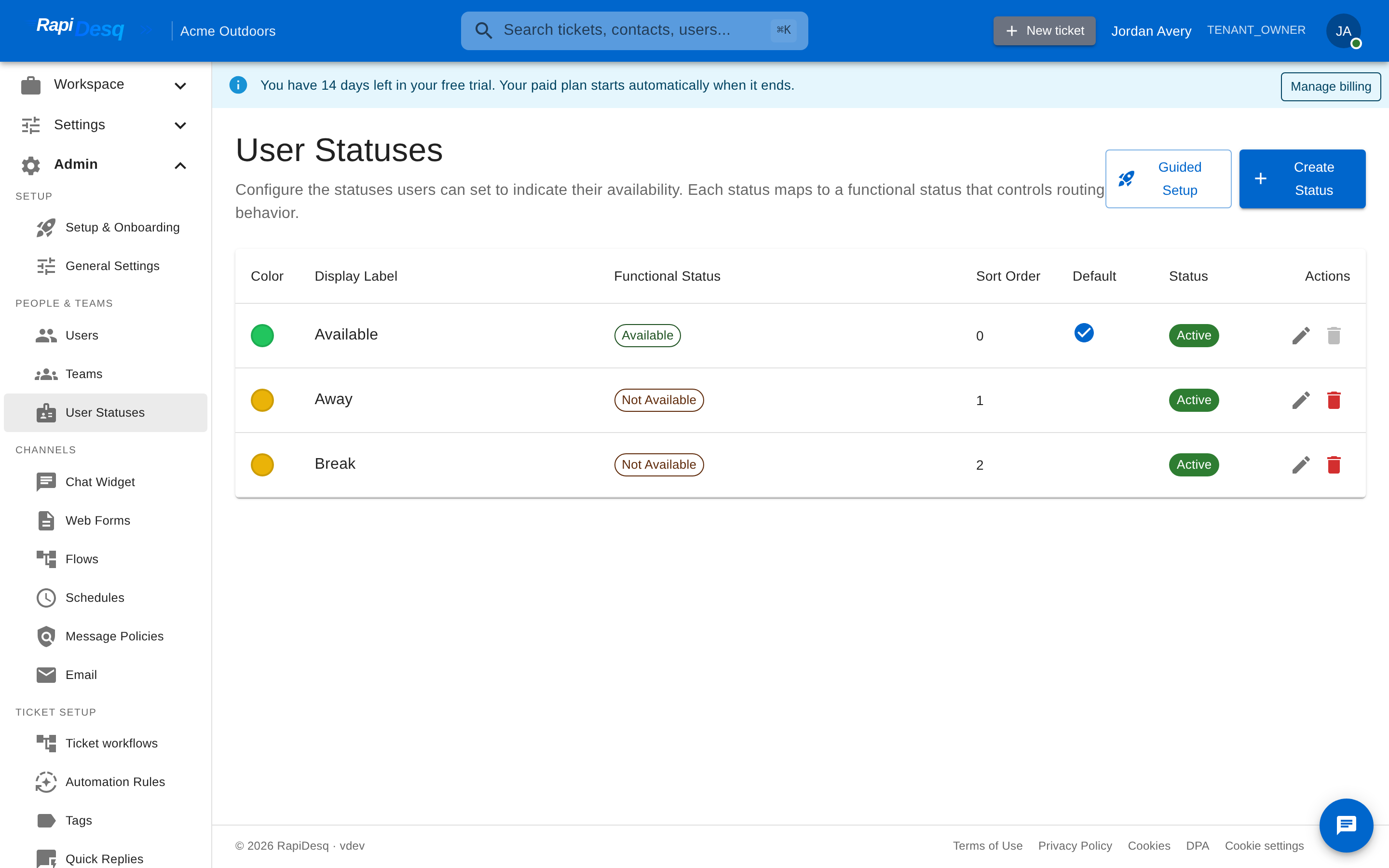 The User Statuses page, where display labels are mapped to functional statuses.
To create a custom status:
- Navigate to Admin > User Statuses.
- Click Create Status.
- Enter a Display Label (the name users see in the status dropdown).
- Select the Functional Status it maps to.
- Configure the remaining settings described below.
- Click Save.
Each status has the following settings:
| Setting | Description |
|---|---|
| Display Label | The name users see for this status. |
| Functional Status | Determines routing behavior for this status (Available, Not Available, or On Ticket). |
| Color | The color used for the status indicator throughout the interface. |
| Sort Order | Controls ordering in the status dropdown—lower numbers appear first. |
| Default Status | The status users start in when they log in. Exactly one status is the default, and the default status cannot be deleted. |
| Active | Inactive statuses are hidden from users without being deleted—useful for retiring a status while preserving its history. |
| Display Label | Maps to Functional Status | Use Case |
|---|---|---|
| Available | Available | Default ready state |
| Lunch Break | Not Available | Scheduled lunch period |
| In Meeting | Not Available | Attending a team meeting or 1:1 |
| Training | Not Available | Attending a training session |
| Back Office Work | Not Available | Working on documentation or follow-ups that require focus |
| Handling Tickets | On Ticket | Actively working conversations |
Multiple display labels can map to the same functional status. This gives supervisors granular visibility into why users are unavailable (meeting vs. lunch vs. training) while the routing engine simply sees them all as Not Available.
Supervisors can view every user's current display label in real time from the team dashboard. This enables informed decisions about staffing adjustments, such as knowing that three users are in a training session and will return in 30 minutes versus three users being on lunch with staggered return times.
Capacity Management
The maximum concurrent conversations per user setting on each team controls how many active conversations a single user can handle at the same time. This is the primary mechanism for preventing user overload and maintaining response quality.
How Capacity Affects Routing
- When a user's active conversation count is below the team's maximum concurrent conversations per user limit, they are eligible to receive new conversation offers.
- When a user reaches the limit, the routing engine stops offering them new conversations until they resolve or transfer an existing one.
- If all users on a team are at capacity, incoming conversations enter the team's queue and are held until a user becomes available. The ticket selection strategy then determines the order in which queued conversations are served.
Setting Capacity Limits
- Navigate to Admin > Teams and select the team.
- In the team configuration, set the Max Concurrent Conversations Per User value.
- Click Save. The new limit takes effect immediately for all users on the team.
Monitoring Capacity in Real Time
Supervisors and admins can monitor capacity from the team dashboard:
- Per-user utilization — see how many active conversations each user has relative to the team's maximum.
- Queue depth — the number of conversations waiting for an available user.
- Queue wait time — how long the oldest queued conversation has been waiting.
Setting capacity too high degrades response quality—users juggling too many conversations produce slower, less thorough replies. Setting it too low wastes available capacity and increases queue times. Start with a conservative value (e.g., 3–4 for chat, 1–2 for complex technical support) and adjust based on observed performance and user feedback.
Queue & Availability Settings
Each team's Queue tab controls what happens when conversations are waiting for a user, and when the team is considered open for business:
| Setting | Description |
|---|---|
| Schedule (business hours) | Attach a business-hours schedule to the team, or leave it set to 24/7 (no schedule). See Business Hours & Schedules. |
| Queue Limit | The maximum number of tickets allowed in the queue before overflow routing triggers. Leave empty for unlimited. |
| Show queue position to contacts | When enabled, waiting contacts see their position in the queue. |
| Show estimated wait time | When enabled, waiting contacts see an estimate of how long they will wait. |
| Queue Wait Message | A custom message shown to contacts while they wait in the queue. |
| Offer Alternative After (seconds) | After a contact has waited this many seconds, offer them an alternative channel. Leave empty to disable. |
The team dialog also includes overflow and after-hours routing: when the queue limit is reached, when the team is outside its schedule, or when the alternative-channel offer triggers, the conversation can be routed to another team, a conversation flow, or a bot instead of waiting indefinitely.
Business Hours & Schedules
Business hours schedules define when your teams are operational. They affect three parts of the platform: the customer-facing chat widget, the routing engine, and conversation flows.
Configuring a Schedule
- Navigate to Admin > Business Hours.
- Click Create Schedule.
- Enter a schedule name (e.g., "US East Coast Hours", "EMEA Business Hours").
- Select the timezone for this schedule. All start and end times you enter will be interpreted in this timezone.
- For each day of the week, set start time and end time, or mark the day as closed.
- Click Save.
Schedule Exceptions
Exceptions override the regular weekly schedule for specific dates:
- Open the schedule and navigate to the Exceptions tab.
- Click Add Exception.
- Select the date (or date range).
- Choose whether the exception is a closure (team unavailable all day) or modified hours (custom start and end times for that date).
- Click Save.
Use exceptions for public holidays, company-wide events, early closures before holidays, or any other date that deviates from the normal weekly schedule.
How Schedules Affect the Platform
| Area | Behavior Outside Business Hours |
|---|---|
| Chat Widget | The widget displays an offline state. Depending on your configuration, it may show an offline message, display a contact form for email follow-up, or hide entirely. |
| Routing | Conversations that arrive outside business hours are not routed to users. They enter the queue and are served when the schedule becomes active again. |
| Conversation Flows | The schedule condition node in conversation flows can branch logic based on whether the current time falls within a specified schedule. This allows you to provide different automated responses during and outside business hours. |
Multiple Schedules
You can create as many schedules as you need. Common patterns include:
- Regional schedules — separate schedules for US, EMEA, and APAC teams, each in their respective timezone.
- Team-specific schedules — a sales team operating Monday through Friday 9–5, while a technical support team operates Monday through Saturday 7am–10pm.
- Extended hours — a primary schedule for core hours and a reduced-staff schedule for evenings and weekends.
All schedule times are stored internally in UTC and converted to each user's configured timezone for display. When configuring a schedule, you enter times in the schedule's designated timezone—the system handles the conversion automatically. Make sure your team members have their timezone preferences set correctly in their profile settings.
Tips & Best Practices
Routing Strategy Selection
- Start with Round Robin or Fewest Active. Both strategies provide reliable workload distribution without requiring additional configuration. Round Robin is simpler to reason about; Fewest Active adapts better to variable conversation complexity.
- Use Broadcast only for small teams (eight or fewer users) where speed-to-answer is the top priority. On larger teams, the constant notifications become disruptive.
- Reserve Skill Match for teams with clearly differentiated specializations. It requires maintaining user skill profiles, which adds ongoing administrative overhead. Only adopt it when the routing accuracy benefit justifies that cost.
Ticket Selection
- Priority First In, First Out is the right default for most teams. It respects urgency while maintaining fairness within each priority tier.
- Switch to SLA Breach if you have contractual SLA commitments. Ensure every ticket type has an SLA policy configured, or tickets without SLAs may be perpetually deprioritized.
- Consider Round Robin by Contact if you have enterprise customers who submit high volumes of tickets and risk starving other customers in the queue.
Team Organization
- Use custom ticket prefixes to differentiate teams. When users, supervisors, and customers reference ticket IDs, the prefix makes it immediately clear which team owns the conversation.
- Keep team sizes manageable. Large teams (more than 20–25 users) can be harder to supervise effectively. Consider splitting into sub-teams by specialty or shift.
- Mirror your organizational structure. Create teams that reflect your support specialties or departments for intuitive routing and clear ownership.
User Status and Capacity
- Create custom status labels that match your workflow. If your users have regular training sessions, add a "Training" label. If they do back-office work between chats, add a "Back Office" label. The more accurately users report their status, the better supervisors can manage staffing.
- Set realistic capacity limits. Overloading users degrades response quality and increases burnout. Start conservatively (3–4 concurrent chats for experienced users, 1–2 for new users or complex support) and adjust based on quality metrics.
- Monitor queue depth and wait times. If queues consistently grow during certain hours, that is a signal to add capacity—either by adjusting schedules, adding users, or increasing maximum concurrent conversations per user cautiously.
Permissions and Security
- Follow the principle of least privilege. Assign the minimum permissions each user needs. Extend access with permission sets only as specific needs arise.
- Create reusable permission sets for common patterns. Instead of granting individual permissions to each user, define sets like "Report Viewer" or "Channel Manager" that can be consistently applied across users.
- Audit permissions regularly. As your organization grows and roles evolve, review who has access to what. Remove permission sets that are no longer needed.
- Use Internal User for non-support staff. Employees who only need service desk access and team chat should not have User or Supervisor roles. The Internal User role provides exactly what they need without exposing customer-facing functionality.
Business Hours
- Configure business hours before going live. Incorrect or missing business hours can result in the chat widget showing as online when no users are available, leading to poor customer experience.
- Add holiday exceptions in advance. Set up the full year's holidays at the beginning of each year so you do not scramble to add them the day before.
- Use the schedule condition node in conversation flows to provide different experiences during and outside business hours—for example, offering an offline contact form or automated FAQ responses after hours.