Email Channel
Turn your existing support mailbox into a fully managed channel. Gmail users forward their support email to a dedicated RapiDesq address and authorize send-only replies; Microsoft 365 users connect their mailbox directly. Either way, every customer email becomes a threaded ticket — with contact matching, pattern-based routing, reusable templates, and delivery tracking.
Overview
The email channel bridges your team's email inbox with the RapiDesq ticketing system. At a high level, the flow works like this:
- A customer sends an email to your support address (e.g.,
support@yourcompany.com). - The email reaches RapiDesq — either because your Gmail mailbox forwards it to your dedicated RapiDesq inbound address, or because RapiDesq picks it up from your connected Microsoft 365 mailbox.
- The sender is matched to an existing contact by email address, or a new contact is created automatically.
- If the email is a reply within an existing thread, the message is appended to the corresponding ticket.
- If the email starts a new conversation, a new ticket is created — the subject line becomes the ticket title, and any attachments are stored with the ticket.
- Pattern rules are evaluated first; if none match, the connection's default routing sends the ticket to a Team, a Flow, or an AI Bot.
- Users reply from RapiDesq, and the response is delivered back to the customer as a standard email.
Everything is managed from Admin > Channels > Email, which has three tabs:
- Connections — connect Gmail or Microsoft 365 accounts, monitor health, and configure routing.
- Pattern Rules — route inbound emails by From / To / Subject patterns, in priority order.
- Templates — reusable email templates for auto-acknowledgements, bot responses, and user quick replies.
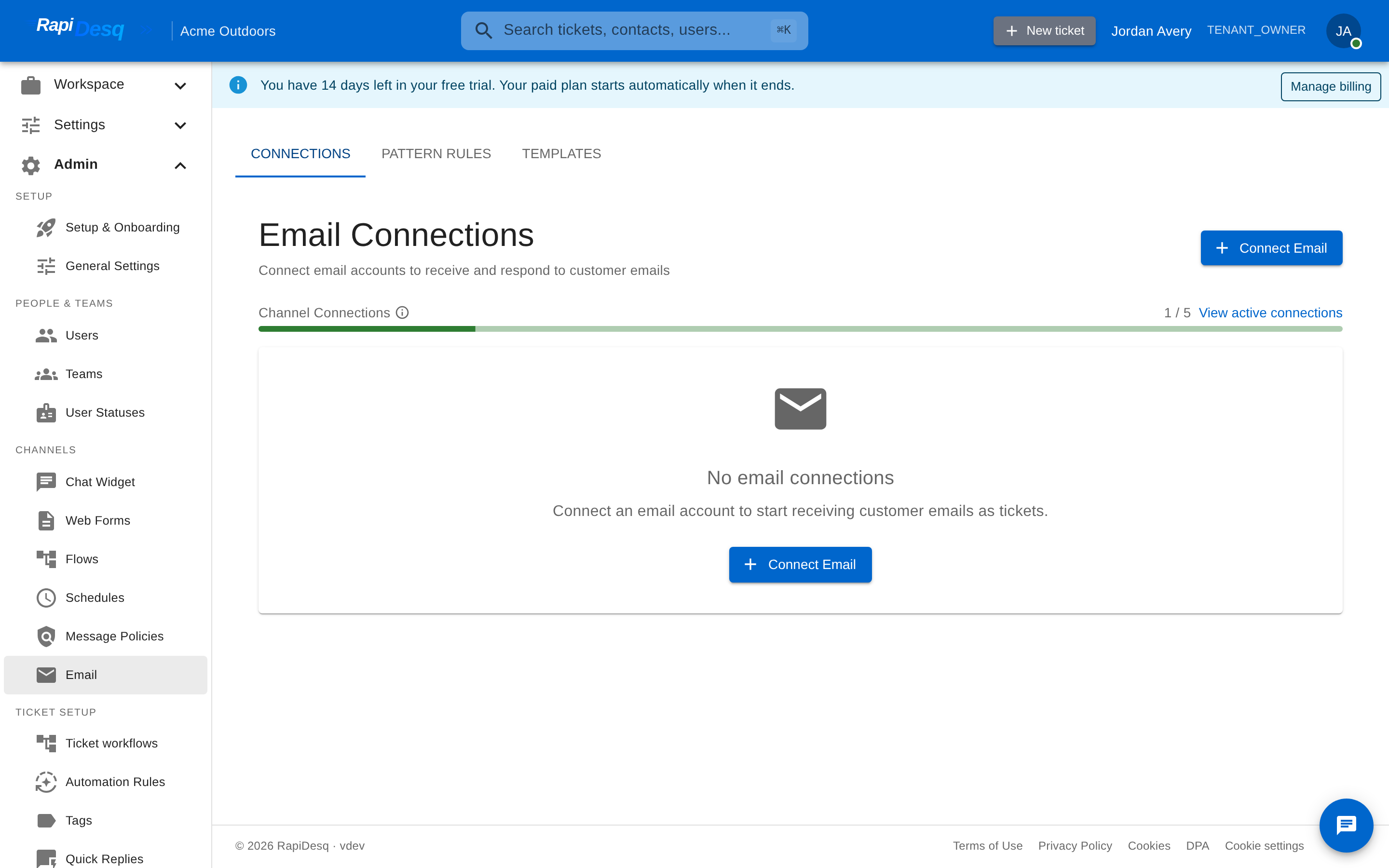 The Email page: Connections, Pattern Rules, and Templates in one place under Admin > Channels > Email.
Prerequisites
- Admin access to your RapiDesq workspace. Only administrators can connect and configure email channels.
- A Gmail or Microsoft 365 email account. For Gmail, you need the ability to change the account's forwarding settings (or, for Google Workspace, admin access to set up default routing). For Microsoft 365, you need permission to authorize third-party applications — your IT administrator may need to pre-approve RapiDesq.
- At least one team, conversation flow, or AI bot configured in RapiDesq to receive the incoming email tickets.
Your email password is never shared with or stored by RapiDesq. Gmail authorization is send-only and granted through Google's consent screen; Microsoft 365 access is granted through Microsoft's consent screen. Credentials issued by the provider are encrypted at rest, and you can revoke access at any time.
Connecting Gmail
Gmail connections use a forwarding-based setup: RapiDesq assigns your workspace a dedicated inbound email address, and you forward (or auto-route) your support mailbox to it. Outbound replies are sent through a send-only Gmail authorization, so customers receive responses from your own address. The whole setup runs as a guided wizard inside the Connect Email dialog.
Start the connection
- Navigate to Admin > Channels > Email and open the Connections tab.
- Click Connect Email.
- Enter a Connection Name (e.g., "Support Inbox").
- Select Gmail as the provider and click Connect. The dialog switches to the Set up email forwarding wizard.
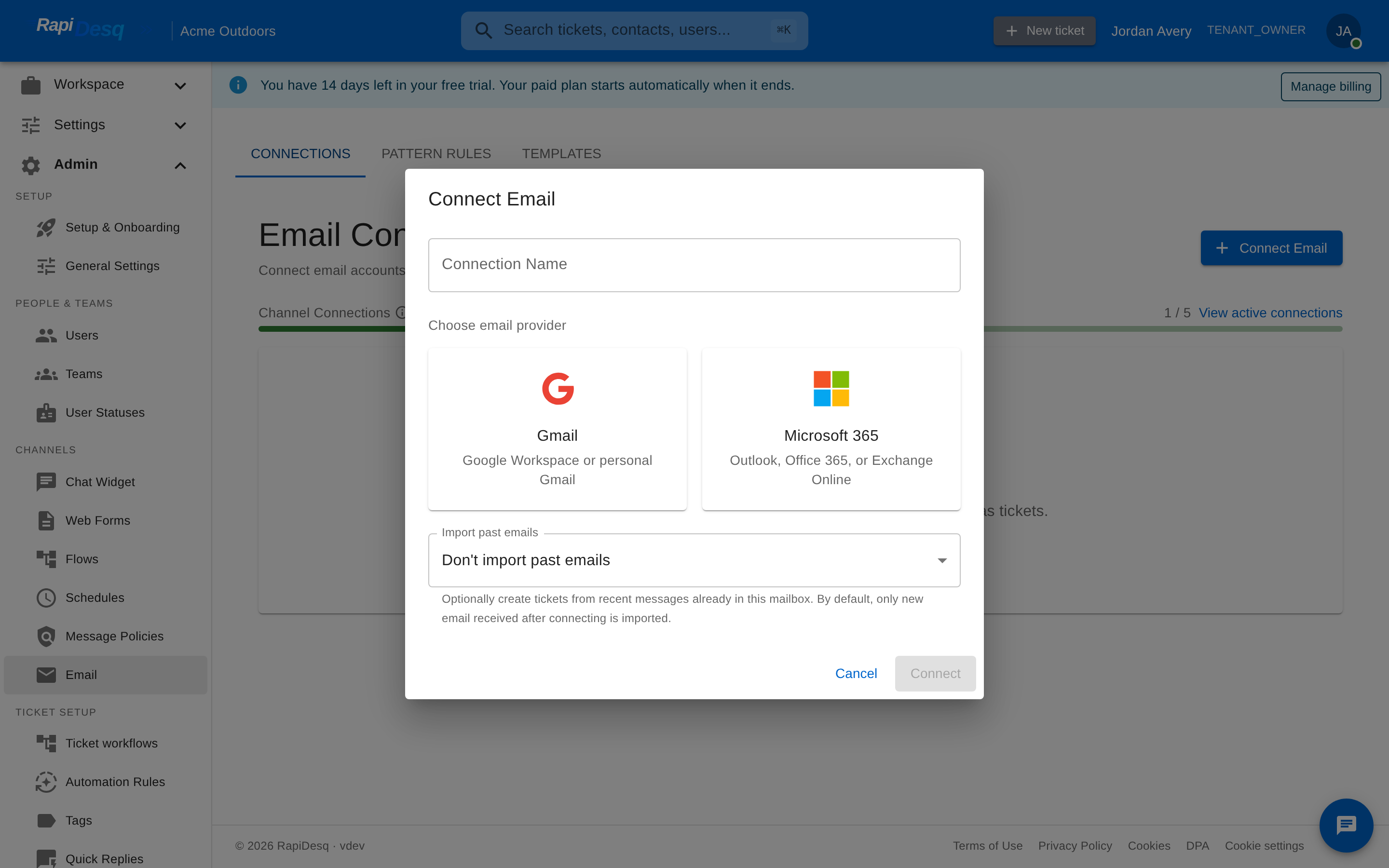 The Connect Email dialog: name the connection, then choose Gmail or Microsoft 365.
Step 1 — Connect Gmail for replies (optional)
The wizard first offers to connect your Gmail account for outbound replies. Click Connect Gmail and grant the send-only authorization in the Google popup. This is a deliberately limited grant: RapiDesq can send replies on your behalf but cannot read your email, modify labels, or access your inbox. With Gmail connected:
- Replies are sent from your own Gmail address, not a no-reply platform address.
- Gmail handles deliverability (SPF / DKIM) under your domain's reputation.
- Sent messages appear in your Gmail Sent folder, so your team retains a copy.
Once connected, you can click Send test reply to verify outbound sending works. You can also choose Skip for now and connect Gmail later.
Step 2 — Your forwarding address
RapiDesq assigns your workspace a dedicated inbound address and displays it with a copy button. Every email forwarded to this address becomes a ticket. You can click Edit slug to customize the address's local part (3–64 characters; lowercase letters, numbers, and hyphens).
Step 3 — Choose your setup path
The wizard asks which situation applies to you:
- Individual Gmail user — you have a personal Gmail account or a Google Workspace account without admin access. You'll set up forwarding in Gmail's own settings.
- Google Workspace administrator — you administer your organization's Workspace and can set up default mail routing for your support address (or a whole domain).
Step 4 — Configure forwarding
Individual Gmail path: the wizard walks you through Gmail's settings — open See all settings > Forwarding and POP/IMAP, click Add a forwarding address, and paste your RapiDesq address. Gmail sends a verification email; RapiDesq catches it and confirms the verification automatically, usually within seconds — you don't need to retrieve a code. Then enable Forward a copy of incoming mail to your RapiDesq address and save. The wizard recommends keeping Gmail's copy in your inbox so you still see incoming mail there.
Google Workspace path: in the Google Admin Console, navigate to Apps > Google Workspace > Gmail > Default routing, add a routing setting for your support recipients (e.g., support@yourdomain.com), and set the action to Modify message > Also deliver to your RapiDesq address. Workspace routing rules don't require destination verification.
Step 5 — Test forwarding
The wizard generates a unique test marker and listens live for up to 10 minutes. Send any email containing the marker from the mailbox you just configured to your forwarding address; the wizard detects its arrival and confirms the loop is working, then advances automatically. If the test email doesn't arrive, a troubleshooting checklist helps you find the issue (rule saved? correct forwarding target selected? spam folder? Workspace rule enabled?), and you can retry. You can also skip the test, though the connection is only confirmed working once a test or real email arrives.
Step 6 — Route incoming emails
Decide where forwarded emails should go: a Team, an automated Flow, or an AI Bot (see Routing Configuration below).
Step 7 — Complete
The final step shows a setup summary — your inbound address, whether forwarding was confirmed by the live test, whether Gmail is connected for replies, and whether routing is configured. You can also send a probe email from RapiDesq's test mailbox to your forwarding address to exercise the full inbound pipeline end to end.
Tip: You stay in control of both halves of the setup. Forwarding is configured in your own Gmail or Workspace settings and can be turned off there at any time, and the send-only Gmail authorization can be revoked from your Google Account's Third-party apps with account access page or by deleting the connection in RapiDesq.
Connecting Microsoft 365
Microsoft 365 connections (Outlook, Office 365, or Exchange Online) authorize the mailbox directly through Microsoft's consent flow — no forwarding setup is required.
Step-by-step
- Navigate to Admin > Channels > Email and open the Connections tab.
- Click Connect Email.
- Enter a Connection Name.
- Select Microsoft 365 as the provider and click Connect. You are redirected to Microsoft's sign-in and consent page.
- Sign in with the account you want to connect and grant the requested access. Microsoft issues secure credentials to RapiDesq; your password is never shared.
- You are redirected back to RapiDesq. The new connection appears in the list, and its settings dialog opens automatically so you can configure routing right away.
- Choose the routing target — Team, Flow, or AI Bot — and save.
Once connected and routed, RapiDesq monitors the mailbox and picks up new messages automatically — each one is matched, threaded, and routed like any other inbound email. Replies are sent back through the connected account.
If your organization uses Microsoft 365 with restricted app consent policies, your IT administrator may need to pre-approve the RapiDesq application before you can complete the authorization flow.
Managing Connections
The Connections tab lists every connected account with its name, email address, provider, status, and last sync time. Each connection has a status indicator that reflects the current health of the integration:
| Status | Meaning | Action Required |
|---|---|---|
| Active | The connection is healthy. Inbound emails are being processed. | None. The connection is working as expected. |
| Paused | An admin paused processing for this connection. Inbound emails are not turned into tickets while paused. | Click the Resume processing action when you're ready to process emails again. |
| Disconnected | The connection has been disconnected, or the provider revoked access. | Re-authorize the account: remove the connection and run Connect Email again. |
| Token Expired | The provider's access credentials expired and automatic renewal failed — for example after a password change or an organizational policy change. | Re-authorize the account: remove the connection and run Connect Email again. |
| Rate Limited | The email provider is temporarily throttling requests for this connection. This is typically transient. | RapiDesq automatically backs off and retries. If the status persists, contact support. |
Connection actions
- Pause / Resume — temporarily stop processing inbound email for a connection without deleting it (e.g., during a migration or maintenance window), then resume with one click.
- Edit — rename the connection, set or change its routing target, and optionally map values from email headers or parsed body fields to contact attributes and custom fields.
- Delete — disconnect the account and stop processing its incoming messages. Existing tickets and their message history are not affected.
Health details
Credentials are refreshed automatically before they expire, and all credentials are encrypted at rest. If a connection encounters repeated errors, its status changes and the most recent error message is shown next to the status for diagnosis. A connection that has no routing target yet is flagged with a Draft badge and a warning — emails for it will not create tickets until a team, flow, or bot is attached.
Important: A connection in Token Expired or Disconnected status does not process emails. Check the Connections tab periodically — especially after password resets or security policy changes — and re-authorize promptly so you don't miss customer messages.
How Emails Become Tickets
Understanding the full lifecycle from inbound email to ticket helps you configure routing, diagnose issues, and set expectations for your team.
The inbound email pipeline
- Email arrives — at your RapiDesq forwarding address (Gmail) or in your connected mailbox (Microsoft 365).
- Duplicate check: redelivered copies of an email already processed are ignored.
- Thread detection: standard email threading headers are inspected. If the message is a reply within an existing ticket's thread, it is appended to that ticket as a new inbound message.
- Contact matching (new conversations): RapiDesq looks up an existing contact whose email address matches the sender. If no match is found, a new contact is created automatically from the sender's address and display name.
- New ticket creation: a ticket is created with the email subject as its title, the sender linked as the ticket's contact, and any attachments stored and linked to the ticket.
- Pattern rules: the connection's pattern rules are evaluated in priority order against the message's From, To, and Subject. A matching rule decides the routing and can trigger an automatic acknowledgement email.
- Default routing: if no rule matches, the connection's own routing configuration applies — Team, Flow, or AI Bot.
- Agent handling: the ticket appears in the target team's queue (or is processed by the flow / bot), and users respond directly from RapiDesq.
Contact auto-creation: When a new contact is created from an inbound email, the contact record includes the sender's email address and display name, so contacts that originated from the email channel are easy to identify and filter.
Email Threading
Maintaining conversation threads is essential for keeping context intact across multi-message exchanges. RapiDesq uses standard email threading headers to track conversations reliably.
How it works
When RapiDesq receives an inbound email, it checks the message's reply headers against its records, walking the reference chain to find the original conversation. If the email is a reply to a previous message in an existing ticket, the new message is added to that ticket rather than creating a duplicate. As an additional safety net, an email whose headers don't reference a known thread can still be matched to a recent ticket when the subject and sender line up with a conversation from the last 30 days.
User replies preserve the thread
When a user composes a reply in RapiDesq, the outbound email includes the correct threading headers. The customer sees the response as part of the same email thread in their inbox, and when they reply again the message routes back to the same RapiDesq ticket.
When threading breaks
Thread detection depends on the customer's email client preserving the standard reply headers. If a customer starts a fresh email (not a reply) about an existing issue — or their client strips the headers and the subject no longer matches — the message may open a new ticket. Users can manually merge tickets in this scenario.
Pattern Rules
The Pattern Rules tab lets you route inbound emails based on their content, before the connection's default routing applies. Each rule belongs to an email connection and defines:
- Match patterns — a From pattern, a To pattern, and a Subject pattern. Use
*as a wildcard; leave a pattern blank to match all. For example,*@bigcustomer.comas the From pattern matches every email from that domain, and*refund*as the Subject pattern matches any subject mentioning refunds. - Priority — rules are evaluated in priority order, lowest number first. The first matching rule wins.
- Routing mode — Direct to Team routes matching emails straight to a team for user assignment; Through Flow processes them through a conversation flow first.
- Auto-acknowledgement (optional) — automatically send a reply to the customer when a matching email arrives, using an acknowledgement template from the Templates tab.
- Active toggle — deactivate a rule to stop it matching without deleting it.
Pattern rules apply to emails that start a new conversation. Replies within an existing thread always follow their ticket, so a conversation never gets split across teams mid-thread.
Tip: Use pattern rules for the exceptions and the connection's default routing for everything else. For example: a high-priority rule sending *@vip-customer.com to your enterprise team, a rule sending *invoice* subjects to billing, and the default routing catching the rest.
Email Templates
The Templates tab manages reusable email templates for auto-replies, bot responses, and user messages. Each template has a name, an optional description, a type, and its content.
| Template Type | Used For |
|---|---|
| Auto-Acknowledge | Automatically sent when an inbound email is received — attach one to a pattern rule's auto-acknowledgement option. |
| Bot Response | Used by conversation flows and bots to send automated responses. |
| User Template | Quick-reply templates available to users when responding to emails. |
| System Notification | System-generated notifications, such as a ticket-closed message. |
Template content
- Subject template and HTML body, with an optional plain text body as a fallback for email clients that don't render HTML.
- Variable substitution — use
{{variable}}syntax for dynamic content, e.g.Re: {{subject}}orHello {{contactName}}. Each template declares its available variables (such ascontactName,ticketId,subject,agentName,teamName). - Preview — render any template with sample data to see exactly what the customer will receive before putting it into use.
- Active toggle — deactivate a template to take it out of circulation without deleting it. The list also shows each template's use count and when it was last used.
Routing Configuration
Each email connection is configured with a default routing destination that handles every inbound email not claimed by a pattern rule. RapiDesq supports three routing modes:
Team routing
Emails are routed directly to a specific team's ticket queue. Users on that team see the new tickets and handle them according to the team's normal workflow. This mode works well when a dedicated team handles all emails from an inbox and you want tickets to appear immediately with no intermediate processing.
Flow routing
Emails enter a conversation flow, which processes the ticket through automated steps before it reaches a user — categorizing, setting priority, or routing to different teams based on conditions. Use Flow routing for high-volume inboxes that need automated triage.
Bot routing
Emails are handled first by an AI bot, which can answer common questions automatically and escalate to a human team when needed.
Changing the routing
- Navigate to Admin > Channels > Email > Connections and open the connection's edit dialog.
- Under Routing, choose the routing mode and select the target team, flow, or bot.
- Save. New emails use the updated routing immediately; existing tickets are not affected.
Routing is required. A connection without a routing target shows a warning on the Connections tab, and emails from it will not create tickets until a team, flow, or bot is attached.
Outbound Email & Delivery Tracking
When a user replies to an email ticket, the response is sent back to the customer as a standard email. For Gmail connections with the send-only authorization, replies go out from your own Gmail address (and land in your Gmail Sent folder); for Microsoft 365 connections, replies are sent through the connected account. Outbound messages include the correct threading headers so the customer's inbox keeps the conversation in one thread.
Delivery status tracking
Each outbound email message shows its delivery state directly on the message in the thread view:
| Status | Description |
|---|---|
| Queued | The message has been accepted and is waiting to be handed to the email provider. |
| Sent | The provider accepted the message for delivery to the recipient's mail server. |
| Failed | The send attempt failed — for example due to a provider error or an authorization issue. Check the connection status and retry. |
If a sent message is rejected by the recipient's mail server, a bounce indicator appears on the message showing whether it was a hard bounce (e.g., unknown address) or a soft bounce (e.g., mailbox temporarily unavailable), along with the recipient, time, and the reason reported by the receiving server.
Note: The Sent status indicates that the email provider accepted the message. It does not guarantee the email reached the recipient's inbox — it may still be filtered by spam filters or security policies on the receiving side.
Attachments
Attachments on inbound emails are stored and linked to the ticket for easy access from the ticket detail view.
Tips & Best Practices
-
Use a dedicated support email address.
Connect a purpose-built address (e.g.,
support@yourcompany.com) rather than a personal inbox. This keeps support traffic separate from individual correspondence and prevents personal emails from becoming tickets. - Run the forwarding test. For Gmail setups, don't skip the wizard's live test — it proves the entire forwarding loop in minutes. If anything in your Gmail or Workspace configuration changes later, you can re-verify inbound health with a probe email.
- Keep Gmail's inbox copy. When enabling forwarding, leave the option set to keep a copy in your Gmail inbox. Your mailbox remains a complete record while RapiDesq handles ticketing.
- Monitor connection health proactively. A connection in Token Expired or Disconnected status silently stops processing emails. Check the Connections tab regularly, especially after password resets or security policy changes.
- Let pattern rules handle the exceptions. Keep the connection's default routing simple, then add narrowly-scoped pattern rules with clear priorities for VIP senders, billing topics, or other special cases. Pair them with auto-acknowledgement templates so customers get an immediate response.
- Use Flow or Bot routing for high-volume inboxes. If an inbox receives dozens or hundreds of emails per day, a conversation flow or AI bot can categorize, answer, or triage automatically before an agent gets involved.
- Preview templates before activating them. Use the template preview with sample variables to confirm formatting and substitution, and use the active toggle to stage templates without deleting older ones.
- Review failed and bounced messages. Periodically check for outbound messages marked Failed or flagged with a bounce indicator. A bounced message means the customer never received your reply — verify the contact's email address and resend.
- Understand threading behavior. If a customer sends a brand-new email about an existing issue rather than replying to the thread, it may create a new ticket. Users should be aware of the ticket merge capability for these situations.
Security summary: RapiDesq never stores email passwords. Gmail access is send-only — RapiDesq cannot read your inbox. All provider credentials are encrypted at rest and refreshed automatically. You can revoke access at any time from the provider's account settings, by disabling forwarding in your own mailbox, or by deleting the connection in RapiDesq.
To disconnect an email account, navigate to Admin > Channels > Email > Connections and use the connection's Delete action. This disconnects the account and stops ticket creation from that mailbox. For Gmail setups, also disable the forwarding rule in your Gmail or Workspace settings. Existing tickets and their message history are not affected.
Related Topics
- Ticket Management — working with the tickets that inbound emails create, including merging and lifecycle.
- Conversation Flows — building the automated flows that Flow routing and pattern rules can target.
- AI Bots — configuring the bots that can answer email tickets before a human gets involved.
- Contacts — how contact records are matched, created, and managed.
- Team Management — setting up the teams that receive routed email tickets.