Contact Management
Contacts are the customer identity layer in RapiDesq. Every person who interacts with your organization — whether they chat, email, submit a form, or are imported from an external system — is represented by a contact record. Contacts aggregate all interactions across every channel into a single, unified profile, giving your users complete context for every conversation.
Overview
A contact record is the central identity for a customer within your RapiDesq tenant. Rather than treating each conversation or ticket as an isolated event, RapiDesq links them all back to a single contact. This means:
- A user handling a live chat can instantly see that the same customer emailed about a related issue last week.
- A supervisor reviewing ticket volume can see a customer's full history across chat, email, and web form submissions.
- Your team avoids asking customers to repeat themselves because all prior context is in one place.
Contact records are automatically created and matched as interactions arrive. RapiDesq uses email address as the primary deduplication key, so when the same person reaches out through different channels using the same email, everything is linked to one contact. For logged-in users on your website, identity verification provides even stronger matching by verifying the visitor's identity with a signed token.
How Contacts Are Created
Contacts enter RapiDesq through several sources. Each contact record tracks its origin, so you always know how a customer first reached you. The contact source is set automatically at creation and preserved for reporting and auditing.
Chat Widget (Anonymous)
When an anonymous visitor starts a chat on your website through the RapiDesq chat widget, a contact record is created once they provide identifying information. This typically happens in one of two ways:
- Pre-chat form — If you configure a pre-chat form on the widget (name, email, etc.), the contact is created from that data before the conversation begins. This is the recommended approach because it enables deduplication from the first message.
- During conversation — A conversation flow can collect the visitor's name and email mid-chat, creating or matching a contact at that point.
Contacts created this way have the chat widget source. Until the visitor provides an email address, they exist as an anonymous session without a linked contact record.
Authenticated Chat Widget
If your website uses identity verification on the chat widget, the visitor's identity is verified via a signed token generated by your backend. RapiDesq reads the verified claims (email, name) from the token and either matches an existing contact by email or creates a new one automatically. No pre-chat form is needed because the identity is already known.
Contacts created or matched this way carry the authenticated widget source and are marked as Verified in the user's view, providing a higher level of trust. See Identity Verification for setup details.
Inbound Email
When an email arrives at one of your connected email channels, RapiDesq extracts the sender's email address and display name. If a contact with that email address already exists, the inbound email (and its resulting ticket) is linked to that contact. If no match is found, a new contact is created with the email source.
This means a customer who first chatted with you and later sends an email using the same address will see both interactions on the same contact record — no manual linking required.
Web Form Submissions
When a visitor submits a web form, RapiDesq uses the email field from the submission to match or create a contact. If the email matches an existing contact, the form submission and resulting ticket are linked to that contact. Otherwise, a new contact is created with the web form source.
Custom data fields included on the form flow into the resulting record, so information like account number or product type is captured at the point of entry.
API and Webhook
Contacts can be created programmatically through the RapiDesq API or from inbound webhook events. This is useful for:
- CRM synchronization — Push contacts from your CRM into RapiDesq so users have customer data before the first interaction.
- Event-driven creation — Automatically create a contact when a user signs up in your application, when a subscription changes, or when any external event occurs that should be tracked.
- Third-party integrations — Connect middleware or automation tools to create contacts from any source.
Contacts created via the REST API carry the API source; contacts created from inbound webhook events carry the webhook source. In both cases, email-based deduplication applies — if the email already exists on a contact, the existing contact is used rather than creating a duplicate.
Bulk Import
You can import contacts in bulk. Open the Contacts page and click Import to upload a file. Imported rows are matched by email address, and rows without a match create new contacts with the import source.
This is the fastest way to populate RapiDesq with your existing customer base when you first set up the platform.
Manual Creation
Contact records can also be created directly by your team — for example, to record a customer ahead of any digital interaction. Contacts created this way carry the manual source.
Email-Based Deduplication
Email address is the primary deduplication key for contacts within a tenant. Whenever an interaction arrives that includes an email address — whether from an inbound email, a chat widget pre-chat form, a web form submission, an API call, or an import — RapiDesq checks whether an active contact with that email already exists.
- If a match is found, the interaction (conversation, ticket, form submission) is linked to the existing contact. No duplicate is created.
- If no match is found, a new contact is created with the provided email and any other available details.
This automatic matching is the foundation of the unified contact profile. Consider this scenario:
- A customer named Sarah visits your website and starts a chat. The pre-chat form collects her email:
sarah@example.com. A contact is created with the chat widget source. - Two days later, Sarah sends an email to your support address from
sarah@example.com. RapiDesq matches the sender to the existing contact. The email ticket is linked to Sarah's record. - A week later, Sarah submits a web form using the same email. Again, the form submission is linked to her existing contact.
The result is a single contact for Sarah with a complete timeline of all three interactions across three different channels. Her user can see the full picture without any manual effort.
Contact Profiles
Every contact has a profile that serves as the central record for that customer. The profile contains:
| Field | Description |
|---|---|
| Name | The customer's name, collected from any channel. |
| Email address | The primary identifier, used for deduplication. Required for automatic cross-channel matching. A contact can carry additional email and phone identities beyond the primary one. |
| Phone number | Optional phone number for the contact. |
| External IDs | Identifiers from external systems (for example, your CRM record ID), so integrations can link records both ways. |
| Source | How the contact was originally created: chat widget, authenticated widget, email, web form, API, webhook, import, or manual. |
| Status | Current state: Active, Merged, or Deleted. See Contact Statuses. |
| Verification | Whether the contact's identity has been verified via identity verification with a signed token. |
| Tags & notes | Free-form tags for segmentation and a user notes thread on the contact. |
| Custom fields | Tenant-defined fields scoped to contacts. See Custom Fields. |
| Activity | First seen, last seen, conversation count, and the full interaction journey across every channel. |
| Created / Updated | Timestamps for creation and the most recent change (stored in UTC, displayed in your timezone). |
Users see the contact's details in a panel alongside the ticket when handling a conversation. This gives them immediate access to the customer's identity, history, and any custom data your team has captured — without leaving the conversation view.
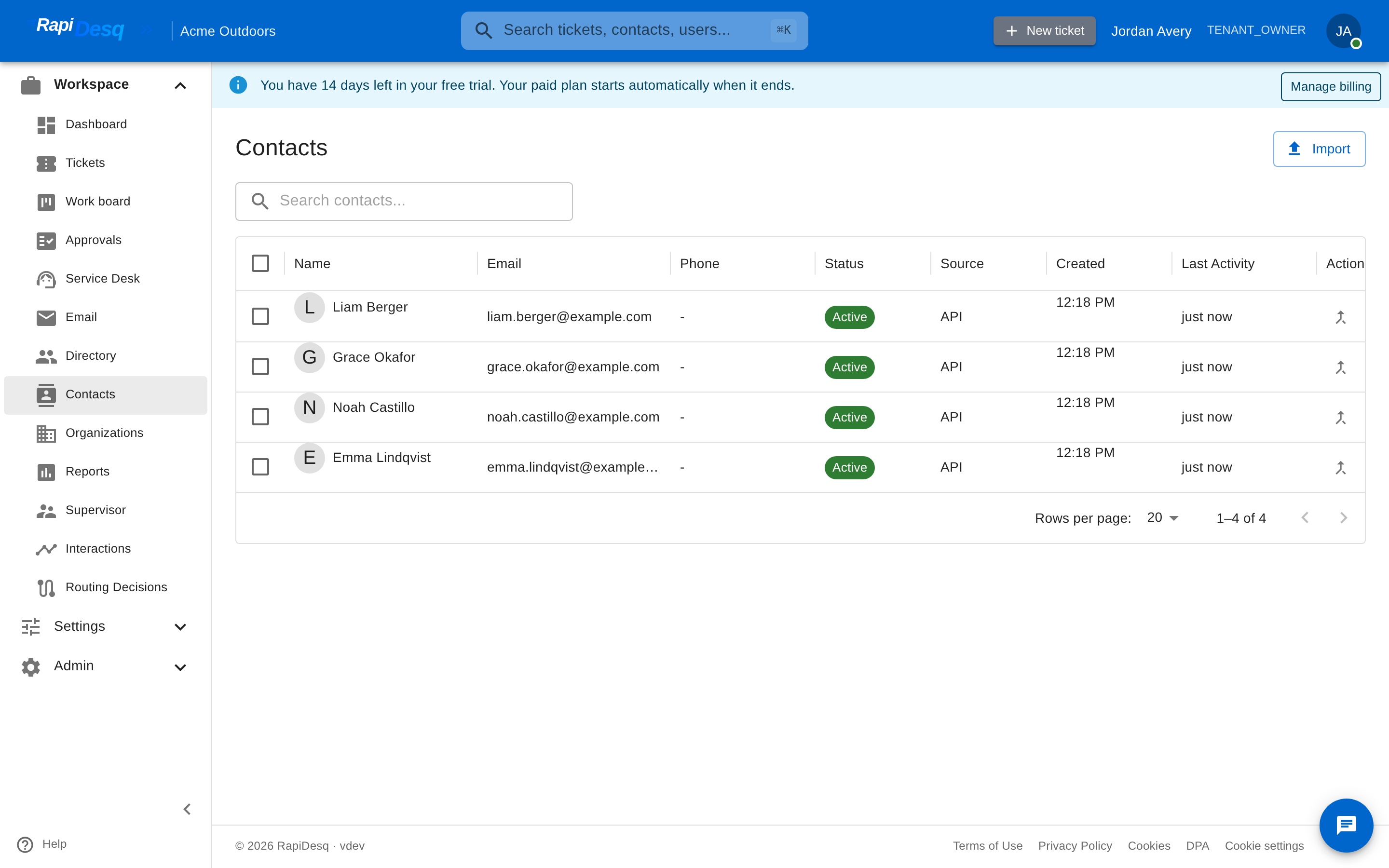 The Contacts page: search the directory, open a profile, import in bulk, or select rows for bulk actions.
Custom Fields
Custom fields extend contact profiles with data specific to your business. Fields are defined centrally in Admin > Custom Data and can be scoped to contacts, tickets, or both. Contact-scoped fields appear in the Custom Fields section of the contact profile, where users can view and edit them during conversations.
Defining Custom Fields
Eight field types are available — Text, Email, Phone, Select from List, Number, Text Area, Checkbox, and File Upload — each with optional validation rules and a required flag. See Custom Fields & Custom Data for the full reference.
Populating Custom Fields
Custom fields can be populated through several mechanisms:
- Manually by users — Users can edit custom field values directly on the contact profile during or after a conversation.
- Web forms — Include contact-scoped fields on a web form so that submissions automatically populate the contact record.
- Conversation flows — The Ask Question and Collect Information steps in conversation flows can save customer answers directly into contact fields.
- API — Set custom field values when creating or updating contacts via the REST API.
Example Custom Fields
- Account number (Text) — Link the contact to your internal customer ID for quick lookups.
- Subscription tier (Select from List: Free, Pro, Enterprise) — Helps users understand the customer's service level at a glance.
- Region (Select from List) — Track geographic region for reporting and timezone awareness.
- Preferred language (Select from List) — Ensure users communicate in the customer's preferred language.
- VIP (Checkbox) — Mark high-value contacts for priority handling.
Identity Verification
Identity verification lets you confirm the identity of visitors who use the chat widget on your website. When a logged-in user on your site opens the chat widget, your backend generates a signed token (a JWT) containing the user's identity claims. RapiDesq verifies the token's signature and links the chat session to the verified contact. This eliminates the need for a pre-chat form for known users and provides a strong guarantee of the visitor's identity.
How It Works
- Create an identity verification profile in the admin area under Identity Verification Profiles. A profile names a signing algorithm (RSA, ECDSA, or EdDSA) and holds the public key used to verify tokens. Profiles are managed at the tenant level so the same signing material can be reused across many widgets and rotated in one place.
- Assign the profile to your chat widget. In the widget's configuration, select the identity verification profile. Visitors must then present a valid identity token signed with the matching private key; leaving the widget on "None" allows anonymous visitors.
- Sign tokens on your backend. When a user is logged in to your website, your server signs a token containing the user's identity claims (email, name) with your private key and passes it to the widget when initializing it on the page.
- RapiDesq verifies the token against the profile's public key. If the token is valid, RapiDesq reads the claims and either matches an existing contact by email or creates a new verified contact.
- The chat session is linked to the verified contact, and the user sees the contact marked as Verified.
Claim Mappings
Beyond the core identity claims, you can map additional token claims onto the contact: a claim can populate a standard contact field, a custom field, or select a rate-limit tier for the session. Nested claims are supported with dot notation (for example, metadata.plan). This lets your application pass rich, verified context — plan level, account ID, region — straight into the contact profile with no form-filling.
Why It Matters
- Prevents impersonation — Without identity verification, anyone can type any email address into a pre-chat form. With it, the email comes from a token your backend signed, so the identity is cryptographically verified.
- Seamless experience for known users — Logged-in users skip the pre-chat form entirely. Their identity is already verified, so the conversation starts immediately with full context.
- Automatic contact matching — The verified email from the token is used for deduplication, so returning customers are automatically matched to their existing contact record.
- User confidence — Users can see that the contact is verified, giving them confidence to discuss account-specific details without additional verification steps.
Merging Contacts
Despite automatic deduplication, duplicate contacts can still occur. For example, a customer may have chatted anonymously (without providing an email) and later sent an email, resulting in two separate contact records. Contact merging lets you unify these duplicates into a single record.
When to Merge
Common scenarios where merging is needed:
- A customer chatted anonymously (no email collected) and later contacted you via email. Two records exist: one with no email (from chat) and one with an email (from email).
- A customer used two different email addresses across interactions (e.g., a personal and a work email).
- Contacts were imported from an external system that had its own duplicates.
- A typo in an email address during a previous interaction created a separate record.
Merge Process
- Open the contact you want to keep — this is the target, whose profile details (name, email, phone) will remain.
- Choose Merge Contacts from the contact's actions.
- Search for the duplicate contact — the source — that will be merged in.
- Review the side-by-side comparison of the two records, labeled Source (will be merged) and Target (will remain), including each record's conversation count.
- Confirm the merge. All identities, tags, and conversation history from the source are transferred to the target, and the source's status is set to Merged.
What Happens After a Merge
- The target contact now has a unified timeline that includes interactions from both records.
- The merged (source) record is preserved with status Merged and a reference to the target contact. This provides a complete audit trail — you can always trace back which records were merged.
- Tickets and conversations that belonged to the source are now associated with the target contact. Users working on those tickets will see the target contact's profile going forward.
Contact Statuses
Every contact has a status that reflects its current state in the system:
| Status | Meaning |
|---|---|
| Active | The normal operational state. The contact is visible in search results, can receive new interactions, and appears in all standard views. All contacts start in this state when created. |
| Merged | The contact has been merged into another record. Its tickets and conversations have been transferred, and the record is preserved for audit purposes with a reference to the surviving contact. New interactions will not be linked to a merged contact. |
| Deleted | The contact has been deleted. The record is removed from normal views and search results. See Deletion and Data Retention below. |
Deletion and Data Retention
When you delete a contact, the record is immediately removed from all normal views and search results, but the deletion is recorded with a timestamp so it remains auditable. Permanent erasure of personal data is handled through the platform's privacy request workflow, which supports data subject requests such as export and erasure — see the Privacy Requests area in Admin for details.
Interaction Journey
Each contact profile includes a Journey tab — a unified, chronological timeline of everything that has happened with that customer, across all channels.
What the Timeline Shows
Journey events are categorized so you can see at a glance what each entry represents:
- Conversation — Chat and email conversations with your team.
- Ticket — Ticket lifecycle events, with a direct link to the ticket.
- Flow — Steps the contact passed through in conversation flows.
- Routing — How the interaction was routed to teams and users.
- Bot — AI bot interactions.
- External — Events recorded from external systems.
The journey can be viewed as a flat list of all events or grouped into interaction sessions, each with its own duration and expandable timeline — useful for contacts with a long history.
Using History During Conversations
When a user is handling a live conversation or working on a ticket, the contact's details and history are available in the side panel. This gives the user immediate context:
- Has this customer contacted us before? How many times?
- What was the last issue about? Was it resolved?
- Are there any open tickets for this customer that might be related?
- Which channels has this customer used in the past?
This context helps users provide faster, more personalized support without asking the customer to repeat information from previous interactions.
The Contacts Page
The Contacts page is the directory of every contact in your tenant. It is available to any user with the contacts view permission.
Search
The search bar matches contacts by name or email address, with results updating as you type. Each row shows the contact's name, email, phone, status, source, and creation date; clicking a row opens the full profile.
Bulk Operations
Select multiple contacts to act on them together:
- Tag Selected — Apply a tag to every selected contact for segmentation.
- Export Selected — Export the selected contacts for external reporting, analysis, or compliance purposes.
- Delete Selected — Delete multiple contacts at once.
Import
The Import button on the Contacts page starts a bulk import, the fastest way to bring an existing customer base into RapiDesq (see Bulk Import).
Tips & Best Practices
Maximize Deduplication Accuracy
- Always collect email early — Configure a pre-chat form on your chat widget that includes an email field. This ensures that even anonymous chat visitors are matched to existing contacts from their very first message.
- Require email on web forms — Make the email field required on all web forms to ensure every submission can be deduplicated.
- Use identity verification for logged-in users — If visitors to your website are logged in, assign an identity verification profile to the chat widget. This provides automatic, verified contact matching with no pre-chat form needed.
Maintain Data Quality
- Review and merge duplicates regularly — Periodically review your contact list for potential duplicates and merge them. Duplicates are most likely when contacts are created from anonymous chat sessions (no email) and later matched to a known customer.
- Keep profiles up to date — Encourage users to verify and update contact details during interactions. A phone number or name may have changed since the last interaction.
- Clean up on import — When importing contacts from external systems, clean and normalize email addresses before import to avoid creating duplicates due to formatting differences.
Make the Most of Custom Fields
- Align fields with your business data — Define custom fields that reflect the data points your users actually need during conversations (account number, subscription tier, contract status).
- Automate field population — Use web forms and conversation flow steps to populate custom fields automatically rather than relying on users to enter data manually.
- Use list fields for standardized data — When possible, use Select from List fields instead of free text to ensure consistent data entry.
Optimize User Workflow
- Leverage the journey timeline — Train users to check a contact's history before responding. Context from previous interactions leads to faster resolutions and better customer experiences.
- Use tags for segmentation — Bulk-tag groups of contacts (for example, attendees of a launch event) so they're easy to find later.
- Export for reporting — Use contact export to analyze customer data externally, create reports for stakeholders, or synchronize with your CRM.