Chat Widget Setup
The RapiDesq chat widget lets you add real-time live chat to any website with a single script tag. This guide covers every aspect of widget configuration — from visual theming and pre-chat forms to routing, identity verification, and embedding.
Overview
The chat widget is an embeddable JavaScript component that creates a persistent live-chat interface on your website. When a visitor clicks the chat icon, a conversation window opens and connects them to your support team over a real-time connection. Messages are delivered instantly in both directions with no page reloads required.
Key capabilities of the widget include:
- Single script tag deployment — embed one
<script>tag and the widget loads asynchronously without blocking page rendering. - Real-time communication — messages, typing indicators, and status updates are exchanged over a persistent connection for instant delivery.
- Extensive configuration — control appearance, behavior, pre-chat forms, routing, and security from the admin portal without ever touching your embed code.
- Flexible routing — send new conversations directly to a team, through a conversation flow, or to an AI bot.
- Dark mode support — a dedicated dark-mode color set that follows the visitor's browser preference.
- Pre-chat data collection — gather the visitor's name, email, phone, and company before the conversation begins.
- Identity verification with signed tokens — verify logged-in visitors' identities so users know exactly who they are talking to.
- Custom branding — upload a widget logo and avatar image in addition to color theming.
- Domain restriction — lock the widget to specific domains so it cannot be loaded on unauthorized sites.
Creating a Widget
To create a new chat widget:
- Navigate to Admin > Channels > Chat Widget in the left-hand sidebar.
- Click Create Widget.
- Enter a Widget Name — a descriptive label for this widget (e.g., "Main Website Chat" or "Support Portal Widget"). This is only visible to your team.
- Work through the configuration sections described in this guide: Conversation Routing, Appearance, Messages, Conversation Start, Behavior, Allowed Domains, Conversation Closure, and Identity Verification.
- Click Create. The widget is created and ready to embed.
While you edit, a live preview shows exactly how the widget will look — in desktop and mobile sizes, on light and dark backgrounds, and even in a live mode where messages reach a real user queue. When editing an existing widget, the Widget Active toggle controls whether the widget is live; deactivating a widget takes it off your site without removing the embed code.
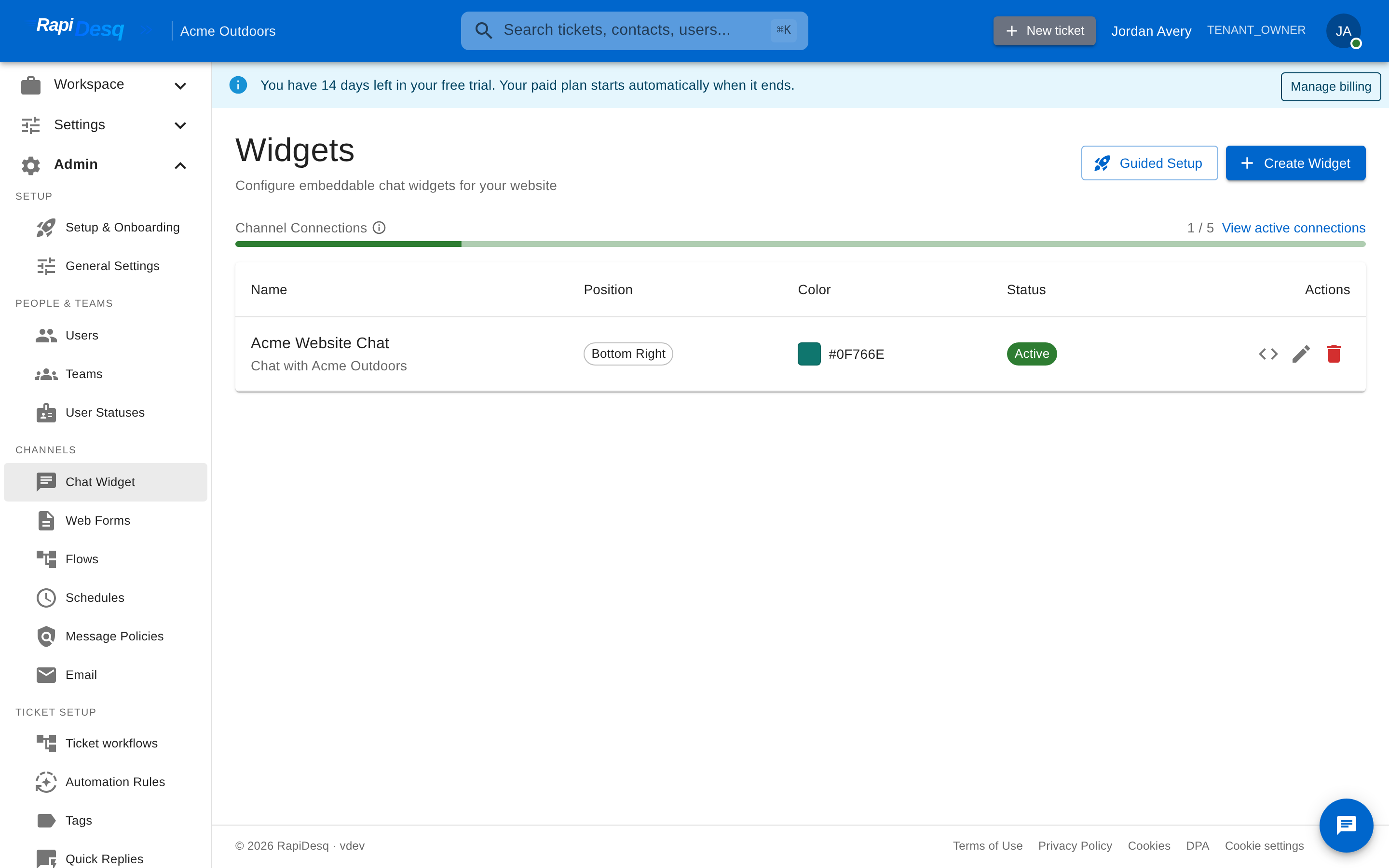 The Chat Widget page in the admin portal, where widgets are created, configured, and embedded.
Conversation Routing
The Conversation Routing section of the widget editor controls where new conversations from this widget go. There are three routing modes:
- Direct to Team — every new conversation is routed straight to the selected team's queue and offered to its users.
- Conversation Flow — new conversations first run through a published conversation flow, which can greet the visitor, collect information, branch on conditions (including business-hours checks), and then route onward. Only published flows can be selected.
- AI Bot — new conversations are handled by an active AI bot, which can answer questions from your knowledge base and escalate to a human when needed. Only active bots can be selected.
If no routing is configured for a widget, conversations use your tenant's default routing rules — the editor shows a "Using default routing" notice in that case. You can change the routing target at any time without modifying your embed code.
Appearance & Theming
The Appearance section gives you control over the widget's visual presentation. All settings take effect for new visitors without any changes to your embed code.
Color and Branding
| Setting | Description |
|---|---|
| Primary Color | Color used for the widget header, launcher button, and interactive elements. Enter a hex value or use the color picker. |
| Header Text | Text displayed in the widget header bar. Defaults to "Chat with us". |
| Position | Screen corner for the widget launcher: Bottom Right (default), Bottom Left, Top Right, or Top Left. |
| Widget Logo | An uploaded image displayed in the chat widget header. |
| Widget Avatar | An uploaded image used as the default avatar for automated messages in the widget. |
Dark Mode
If your website supports dark mode, the widget can adapt its colors to match. Turn on Enable Dark Mode Detection — the widget then detects the visitor's browser dark-mode preference and switches automatically. Three dark mode colors are configurable:
| Setting | Description |
|---|---|
| Dark Primary Color | The accent color used for interactive elements, links, and buttons in dark mode. This replaces the standard primary color when dark mode is active. |
| Dark Header Background | Background color for the widget header bar in dark mode. Use a dark, low-contrast color that is visually distinct from the message area. |
| Dark Message Background | Background color for the conversation body in dark mode. Should be slightly lighter than the header to create visual hierarchy. |
Messages
The Messages section configures the texts visitors see around the conversation:
- Welcome Message — a greeting shown when the visitor opens the widget. Defaults to "Hello! How can we help you today?".
- Offline Message — text displayed when your team is not available (e.g., "We are currently offline. Please leave a message."). Availability itself is driven by the routing target — see Business Hours & Schedules.
Pre-Chat Forms
The Conversation Start section configures what happens when a visitor initiates a chat. Turn on Enable pre-chat form to collect contact information before the conversation begins. This gives your users context and populates the contact record automatically.
Standard Fields
The pre-chat form offers four built-in fields. Each can be independently shown or hidden, and each shown field can be marked as required:
- Name — the contact's full name.
- Email — the contact's email address. Used to match or create a contact record.
- Phone — the contact's phone number.
- Company — the contact's company or organization.
Behavioral Settings
The Behavior section controls how the widget behaves during and around conversations.
Auto-Open Delay
The Auto-open Delay (seconds) setting causes the widget to open automatically after the visitor has been on the page for the specified number of seconds. This can increase engagement by proactively offering help. Leave the field empty to disable auto-open so the visitor must click the launcher.
Typing Indicators
When Show typing indicator is enabled, visitors see an animated typing indicator while a user composes a response. This reduces perceived wait time and reassures the visitor that their message is being addressed.
Bot Typing Delay
The Bot Typing Delay slider (0–5 seconds) controls how long a typing indicator is shown before automated messages — flow steps and bot replies — are displayed. A short delay makes automated responses feel more natural. Set it to 0 for instant delivery.
User Avatars
Enable Show user avatar to display the user's profile picture next to their messages in the conversation. This adds a personal touch and helps visitors feel they are talking to a real person.
File Uploads
The Enable file uploads toggle controls whether visitors can attach files (screenshots, documents, etc.) to their messages. When enabled, a file-attachment button appears in the message input area.
Emoji Picker
When Enable emoji picker is on, an emoji picker button appears alongside the message input, allowing visitors to insert emoji into their messages.
Conversation Closure
The Conversation Closure section controls what happens when conversations end:
- Allow contacts to reopen closed conversations — gives visitors a window to continue a recently closed conversation instead of starting a new one.
- Reopen Timeout (minutes) — how long after closure the conversation can be reopened, up to a maximum of 24 hours. Defaults to 60 minutes. After the window expires, the visitor starts a new conversation.
- Default Close Message — shown to the contact when a user closes the conversation without writing a custom closing message.
Bot Resolution Feedback
When an AI bot resolves a conversation without escalating to a human, the widget shows the visitor a quick thumbs up / thumbs down prompt asking whether the answer was helpful. The feedback is recorded against the conversation so you can monitor how well your bots are performing.
Embedding on Your Website
After configuring your widget, embed it on your site by adding the script tag to your HTML.
Getting the Embed Snippet
On the Chat Widget page, click the Get Embed Code action next to your widget. A dialog opens showing the snippet for that widget, along with a copy button and a reminder of any domain restrictions. The snippet looks like this:
<script
  src="https://<your-rapidesq-host>/widget.js"
  data-widget-id="YOUR_WIDGET_ID"
  data-api-url="https://<your-rapidesq-api-host>"
  data-tenant-id="YOUR_TENANT_ID"
  async>
</script>
The dialog generates the snippet with your real widget ID, tenant ID, and hosts filled in — just copy and paste. Place the snippet just before the closing </body> tag on every page where you want the widget to appear. The async attribute ensures the script loads without blocking page rendering — your page content loads first, and the widget initializes in the background.
Full Page Example
<!DOCTYPE html>
<html lang="en">
<head>
  <meta charset="UTF-8" />
  <title>My Website</title>
</head>
<body>
  <!-- Your page content -->
  <h1>Welcome to our site</h1>

  <!-- RapiDesq Chat Widget — place just before </body> -->
  <script
    src="https://<your-rapidesq-host>/widget.js"
    data-widget-id="abc123-def456-ghi789"
    data-api-url="https://<your-rapidesq-api-host>"
    data-tenant-id="tenant-id-here"
    async>
  </script>
</body>
</html>
Allowed Domains
The Allowed Domains section restricts widget embedding to specific domains. This is an important security measure that prevents unauthorized sites from embedding your widget and consuming user time or impersonating your brand.
- When the list is empty, the widget can be loaded on any domain (suitable during development).
- When one or more domains are added (e.g.,
example.com), the widget only works on pages served from those domains.
Identity Verification
Identity verification lets you confirm the identity of logged-in visitors so your users can trust that the person chatting is who they claim to be. This is essential for support scenarios involving account-specific information, billing, or sensitive data — and it ensures verified visitors are matched to the right contact record reliably.
How It Works
Identity verification uses public-key signed tokens: your backend signs a short token for each logged-in user with a private key that only you hold, and RapiDesq verifies the signature using the public key you provide. RapiDesq never holds your signing key.
- Enable identity verification in the widget's Identity Verification section.
- Choose a signing algorithm — RSA (RS256/RS384/RS512), ECDSA (ES256/ES384/ES512), or EdDSA. RS256 is the default and works with standard JWT libraries.
- Paste your public key in PEM format. You keep the matching private key on your server.
- Your backend generates a signed token whenever a logged-in user loads a page with the widget. The token carries the visitor's identity claims.
- Pass the token to the widget after the script loads (see below). When the visitor starts a conversation, RapiDesq verifies the signature and attaches the verified identity to the conversation.
Token Claims
The token's email claim is required — it identifies the contact. Optional claims include externalId, name, firstName, lastName, and a customFields object. You can also configure Claim Mappings in the widget editor to map token claims onto contact fields or custom fields.
Backend Example (Node.js)
const jwt = require('jsonwebtoken');
const fs = require('fs');

// Your private key — RapiDesq only ever sees the public key.
const privateKey = fs.readFileSync('private-key.pem');

const token = jwt.sign(
  { email: 'user@example.com', name: 'John Doe' },
  privateKey,
  { algorithm: 'RS256' }
);
Passing the Token to the Widget
After the widget script loads, hand it the token:
window.ContactCenterWidget('init', { identityToken: 'SERVER_GENERATED_TOKEN_HERE' });When identity verification is enabled for a widget, the embed code dialog includes these instructions, the claim reference, and a signing code sample.
Business Hours
Widgets do not carry their own schedule. Business-hours behavior comes from where the widget's conversations are routed:
- Team schedules — assign a schedule to the team that receives the widget's conversations. Conversations arriving outside the schedule can be redirected to an after-hours destination via the team's after-hours routing.
- Schedule Condition steps in flows — route the widget to a conversation flow and use a Schedule Condition step to branch between an in-hours path (route to a team) and an out-of-hours path (collect details, set expectations).
The widget's own Offline Message setting (in the Messages section) provides the text visitors see when your team is unavailable.
Testing Your Widget
Thorough testing ensures your visitors have a smooth experience. The widget editor's built-in preview covers most visual checks — it renders desktop and mobile sizes, light and dark backgrounds, and a live mode that sends real messages to your user queue. After embedding, work through the following scenarios on your actual site.
Basic Functionality
- Open your website in a browser and confirm the widget launcher icon appears in the configured position.
- Click the launcher. Verify the header text and welcome message display correctly.
- If the pre-chat form is enabled, fill it in and confirm required fields are enforced.
- Send a test message and confirm it appears in your RapiDesq inbox (or that the assigned flow or bot responds).
- Reply from the RapiDesq side and verify the response appears in real time in the widget.
Feature-Specific Checks
- Auto-open: navigate to the page and wait for the configured delay. Verify the widget opens automatically.
- Typing indicators: have a user begin typing and confirm the typing indicator appears in the widget.
- File uploads: attach a file from the widget and confirm it arrives on the user side.
- Reopen: close a conversation, then reopen it within the timeout window. Verify the conversation history is preserved.
- Dark mode: toggle your browser or OS to dark mode and confirm the widget colors switch to the configured dark-mode values.
- Routing: verify conversations land where you expect — the team queue, the first flow step, or a bot reply.
- Identity verification: if enabled, verify that an authenticated visitor's name and email appear correctly on the user side, and test the experience with no token and with an invalid token.
Cross-Browser and Device Testing
Verify the widget renders and functions correctly on:
- Desktop browsers: Chrome, Firefox, Safari, and Edge.
- Mobile browsers: iOS Safari and Android Chrome.
- Tablet devices in both portrait and landscape orientation.
Configuration Reference
A summary of the widget editor's settings, grouped by section.
| Setting | Section | Description |
|---|---|---|
| Widget Name | General | Internal label for the widget. |
| Widget Active | General | Enable or disable the widget (edit mode). |
| Routing Mode / Target | Conversation Routing | Direct to Team, Conversation Flow, or AI Bot, plus the selected target. |
| Primary Color | Appearance | Color for header, launcher, and accents. |
| Header Text | Appearance | Header bar text. Default "Chat with us". |
| Position | Appearance | Bottom Right (default), Bottom Left, Top Right, or Top Left. |
| Widget Logo | Appearance | Uploaded image shown in the widget header. |
| Widget Avatar | Appearance | Uploaded default avatar for automated messages. |
| Enable Dark Mode Detection | Appearance | Follow the visitor's browser dark-mode preference. |
| Dark Primary Color / Dark Header Background / Dark Message Background | Appearance | The dark-mode color set. |
| Welcome Message | Messages | Greeting when the widget opens. |
| Offline Message | Messages | Message when your team is unavailable. |
| Enable pre-chat form | Conversation Start | Collect contact information before the chat begins. |
| Standard Fields (Name, Email, Phone, Company) | Conversation Start | Each field independently shown and optionally required. |
| Auto-open Delay (seconds) | Behavior | Open automatically after a delay; empty disables. |
| Show typing indicator | Behavior | Show a typing indicator while the user types. |
| Bot Typing Delay | Behavior | Typing-indicator duration before automated messages (0–5s). |
| Show user avatar | Behavior | Display user profile pictures. |
| Enable file uploads | Behavior | Allow visitors to attach files. |
| Enable emoji picker | Behavior | Show an emoji picker in the message input. |
| Allowed Domains | Allowed Domains | Domains where the widget can be embedded (empty = all). |
| Allow contacts to reopen closed conversations | Conversation Closure | Permit reopening within the timeout window. |
| Reopen Timeout (minutes) | Conversation Closure | Reopen window, up to 24 hours. Default 60. |
| Default Close Message | Conversation Closure | Shown when a user closes without a custom message. |
| Enable identity verification | Identity Verification | Require signed identity tokens from your backend. |
| Signing Algorithm / Public Key (PEM) | Identity Verification | RSA, ECDSA, or EdDSA; you paste only the public key. |
| Claim Mappings | Identity Verification | Map token claims to contact fields or custom fields. |