Ticket Management
Tickets are the central unit of work in RapiDesq. Every customer interaction — whether it arrives through live chat, email, or a web form — becomes a fully trackable ticket with a complete lifecycle, AI-powered analysis, performance metrics, and a rich audit trail. This guide covers every aspect of working with tickets.
Overview
A ticket represents a single customer request or issue from the moment it is received until it is fully resolved and closed. Tickets are created automatically when a customer initiates a conversation through any supported channel — Chat, Email, or Web Form. Internal employee requests submitted through the Service Desk portal also become tickets, so IT and HR teams work from the same queue and tooling as customer-facing teams.
Every ticket stores a comprehensive set of data:
- Identity — A human-readable display ID such as "SUP-123".
- Content — A subject (ticket title) and a full description that can be plain text or HTML.
- Relationships — Links to the customer, the active conversation, the assigned team, the assigned user, and any related tickets.
- Classification — Status, priority, tags, and tenant-defined custom fields.
- AI Insights — Sentiment analysis, extracted key points, and an urgency score.
- Performance Metrics — First response time, resolution time, closure attribution, and timestamps for every lifecycle event.
- Internal Notes — User-only notes that live alongside the conversation but are never visible to the customer.
- Flow Context — If the ticket was routed through a conversation flow, the flow identifier, version, and current state are preserved for auditing.
Users work with tickets in the Tickets workspace. The ticket list can be filtered by team (My Teams, All Teams, or a specific team), by status, and by tag, with full-text search across the queue.
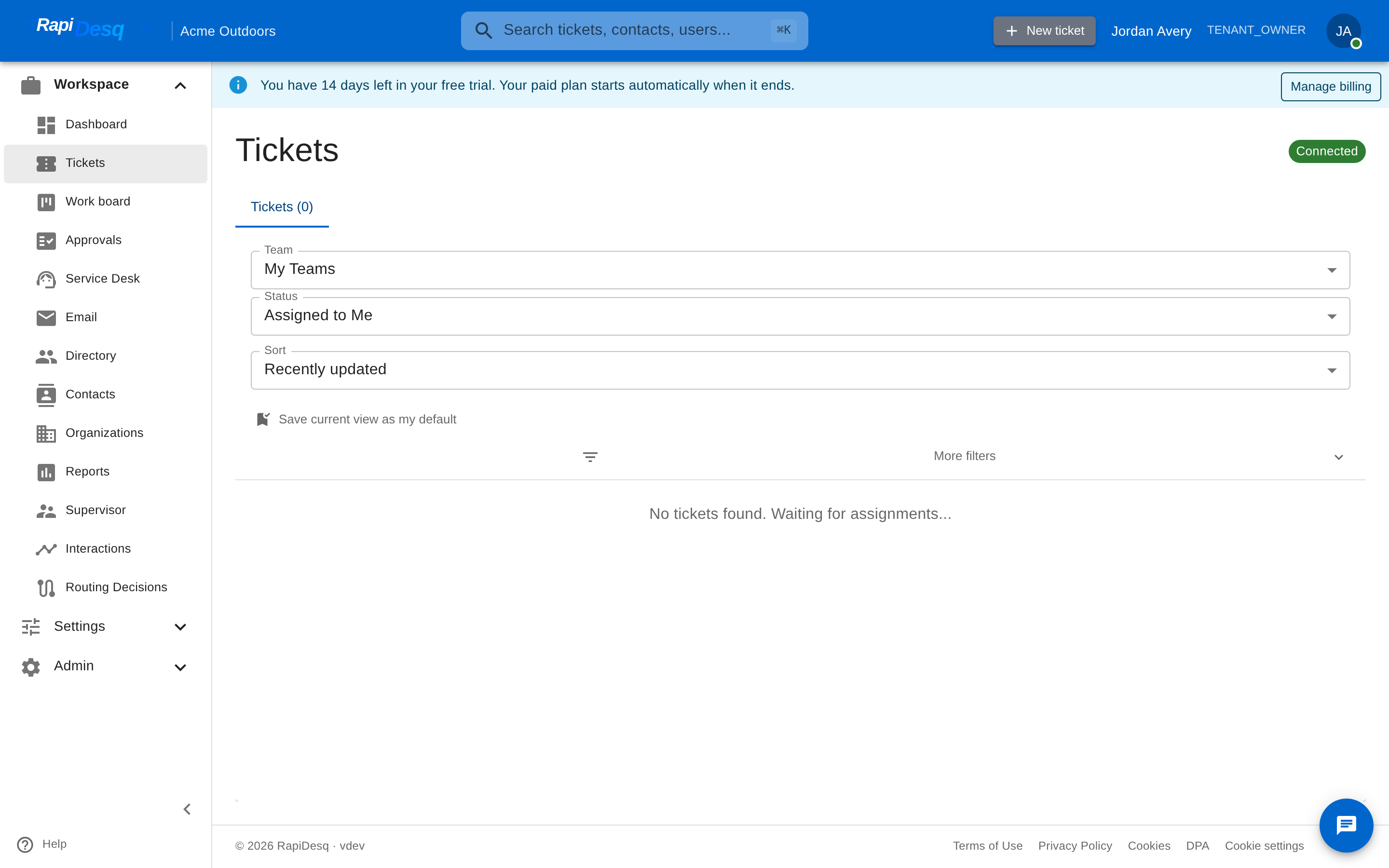 The Tickets workspace: filter the queue by team, status, and tag, with the full conversation and ticket details alongside.
Ticket Lifecycle
Every ticket progresses through six statuses that reflect where it stands in the resolution process. Understanding these statuses and the transitions between them is essential for managing your queue effectively.
Statuses
| Status | Description |
|---|---|
| New | The ticket has just been created and has not yet been assigned to any user. It sits in the team queue waiting to be picked up or automatically routed. |
| Assigned | The ticket has been assigned to a specific user but work has not yet started. The user is aware of the ticket and it appears in their personal queue. |
| In Progress | The user is actively working on the ticket — investigating the issue, communicating with the customer, or coordinating a resolution. |
| Waiting | Work is paused because the user is waiting on a response from the customer or an external party. The ticket is not abandoned — it resumes when a reply arrives. |
| Resolved | The user has addressed the issue and considers it resolved. The customer may still reopen it by replying. |
| Closed | The ticket is permanently closed. No further action is expected. Closure records who closed it and why. |
Status Transitions
Tickets follow a defined set of transitions. The diagram below illustrates the full lifecycle flow:
  +-------+         +----------+         +-------------+
  |  New  | ------> | Assigned | ------> | In Progress |
  +-------+         +----------+         +------+------+
                                                |     ^
                                    User       |     | Customer
                                    waiting     v     | replies
                                          +---------+ |
                                          | Waiting | |
                                          +---------+ |
                                                |     |
                                     User      | (back to In Progress
                                     resolves   |  on customer reply)
                                                v
                                          +----------+         +--------+
                                          | Resolved | ------> | Closed |
                                          +----+-----+         +--------+
                                               |
                                               | Customer reopens
                                               v
                                          +-------------+
                                          | In Progress |
                                          +-------------+
Transition Details
- New → Assigned — Triggered when a user manually picks up the ticket from the queue, or when the team's routing configuration assigns it to an available user. The assignment time is recorded.
- Assigned → In Progress — Triggered when the assigned user begins working on the ticket, typically by sending the first reply. The first response time is recorded on the first customer-facing reply.
- In Progress → Waiting — Triggered when the user has asked the customer a question or is waiting on information from an external party. This status keeps the ticket visible but signals that the user cannot make further progress until a response arrives.
- Waiting → In Progress — The ticket returns to active work once the awaited response arrives and the user resumes handling it.
- In Progress → Resolved — Triggered when the user marks the issue as resolved. The resolution time and total elapsed time from creation to resolution are recorded.
- Resolved → Closed — Triggered when a supervisor or user explicitly closes the ticket. Closure records who closed the ticket, the reason, and the closure time.
- Resolved/Closed → In Progress — Triggered when the customer's conversation is reopened, for example by a new reply. If the ticket has an assigned user it returns to In Progress; if it is unassigned it returns to New and re-enters the queue. The closure fields are cleared, and fresh resolution metrics are calculated when the ticket is resolved again. This ensures no follow-up is ever lost.
Ticket Display IDs
Users and customers interact with tickets using a human-readable display ID. Display IDs are constructed from the assigned team's ticket prefix and a sequential number.
How Display IDs Work
- Each team defines a short ticket prefix during setup (for example, "SUP" for a Support team, "BIL" for Billing).
- When a ticket is created and assigned to a team, RapiDesq generates the next sequential number for that prefix and combines them into a "PREFIX-N" display ID.
- Each prefix maintains its own independent sequence, so Support and Billing tickets number separately.
- If a team's prefix is later changed, previously issued display IDs are kept in the ticket's display ID history and remain searchable.
Examples
| Team | Prefix | Generated Display IDs |
|---|---|---|
| Customer Support | SUP | SUP-1, SUP-2, SUP-3, ... |
| Billing | BIL | BIL-1, BIL-2, BIL-3, ... |
| Technical Escalation | ESC | ESC-1, ESC-2, ESC-3, ... |
Priorities
Every ticket carries a priority that can determine its position in team queues. RapiDesq supports four priority levels:
| Priority | When to Use |
|---|---|
| Low | General inquiries, feature requests, or non-time-sensitive items that can be addressed as capacity allows. |
| Normal (default) | Standard customer requests that should be handled within the team's typical response targets. This is the default priority for all new tickets. |
| High | Important issues requiring prompt attention — for example, a customer experiencing degraded service or a time-sensitive question. |
| Urgent | Critical issues requiring immediate action — service outages, security incidents, or situations with significant business impact. |
Priority and Queue Ordering
When a team uses the Priority FIFO ticket-selection strategy, tickets are ordered by priority first and then by age within each priority level. This means an Urgent ticket that arrived five minutes ago will always be picked up before a Low ticket that has been waiting for an hour. Users working from the top of their queue will always address the most critical work first.
Setting Priority
- Manual — Users and supervisors can set or change a ticket's priority at any time from the ticket detail view.
- Conversation Flows — An Update Ticket node in a conversation flow can set priority based on customer responses or routing logic.
- AI Urgency Scoring — RapiDesq's AI analysis assigns an urgency score from 1 (low) to 5 (critical) based on the ticket content. The score does not automatically change the priority, but it is displayed alongside the ticket so agents and supervisors can quickly identify tickets that may need escalation. See the AI-Powered Analysis section for details.
Custom Fields
Custom fields let you capture structured data specific to your business on every ticket. Each tenant defines the fields that matter to them — no engineering changes required. Fields are defined once in Admin > Custom Data and can apply to tickets, contacts, or both; ticket-scoped fields appear on the ticket detail view for users to fill in.
Supported Field Types
Eight field types are available: Text, Email, Phone, Select from List, Number, Text Area, Checkbox, and File Upload. Each type comes with its own input control and validation options — see Custom Fields & Custom Data for the full reference, including validation rules and conditional rule groups.
Populating Custom Fields Automatically
Custom fields do not have to be filled in manually. There are two powerful automation paths:
- Conversation Flows — The Ask Question and Collect Information steps in a flow can save the customer's answers directly into custom fields, and the Update Ticket node can set field values based on routing logic. For example, a flow that asks the customer to select their product category can write that selection directly into a Select from List field.
- Web Forms — Web forms reference the same custom field definitions. When the customer submits the form, the values they entered are populated automatically on the resulting ticket.
Tags
Tags provide a flexible, free-form way to categorize and label tickets. Unlike custom fields that have defined types and structures, tags are simple labels. They are ideal for ad-hoc classification, cross-cutting concerns, and quick filtering.
Working with Tags
- Adding tags — Users add tags directly from the ticket view. As you type, previously used tags are suggested so the taxonomy stays consistent.
- AI-suggested tags — When AI tagging is enabled, RapiDesq suggests relevant tags for the ticket under a "Suggested:" row; one click applies a suggestion.
- Removing tags — Click the remove icon next to any tag to remove it from the ticket.
- Automatic tagging via flows — Conversation flows can apply tags automatically. For example, a flow that identifies a billing-related inquiry can add a "billing" tag before routing to the Billing team.
Using Tags Effectively
- Filtering — The ticket list includes a tag filter, so users and supervisors can quickly surface tickets matching a particular category, campaign, or issue type.
- Management — Admins manage the tag taxonomy centrally in Admin > Tags, including merging duplicate tags.
- Consistency — Establish a shared tagging taxonomy within your team. Standardized tags (for example, "bug", "feature-request", "billing", "onboarding") produce more meaningful data than ad-hoc variations.
AI-Powered Analysis
RapiDesq can analyze ticket conversations using AI to give agents and supervisors actionable insights for faster triage and better prioritization. Analysis is generated from the conversation history — an agent can trigger it from the ticket view with the AI generate action, and conversation flows can run the same generation step automatically before the ticket ever reaches an agent. A single run produces a suggested title and description plus three insight outputs:
Sentiment Analysis
Each analyzed ticket is assigned a sentiment classification:
- Positive — The customer's tone is generally positive, satisfied, or appreciative.
- Neutral — The customer's tone is factual, informational, or neither positive nor negative.
- Negative — The customer's tone indicates frustration, dissatisfaction, or urgency.
Sentiment is displayed as a badge on the ticket, giving users an immediate sense of the customer's emotional state before they read the full conversation.
Key Point Extraction
The AI extracts key topics and issues discussed in the ticket. These key points provide a quick summary of what the ticket is about without requiring the agent to read the full conversation. For example, a ticket about a failed payment might produce key points such as "payment declined", "credit card expired", and "subscription renewal".
Urgency Scoring
Each analyzed ticket receives an urgency score on a 1–5 scale, from 1 (low) to 5 (critical), based on the content of the conversation. The score is displayed alongside the ticket's manual priority with color coding so high-urgency tickets stand out at a glance. The timestamp of the most recent analysis is stored with the ticket, so users know how current the insights are.
On-Demand AI Assistance
Beyond analysis, users can invoke AI assistance directly from the ticket view when the corresponding AI capabilities are enabled for your organization:
- Summarize the conversation — Generates a concise summary of the conversation so far, ideal before a transfer or when picking up a long-running ticket.
- Extract action items — Produces a checklist of concrete action items from the conversation, each with a copy affordance so items can be pasted into notes or other tools.
- AI-suggested tags — Suggests classification tags based on the ticket content (see Tags).
AI capabilities are configured by your admin in AI Settings — see AI Configuration.
Using AI Insights for Triage
- Check sentiment to identify frustrated customers who may need immediate attention.
- Use the urgency score to find tickets that may warrant a priority upgrade — a ticket with Normal priority but an urgency score of 5 is likely worth escalating.
- Review key points to quickly understand what a batch of new tickets is about and route them to the right specialists.
Internal Notes, Quoting & Attachments
The ticket composer works in two modes: Reply sends a message to the customer, and Note adds an internal note that is only visible to your team. Notes appear in the conversation thread for users, clearly marked, but are never delivered to the customer under any circumstances.
Adding Internal Notes
From the ticket view, switch the composer to Note and type your note. Notes are attributed to the user who wrote them and timestamped for a full audit trail. Multiple users can contribute notes to the same ticket.
Quoting Messages
Users can quote any earlier message in the conversation when replying, so the customer (or a teammate) sees exactly which point is being addressed. A customer message can also be quoted as a note — useful for flagging a specific statement for internal discussion without exposing the discussion to the customer. Clicking a quote jumps back to the original message in the thread.
Attachments
Files can be attached to ticket messages directly from the composer. Attachments are scanned and stored with the conversation, and appear inline in the thread for both users and the customer.
Use Cases for Notes
- Documenting troubleshooting steps — Record what you have tried so far, what worked, and what did not. This saves time if you need to pick up the ticket later or if another user takes over.
- Sharing context before a transfer — Before transferring a ticket to another team or user, add a note summarizing the current state, what the customer is expecting, and any relevant background.
- Recording decisions and approvals — If a resolution requires a supervisor's approval or involves a policy exception, document the decision in a note so there is a clear record.
- Logging off-channel interactions — If you spoke to the customer on the phone or in person about this ticket, note the outcome so the ticket history remains complete.
Ticket Relationships
Tickets can be linked to one another to capture how issues relate. The Related tickets section on the ticket view lists every linked ticket, and Add relationship opens a dialog where you pick the relationship type and search for the other ticket by display ID or subject.
Relationship Types
| Type | Use For |
|---|---|
| Related to | A general association between two tickets about connected topics. |
| Caused by / Causes | Root-cause links — for example, many customer tickets caused by one incident ticket. |
| Blocked by / Blocks | Dependency links where one ticket cannot proceed until another is resolved. |
| Parent of / Child of | Hierarchical links for breaking a large request into sub-tickets. |
| Resolved by / Resolves | Links a ticket to the ticket whose resolution also resolves it. |
Each direction is explicit — linking ticket A as "Caused by" ticket B shows the inverse ("Causes") from B's side. A ticket cannot be linked to itself, and duplicate relationships are rejected. Linked tickets the current user does not have access to are shown but not openable.
Umbrella / Tracking Tickets
When a single underlying event affects many customers at once — an outage, a bug fixed by a release, a shared incident — you don't want to resolve dozens or hundreds of tickets one at a time. An umbrella (tracking) ticket is one ticket that owns many related customer tickets so you can manage and resolve them as a group, then resolve once to notify and resolve every affected customer across whatever channel they came in on.
Umbrella Types
A normal ticket has type Standard. Marking a ticket as a tracking ticket sets one of three umbrella types:
| Type | Use For |
|---|---|
| Outage | An incident is impacting many contacts. Create one Outage umbrella, link every affected customer ticket to it, and resolve once when the outage clears. |
| Release | Several customer reports are fixed by the same release. Link them to a Release umbrella and propagate the resolution when the release ships. |
| Incident | A generic tracking ticket for any grouped issue that isn't specifically an outage or a release. |
Marking a Ticket as an Umbrella
Open the ticket you want to use as the umbrella — commonly an internal ticket with no contact — and choose Mark as tracking ticket from the ticket detail, then pick Outage, Release, or Incident. The ticket detail switches to the umbrella view: a linked-children list with a status roll-up ("N linked / M resolved") and the Resolve & notify all action. Marking an empty ticket is fine — you can link children afterward, and you can switch the umbrella back to Standard from the same control.
Child-Resolution Policy
Each umbrella has a policy, set in its resolution settings, that controls what happens to every linked child when you resolve the umbrella:
| Policy | Effect on each linked child |
|---|---|
| Resolve and notify (default) | The child is moved to Resolved, gets a resolution note, and its customer is notified. |
| Notify only | The child gets the note and the customer is notified, but the child's status is left unchanged. |
| Notify and leave open | The customer is notified and the note is added, and the child stays open for a user to finish. |
Customer Notification & Message Template
A Notify customers toggle (on by default) controls whether a customer-facing message is sent during fan-out — turn it off to resolve and note children silently. The resolution message is a template sent to each customer that interpolates {{umbrella.displayId}}, {{umbrella.subject}}, and {{resolution.summary}}, so the same message reads correctly across every linked ticket.
Per-Link Opt-Out
A specific child may not actually be the same issue as the umbrella. On that child's Tracked by banner (or in the umbrella's children list), toggle Exclude from fan-out. An excluded child keeps its link for visibility but is not resolved or notified when the umbrella resolves.
Bulk-Linking Tickets
Link many customer tickets to an umbrella in one step:
- In the ticket list, switch on multi-select and tick the tickets to group — or select all matching the current filter or search.
- In the selection toolbar, click Link to tracking ticket.
- Pick the target umbrella in the ticket picker and confirm.
Linking is idempotent — re-linking a ticket that's already linked is skipped, so you can safely re-run a selection. Unlinking is available from the same toolbar or from the child's banner. When a normal ticket is linked, its detail shows a "Tracked by OUTAGE-123 (status)" banner near the top with the umbrella's current status, telling the user the issue is being handled centrally and that the resolution will arrive automatically.
Resolve & Notify All (Fan-Out)
Resolving the umbrella fans the resolution out to every linked child in one action. Click Resolve & notify all in the umbrella view and confirm the dialog (it shows how many children are affected). A determinate progress indicator appears, with queued / applied / notified / failed counts that update live as the fan-out runs. For each linked child — honoring the policy and any per-link opt-out — the child is resolved (or just notified, per policy), a resolution note is appended to its thread, and its customer is notified on their own channel: chat, email, or web form.
The fan-out is idempotent and resumable: if it's interrupted by a deploy or restart, it picks up exactly where it left off and never double-applies. It is tenant-isolated — only your own tenant's tickets are ever touched.
Partial Failure & Retry
If some children couldn't be processed, the job finishes as Completed with failures and lists the failed children. Click Retry failed to re-drive only those — successful children are never touched again. The fan-out also self-heals: a background sweeper automatically re-drives any stuck or failed work.
Deduplication & Smart Ticket Intake
When the same problem is reported more than once — a recurring defect, or many customers hitting one issue — you usually want the new report to land on the ticket you're already tracking rather than a fresh duplicate. RapiDesq supports a find-existing-or-create-new intake pattern so a conversation flow can reconcile incoming reports automatically.
Find existing vs. create new
A flow can search your existing tickets before deciding what to do with a new report:
- A match is found — the new report is appended to the existing ticket (added to its thread as a note) instead of opening a duplicate, so all the activity for one issue stays on one ticket.
- No match is found — a new ticket is created and routed as normal.
What counts as a match is configurable: an open ticket from the same contact, a ticket matching structured criteria, or a previously logged ticket whose description is similar to the new report. This is driven by the Search Tickets flow step, with the found/not-found decision made by a Conditional Branch.
Reopen on new report
If the matching ticket had already been resolved or closed, a new report about the same issue reopens it and appends the report, rather than leaving the follow-up stranded on a closed record. Reopening clears the closure fields, returns the ticket to active work (In Progress if it has an assigned user, otherwise back to the queue), and fresh resolution metrics are calculated when it's resolved again — the same reopen behavior described under the ticket lifecycle. The net effect is that no repeat report is ever lost just because the original ticket was already finished.
Assignment & Routing
Getting tickets to the right user quickly is one of the most important factors in achieving fast resolution times. RapiDesq supports multiple assignment paths that can be combined based on your team's workflow.
Assignment Modes
Each team chooses how incoming work reaches users:
- Offer — The ticket is offered to users; the first to accept wins.
- Auto-Assign — The system automatically assigns the ticket to the best available user.
- Manual Queue — Tickets queue in a backlog and users pull work themselves.
Ticket Selection Strategies
When a team distributes queued work, its ticket-selection strategy decides which ticket goes next:
- First In, First Out — The oldest ticket is selected first.
- Priority FIFO — Highest priority tickets first, then by age.
- SLA Breach — Tickets that have been waiting longest — closest to breaching response expectations — are selected first.
- Round Robin Contacts — Distributes work evenly across different contacts.
User Selection Strategies
Once a ticket is selected, the team's user-selection strategy decides who gets it:
- Broadcast — Offer all available users on the team; the first to accept handles it.
- Round Robin — Distribute conversations evenly across users in rotation order.
- Fewest Active — Assign to the user currently handling the fewest active conversations.
- Longest Idle — Assign to the user who has been available without a conversation the longest.
- Skill Match — Match conversations to users based on their configured skills (for example, language or product expertise).
See Team Management for details on configuring these strategies.
Manual Pickup
Users can browse the unassigned ticket queue for their team and pick up tickets themselves. This is useful for specialists who want to select tickets matching their expertise, or for teams that prefer the Manual Queue mode.
Supervisor Reassignment
Supervisors can reassign tickets between users at any time. Common reasons include rebalancing workloads, routing a ticket to a user with specialized knowledge, or covering for a user who is unavailable.
Team Transfer
Tickets can be transferred from one team to another from the ticket view, optionally directly to a specific user on the receiving team. The full conversation history, internal notes, and all metadata are preserved, so the receiving team has complete context and can continue the resolution without asking the customer to explain their issue again.
Flow-Based Routing
Conversation flows can route tickets to specific teams based on customer input. For example, a flow that asks "Is this about billing or technical support?" can assign the ticket to the appropriate team based on the customer's response. The flow context is preserved on the ticket so that the routing path is fully auditable.
Performance Metrics
RapiDesq tracks key performance metrics on every ticket automatically. These metrics require no manual input — they are calculated from lifecycle timestamps and stored directly on the ticket record.
Built-In Metrics
| Metric | Description |
|---|---|
| First Response Time | How long the customer waited before receiving the first reply from a user. |
| Resolution Time | How long it took from ticket creation to resolution. |
| Closure Attribution | Who closed the ticket and why. |
Lifecycle Timestamps
Every major lifecycle event is timestamped for a complete audit trail: when the ticket was created, when it was assigned to a user, when the user first replied, when it was resolved, and when it was closed.
How Metrics Feed Reporting
Ticket-level metrics are aggregated into platform-wide reports that provide visibility into team and individual performance:
- User Performance — Individual user metrics including average first response time, average resolution time, ticket volume, and customer satisfaction trends.
- Team Summary — Team-level aggregates for comparing workload distribution, throughput, and response quality across teams.
- CSAT — Survey results tied back to the specific ticket, user, and team. See CSAT Surveys.
Tips & Best Practices
- Use ticket prefixes to identify teams at a glance — Choose short, memorable prefixes (SUP, BIL, ESC) so that anyone who sees a ticket ID immediately knows which team owns it. This speeds up cross-team communication and supervisor oversight.
- Leverage AI analysis for triage — Make it a habit to check the AI sentiment and urgency score when reviewing new tickets. A Negative sentiment with a high urgency score is a signal that the ticket may need to be escalated, even if the customer did not explicitly ask for it.
- Use internal notes before every transfer — When transferring a ticket to another team or agent, always add an internal note summarizing what has been done, what the customer is expecting, and any relevant context. This eliminates redundant customer interactions and reduces resolution time. The AI conversation summary is a fast starting point.
- Link related tickets — Use ticket relationships to connect incident reports to their root cause and large requests to their sub-tickets. The links pay for themselves the first time you need to notify everyone affected by one fix.
- Define custom fields early — Set up your custom fields before your team starts processing tickets at scale. Retroactively categorizing hundreds of tickets is much harder than capturing the data as tickets come in.
- Monitor first response and resolution times — These are the two most important indicators of service quality. Review them regularly at both the user and team level using the User Performance and Team Summary reports. Set targets and track trends over time.
- Standardize your tagging taxonomy — Agree on a set of standard tags as a team and document them. Inconsistent tagging (for example, "billing" vs "Billing" vs "billing-issue") undermines filtering and reporting — and use the tag merge tool in Admin > Tags to clean up drift.
- Close resolved tickets regularly — Review resolved tickets on a regular cadence and close those that require no further action. A clean queue makes it easier to focus on active work and produces more accurate reporting.
- Use Priority FIFO for high-volume teams — If your team handles a large volume of tickets with varying urgency, this selection strategy ensures that critical issues are always addressed first while maintaining fair ordering within each priority level.
- Let flows do the data entry — Configure conversation flows to capture custom field values and tags during the customer interaction. This reduces manual work for users and ensures consistent data quality.
- Record closure reasons — When closing tickets, always provide a closure reason. This data is invaluable for understanding resolution patterns, identifying common issues, and improving your support processes over time.