Getting Started
This guide takes you from signup to your first customer conversation. RapiDesq ships with a guided Setup & Onboarding hub that walks you through everything — and a one-click Recommended core setup that creates a working configuration (team, channel, AI assistant, and flow) in a single pass. We'll cover both, plus the manual path for teams that prefer to configure each piece themselves.
Step 1: Create Your Account
Sign up at rapidesq.com/signup: pick a plan, enter your company and contact details, and add billing information to start your free trial — you won't be charged during the trial. Your organization gets its own tenant: a fully isolated environment where all your data, users, teams, and configuration live. No other organization can see or access your tenant's data.
The account created at signup is the Owner — the highest privilege level, with full administrative access including billing and subscription management.
Step 2: The Setup & Onboarding Hub
After your first login, admins land on the Setup & Onboarding hub — and you'll keep being brought back to it on login until your core setup is complete (or you dismiss the prompts). You can return to it anytime from Admin > Setup & Onboarding.
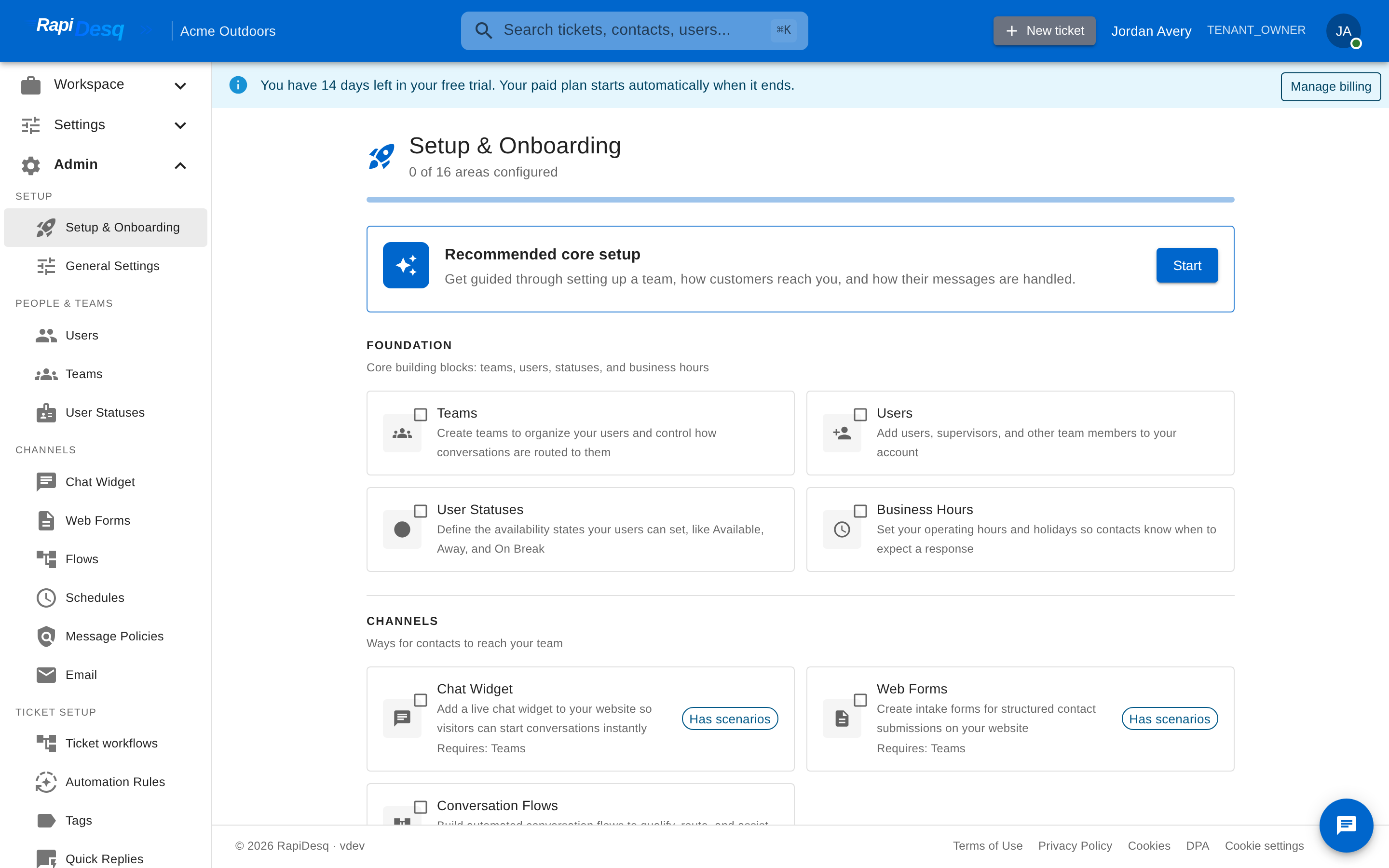 The Setup & Onboarding hub: task cards grouped by category, with a progress bar tracking configured areas.
The hub shows a progress bar ("x of y areas configured") and a card for each functional area, grouped by category:
| Category | Areas |
|---|---|
| Foundation | Teams, Users, User Statuses, Business Hours — the core building blocks. |
| Channels | Chat Widget, Web Forms, Conversation Flows — the ways contacts reach your team. |
| Email (inbox connections), Email Templates. | |
| Intelligence | AI Bot Setup, Knowledge Base, Custom Data Fields — AI assistance and smarter data capture. |
| Compliance | Single Sign-On, Message Policies, Data Export. |
The exact set of cards you see depends on your plan's features and your permissions.
How the hub works:
- Pick what you need. Select the cards you want to set up. Cards you've already configured show a "Configured" pill, and you can re-run any area later to edit it or create another.
- Dependencies select themselves. If an area needs something else first, the prerequisite is auto-selected and labeled with what requires it — for example, selecting Chat Widget auto-selects Teams if you don't have a team yet.
- Some areas ask how you'll use them. Channels offer usage scenarios — route a chat widget Direct to Team, Through a Conversation Flow, or AI Bot First — and the right prerequisites are pulled in for the scenario you choose.
- Start Setup runs the wizards in order. Clicking Start Setup launches a guided wizard for each selected area, sequenced so prerequisites come first. Every wizard offers sensible defaults, so "Use defaults & continue" is always an option.
- Skip for now takes you to your dashboard — you can come back to the hub anytime.
Step 3: The Fastest Path — Recommended Core Setup
At the top of the hub sits the Recommended core setup: a one-click preset that sets up "a team, a way for customers to reach you, an AI assistant, and a flow — all at once." It is the fastest way from a fresh account to a working contact center.
You make exactly one choice — how will customers reach you? A chat widget on your website, or a web form embedded on a page. The preset then creates and wires everything:
- Default Team — a ready-to-use team with sensible routing defaults (offers distributed round-robin, first-in-first-out ticket selection, five concurrent conversations per user).
- Default Chat Widget or Default Web Form — your customer-facing channel, pre-configured with a welcome message and ready to embed.
- Default AI Bot — an AI assistant with a greeting, sensible escalation thresholds, and a warm hand-off to your team when a human is needed.
- Default Flow — a conversation flow that puts the bot first and escalates to your team.
- Channel routing — the widget or form is connected to the flow, so incoming conversations go bot-first with human escalation from day one.
Each step reports its progress as it runs. If anything is interrupted — you close the tab, or a step fails — the hub shows a Resume banner the next time you visit, and the preset picks up exactly where it left off rather than creating duplicates. Re-running it is safe: anything that already exists is reused, not recreated.
Step 4: Setting Things Up Manually
Prefer to configure each piece yourself, or want to understand what the wizards are doing? Here is the condensed manual path. Everything below lives in the Admin section of the left navigation.
Create a Team
Teams are the core unit of organization: every conversation is routed to a team, and users must belong to at least one team to receive work. Go to Admin > Teams and click Create Team:
- Name, optional Description, and a Ticket Prefix for this team's ticket display IDs (e.g.,
CSproducesCS-123; left empty, one is generated from the team name). - Assignment Mode — how work reaches users: Offer (users receive offers and accept), Auto-Assign (the system assigns to the best available user), or Manual Queue (tickets queue in a backlog and users pull work).
- User Selection Strategy — who gets the next conversation: Broadcast, Round Robin, Fewest Active, Longest Idle, or Skill Match.
- Ticket Selection Strategy — which waiting ticket goes next: First In, First Out, Priority FIFO, SLA Breach, or Round Robin Contacts.
- Max Concurrent Conversations Per User — set 3–5 for chat-heavy teams, or 1 for complex work that needs full attention. Offer-mode teams can also tune the offer timeout and retry behavior.
Add Users
Go to Admin > Users and click Create User. For each person, enter their email and name, assign a role, and add them to one or more teams so they can receive routed conversations. New users receive an invitation email to set their own password (the invitation expires after 72 hours) — or, if your organization uses SSO, they simply sign in through your identity provider.
Understanding Roles
RapiDesq has five built-in roles:
| Role | Access Level | When to Use |
|---|---|---|
| Owner | Full administrative access including billing and subscription management. | The primary account holder. |
| Admin | Full administrative access to platform settings. | IT leads and operations managers who configure teams, channels, and workflows. |
| Supervisor | Team monitoring and reporting on top of user capabilities. | Team leads who watch queues and user performance but should not change system-wide settings. |
| User | Handle conversations, manage tickets, and work with contacts within their assigned teams. | Front-line support staff. |
| Internal User | Internal collaboration only — does not handle external customer conversations. | Employees who submit internal requests or participate in team chat but don't work customer tickets. |
users:create or tickets:edit), and every feature checks permissions rather than role names. See Permissions for details.
User Statuses (Ready Out of the Box)
User statuses control whether the routing engine sends new conversations to a user. Every new account comes with a starter set already seeded — Available (the default), Away, and Break — so routing works immediately without any setup.
To customize, go to Admin > User Statuses. Each display status maps to one of three functional states the routing engine understands:
- Available — the user can receive new conversations.
- Not Available — no new conversations; existing ones remain assigned.
- On Ticket — the user is actively engaged and won't receive new routing until they finish.
You can add labels that fit your team ("In Meeting", "Training", "Lunch") — users pick friendly labels while the routing engine sees only the underlying functional state.
Business Hours
Schedules define when your team is considered open, which feeds routing behavior such as after-hours handling. Go to Admin > Schedules and click Create Schedule:
- Name the schedule and choose its timezone.
- Add time windows for each day of the week (e.g., Monday–Friday 09:00–18:00).
- Add exceptions for holidays — one-time or yearly recurring, as a full-day closure or modified hours.
See Business Hours for the full guide, including attaching schedules to teams.
Connect a Channel
Channels are how customers reach you. All of them feed the same ticket workspace, so users never switch tools. Set up at least one:
- Chat Widget — Go to Admin > Chat Widget, create a widget, and customize its appearance (color, header text, welcome message, position). Use Get Embed Code to copy the script snippet, and paste it into your website's HTML just before the closing
</body>tag. Before going live, restrict the widget's allowed domains to your own sites. See Chat Widget. - Email — Go to Admin > Email and connect a Gmail or Outlook inbox via OAuth. Inbound emails create tickets routed to your chosen team or flow, and user replies go back out through the same address, keeping a seamless thread for the customer. See Email Channel.
- Web Forms — Go to Admin > Web Forms to build structured intake forms (bug reports, contact-us, feature requests) whose submissions create tickets. See Web Forms.
Step 5: Receive Your First Conversation
With a team, at least one user, and a channel configured, verify everything works end to end:
- Go Available — Click your avatar in the top-right corner and set your status to Available (or any label that maps to Available). Make sure your account is a member of the team the channel routes to.
- Trigger a test conversation:
- Chat widget: open your website in a private browser window, click the widget, and send a message.
- Email: send an email to the connected inbox from a personal account.
- Web form: fill out and submit the form.
- Handle it — Back in RapiDesq, the conversation arrives in your Tickets workspace (offer-mode teams will show you an offer to accept first). If you wired a bot-first flow, chat with the bot and ask for a human to test escalation.
- Reply and verify — Send a response and confirm it arrives on the customer side: instantly in the widget, or in the sender's inbox for email.
- Resolve the ticket — Mark it resolved to free your concurrent-conversation slot.
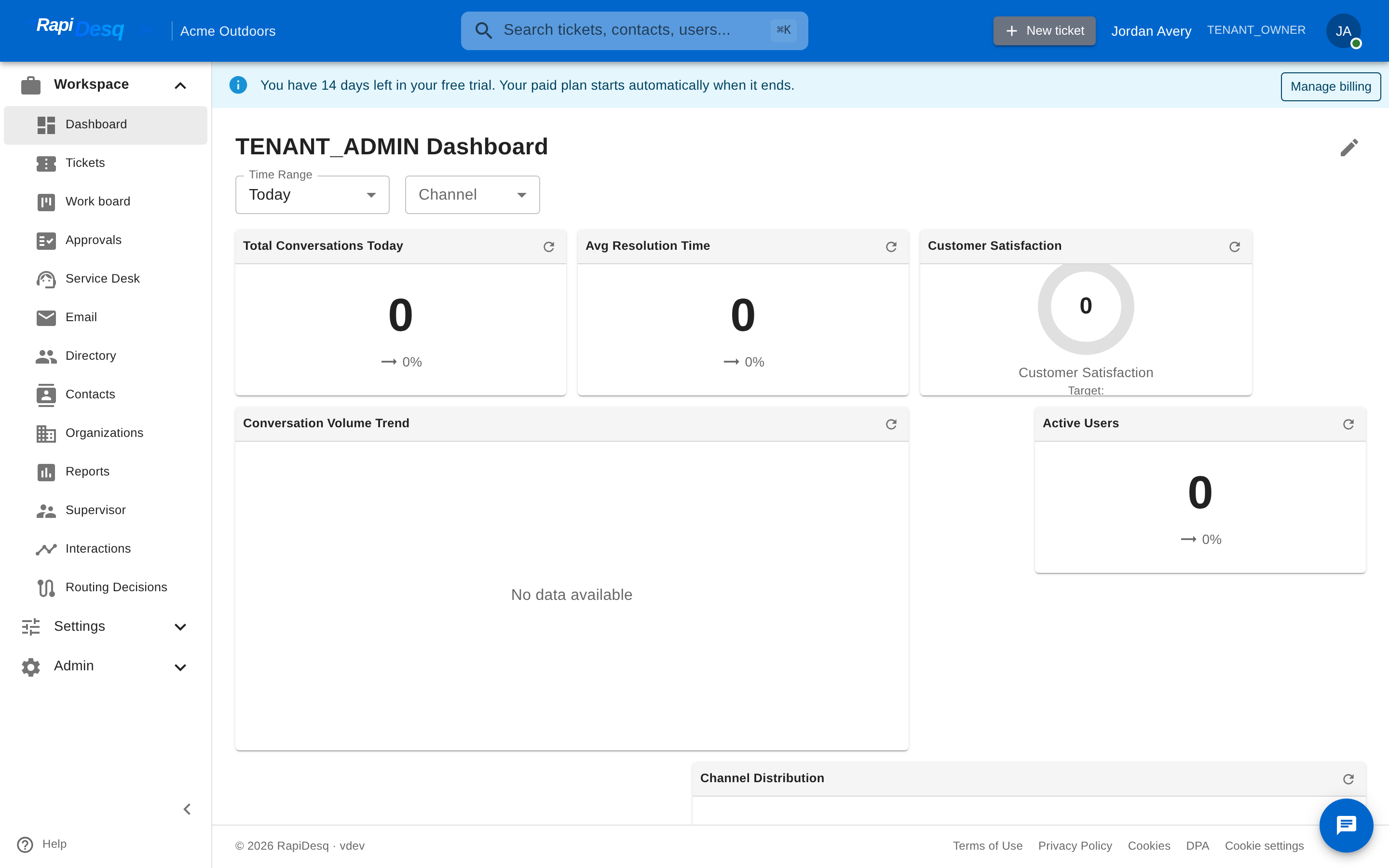 Once conversations flow, your dashboard starts filling with live metrics.
Next Steps
Your contact center is live. Recommended next steps:
- Tune your AI bot — adjust the greeting, escalation behavior, and guardrails, and pair it with a knowledge base so it answers from your own content.
- Build conversation flows — automate qualification, routing, and common interactions with the visual flow builder, and attach flows to your widget, forms, or email.
- Fine-tune team routing — adjust strategies as volume grows, configure user skills for Skill Match, and create additional teams for different functions.
- Set up ticket workflows — priorities, SLA policies, tags, and custom fields.
- Use internal chat — the chat button in the bottom-right corner gives your team built-in messaging for coordination and escalations.
- Watch your numbers — customize the live dashboard and generate reports as data accumulates.
- Configure SSO — connect your identity provider (SAML or OIDC) for streamlined, secure sign-in.