Business Hours & Schedules
Schedules define business hours and exceptions for routing. They determine how the routing engine handles conversations that arrive outside a team's hours, and they let conversation flows branch based on time. This guide covers creating schedules, managing exceptions for holidays, timezone handling, applying schedules to teams, and using Schedule Condition steps inside conversation flows.
Overview
A schedule in RapiDesq is a named configuration that defines when something is "open" vs. "closed." You create schedules centrally on the Schedules page and apply them where they are needed:
- Teams — a team's queue configuration can reference a schedule; conversations arriving outside it can be redirected by after-hours routing.
- Conversation flows — a Schedule Condition step branches the flow based on whether the current time falls within a schedule.
One schedule can be applied in multiple places; if your Support and Sales teams keep the same hours, they can share a single schedule.
Creating a Schedule
- Navigate to Admin > Channels > Schedules.
- Click Create Schedule.
- Enter a Schedule Name (e.g., "US East Coast Hours", "EMEA Business Hours") and optionally a Description so other admins understand the schedule's intent.
- Select the Timezone for the schedule. All times you enter are interpreted in this timezone.
- Under Business Hours, click Add Time Window for each window you need. Each window has a day of the week, a start time, and an end time. Days without any window are treated as closed.
- Optionally add Schedule Exceptions for holidays and special days (see below).
- Click Create.
Each schedule also has an Active toggle. An inactive schedule always evaluates as outside business hours wherever it is used.
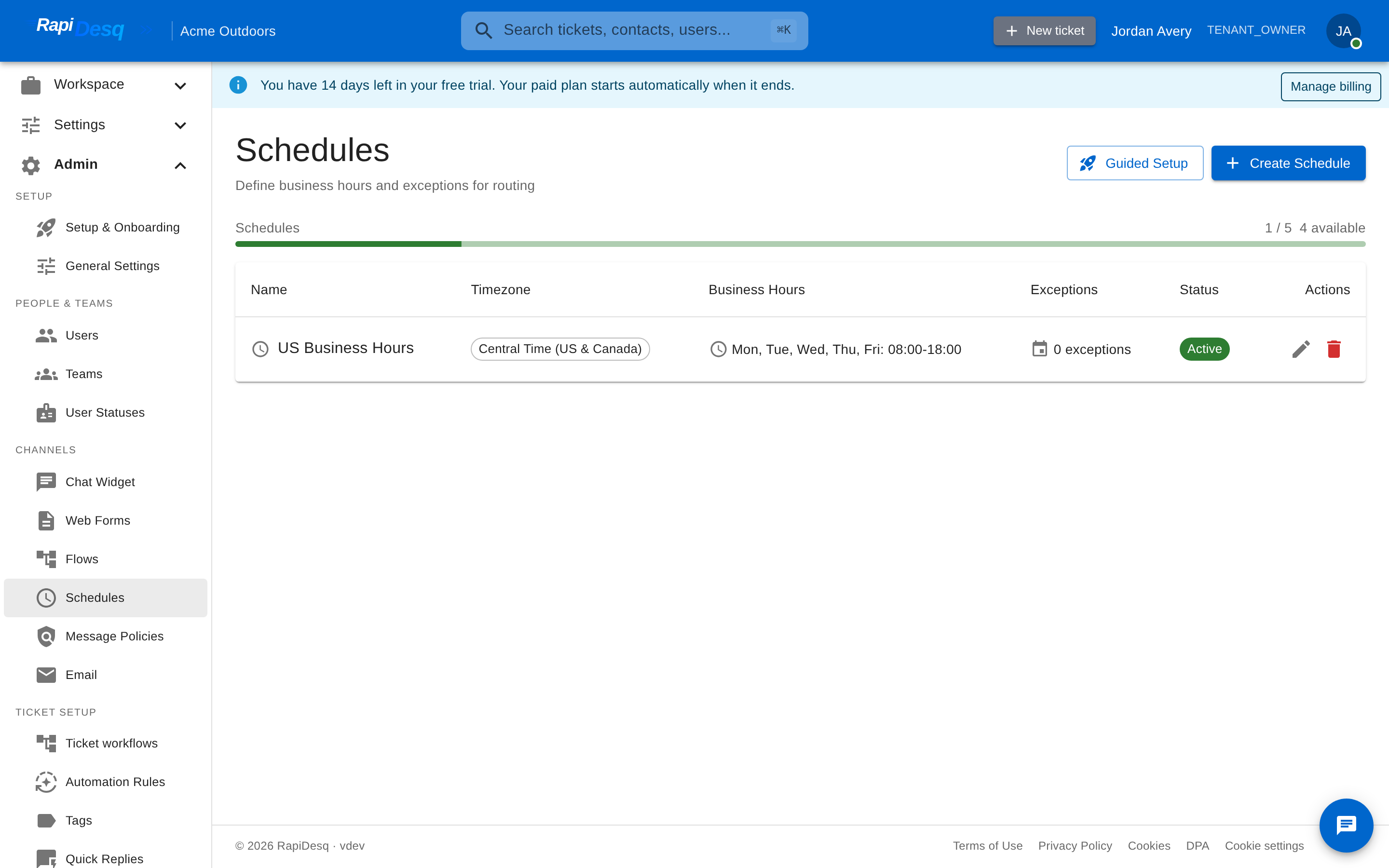 The Schedules page in the admin portal, listing each schedule's timezone, business hours, and exceptions.
Split shifts and overnight windows
- Split shifts — add multiple time windows for the same day (for example, 9:00–12:00 and 13:00–17:00). The schedule is considered open during any of the defined windows.
- Overnight windows — a window whose end time is earlier than its start time (for example, 22:00–06:00) spans midnight and is handled correctly.
Schedule Exceptions
Exceptions override the regular weekly pattern for specific dates — holidays, special closures, and modified hours. They are edited in the Schedule Exceptions section of the schedule editor. Exceptions take precedence over the weekly time windows.
- Click Add Exception.
- Give it an Exception Name (e.g., "Christmas Day").
- Choose the Type:
- Yearly (Recurring) — applies on the same month and day every year (e.g., December 25). Ideal for fixed-date holidays.
- One-Time — applies on a single specific date (e.g., a one-off office closure).
- Choose the Closure:
- Full Day Closed — the schedule is closed all day, regardless of the weekly windows.
- Modified Hours — specify a custom Open Time and Close Time just for that day (e.g., open 9:00–14:00 on Christmas Eve).
- Save the schedule.
Use exceptions for:
- Public holidays — yearly recurring exceptions set up once cover every future year
- Company events like conferences or all-hands days (one-time exceptions)
- Half days with modified hours, such as early closures before a holiday
Timezone Handling
Each schedule has its own timezone, chosen when the schedule is created. Times configured in the schedule are interpreted in that timezone, and daylight saving time transitions are handled automatically.
For multi-region organizations, create separate schedules per region. A "US East Coast Hours" schedule and a "EMEA Business Hours" schedule operate independently, each with its own timezone and its own set of exceptions (US holidays vs. UK holidays, for instance).
Applying Schedules
Once a schedule exists, apply it in the places that need it.
Teams
In a team's queue configuration, the Schedule (business hours) selector assigns a schedule to the team. The default is 24/7 (no schedule), meaning the team is always considered in hours.
When a team has a schedule, the team's After-Hours Routing settings (under Overflow & After-Hours Routing) control what happens to conversations that arrive outside it: they can be redirected to an alternate destination instead of waiting in the closed team's queue. If no after-hours routing is configured, conversations are routed to the team as normal.
Conversation flows
The most flexible application: the Schedule Condition step in a conversation flow routes based on whether the current time falls within the selected schedule's business hours. The step has two outputs:
- In Schedule — taken when the current time is within business hours. Connect this to the step for normal handling, such as routing to a team.
- Out of Schedule — taken when the current time is outside business hours. Connect this to the after-hours step, such as collecting contact info and setting expectations for a next-business-day response.
The step's configuration panel includes a Check Now button that evaluates the selected schedule against the current time, so you can verify the schedule behaves as expected while building the flow. Note that selecting an inactive schedule will always evaluate as "out of schedule".
See Conversation Flows for details on building flows.
Chat widgets and web forms
Widgets and forms have no schedule selector of their own. To make them business-hours aware:
- Route the widget or form to a team with a schedule, optionally with after-hours routing to an alternate destination; or
- Route it to a flow that uses Schedule Condition steps for fully customized in-hours vs. after-hours experiences.
Both channels provide an Offline Message setting for the text shown to visitors when they are unavailable. See Chat Widget and Web Forms.
Multiple Schedules
A typical organization has several schedules running simultaneously:
- A primary business hours schedule for most customer-facing teams
- Regional schedules for teams in different countries
- Extended-hours or 24/7 schedules for premium support tiers
- Team-specific schedules for teams with unusual hours (e.g., a sales team that works Mon–Thu 8–6 and Fri 8–2)
Create as many as you need. Each is independent; they don't cascade or share exceptions.
Follow-the-Sun Coverage
For organizations with teams in multiple time zones, a follow-the-sun model routes customer conversations to whichever team is currently in business hours. Implementation:
- Create separate teams for each region (e.g., "Support US", "Support EMEA", "Support APAC").
- Assign the appropriate regional schedule to each team.
- Build a conversation flow that uses Schedule Condition steps to check which team is currently in hours and route to the active one. Alternatively, configure each team's after-hours routing to redirect to the next region's team.
Best Practices
- Configure schedules before going live. Without a schedule, a team is treated as available 24/7, which leads to customer frustration when nobody responds outside hours.
- Add the year's holidays up front. Yearly recurring exceptions only need to be configured once and apply every year automatically; add one-time exceptions for movable dates.
- Use Schedule Condition steps to shape after-hours experiences. Customers arriving outside hours appreciate an honest message and a ticket-capture flow more than a channel that pretends to be online.
- Review schedules when teams change. If a team's working hours shift or a team moves regions, update the schedule immediately. Stale schedule config produces a stale customer experience.
- Align timezone with where the team works. A team based in London should have a schedule configured in Europe/London, not UTC or US Eastern. It makes the configuration obvious and handles DST correctly.
- Mind the Active toggle. An inactive schedule evaluates as closed everywhere it is used — useful for temporarily disabling a schedule, but surprising if toggled by accident.
Related Topics
- Team Management — assigning a schedule to a team and configuring after-hours routing.
- Chat Widget — widget routing and the offline message.
- Web Forms — form routing and offline behavior.
- Conversation Flows — the Schedule Condition step and in-flow time-based branching.