Tags
Tags are lightweight labels that help you categorize, filter, and find tickets. Your account has a single shared tag library, managed from Admin > Tags, so everyone uses the same vocabulary—no duplicate "billing" / "Billing" / "billing-issue" sprawl.
Overview
Tags are used in two places:
- Tickets — users apply tags to tickets, and anyone can filter and search by tag to find related work.
- Conversation flows — the Auto Tag step tags conversations automatically as they move through a flow, so categorization happens without user effort.
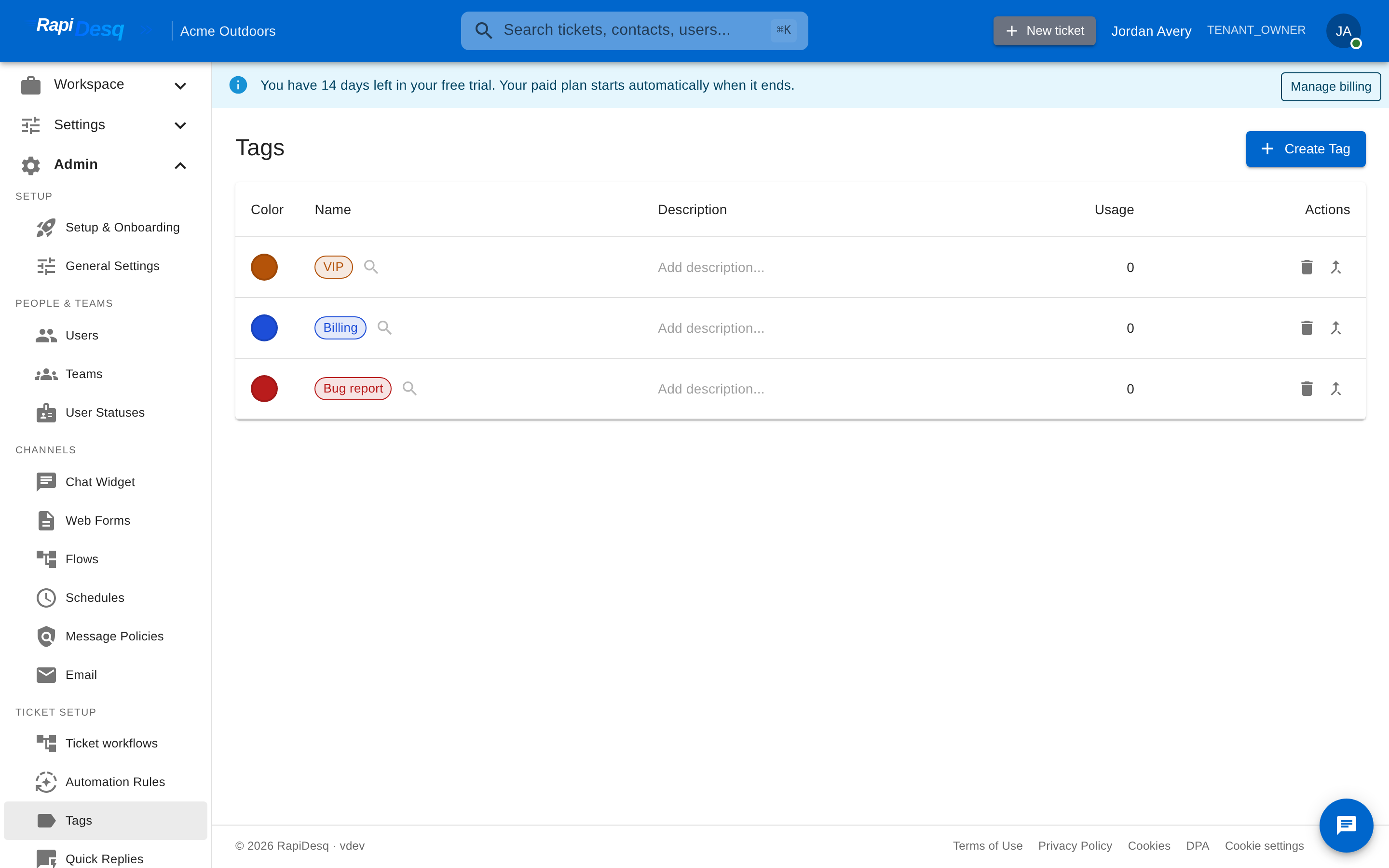 The Tags page: each tag shows its color, name, description, and how many items currently use it.
Creating and Editing Tags
- Navigate to Admin > Tags.
- Click Create Tag.
- Enter a Name and an optional Description. A color is assigned automatically.
Everything is editable in place from the tag list:
- Name and description — click either field to edit it inline.
- Color — click the color swatch to choose from a preset palette or enter a custom hex value.
Usage Counts and Finding Tagged Items
The Usage column shows how many items currently carry each tag—a quick signal of which tags are pulling their weight and which are candidates for cleanup. To see the tagged items themselves, click the search icon next to a tag: it opens search pre-filtered to that tag.
Merging Tags
When duplicates creep in (say, "refund" and "refunds"), merge them instead of deleting:
- Click the merge icon on the tag you want to retire.
- Select the target tag to merge it into.
- Confirm the merge.
All items carrying the source tag are retagged with the target, and the source tag is removed. Merging cannot be undone.
Deleting Tags
Deleting a tag removes it from the library. If the tag is still in use, the confirmation dialog warns you how many items currently carry it, so you can decide whether a merge is the better move.
Agree on a naming convention before the library grows—for example, all-lowercase, singular nouns ("refund", "outage", "feature-request"). Add a short description to each tag explaining when to use it; descriptions are what keep a shared library consistent across a growing team.
Tagging Automatically with Flows
The Auto Tag step in conversation flows suggests tags for a conversation based on its content. You can optionally restrict suggestions to a list of candidate tags, cap the number of tags suggested, and choose whether suggestions are applied automatically or stored for user review.
Related Topics
- Ticket Management — working with tickets, where tags are applied and filtered.
- Conversation Flows — building flows, including the Auto Tag step.
- Quick Replies — another shared library that keeps user responses consistent.