Custom Fields & Custom Data
Custom fields let you capture the structured data that matters to your business on every ticket and every contact. RapiDesq ships with a sensible set of standard fields (status, priority, channel, email, and so on), but your support operation almost certainly tracks information those standard fields don't cover — account numbers, subscription tiers, order references, regions, VIP flags, internal IDs. Custom data is where that information lives.
Overview
Custom data in RapiDesq is managed in one place: Admin > Custom Data. The page has three tabs:
- Data — The field definitions themselves: reusable, typed fields with validation rules.
- Conditional Rules — Rule groups that enforce relationships between fields (for example, "at least one of phone or email is required").
- Forms — Named compositions of fields and rule groups that can be reused as a unit, for example by a conversation flow's Collect Information step.
Custom fields are:
- Defined centrally, applied everywhere. You create a field once and it becomes available on tickets, contacts, or both (depending on how you scope it), in web forms, and in conversation flow steps.
- Strongly typed. Each field has a type that determines what input users and customers see and what validation applies.
- Populated in multiple ways. Users can fill in custom fields manually, but they can also be populated automatically from web form submissions, conversation flows, and the API. Automation is usually better than asking a user.
- Tenant-scoped and isolated. Custom fields you create are specific to your tenant and never visible to or shared with any other tenant. Your schema is your own.
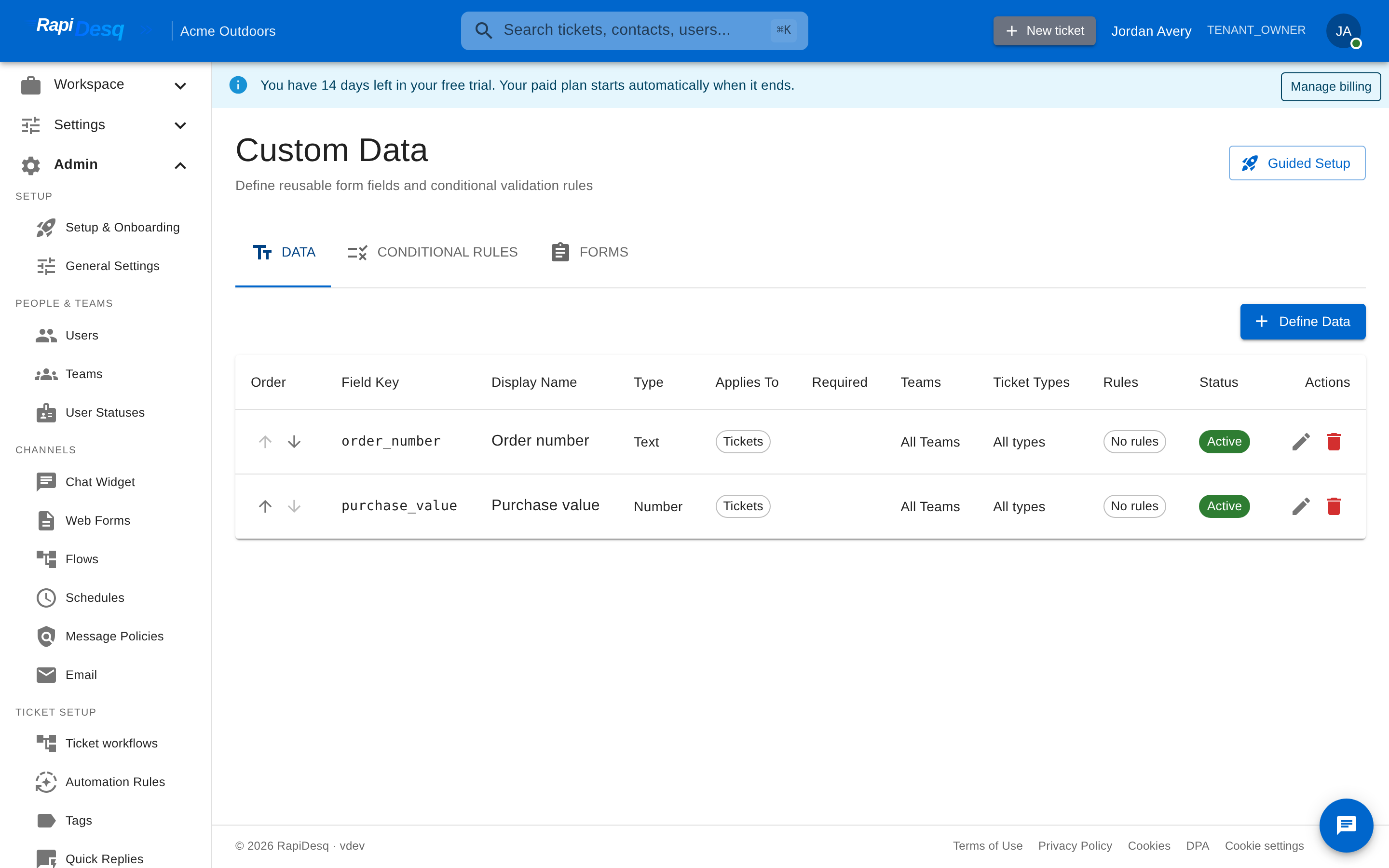 Admin > Custom Data: define reusable fields, conditional rules, and forms in one place.
The most valuable custom fields are the ones you'd ask a user to write in a note anyway. Capturing that information in a structured field instead means it is validated at entry and consistent everywhere it appears. "Account number: 47839" in a note is a clue. "Account number" as a custom field is data.
Custom Data is available on the Professional tier and above.
Scoping: Tickets, Contacts, or Both
Every field declares what it applies to: Tickets, Contacts, or Both. This single setting controls where the field surfaces and where its values are stored.
Ticket fields
Ticket-scoped fields capture information specific to an individual support request — things that change per ticket. Examples: the order number the ticket is about, the specific error message the customer reported, or the product version they're running. They appear on the ticket detail view for users and are validated against the field's rules whenever they're set.
Contact fields
Contact-scoped fields capture information about a customer that stays consistent across all their interactions — things that are true about the person or company, not about a specific ticket. Examples: account number, subscription tier, region, preferred language, VIP status. They appear on the contact profile.
Team assignment
In addition to the ticket/contact scope, each field can apply to all teams or only to specific teams. A "Hardware asset tag" field that only the IT team needs doesn't have to clutter every other team's ticket view.
If the value is about this particular support request and might differ from one ticket to the next for the same customer, scope it to tickets (error message, order number). If the value is about the customer and tends to be the same across their tickets, scope it to contacts (subscription tier, account number, region). When in doubt, ask: "If this customer contacts us again next month, should this value carry over automatically?" If yes, it's a contact field. If no, it's a ticket field. If you genuinely need it in both places, choose Both.
Field Types
Eight field types are available. Each one comes with its own input UI and applicable validation rules. Choose the type that best matches the data you're capturing.
| Type | Description | Best for |
|---|---|---|
| Text | Single-line text input. | Free-form identifiers and descriptions: account numbers, order references, internal IDs. |
| Email address input with format validation. | Secondary email addresses: billing contact, escalation contact. | |
| Phone | Phone number input with format validation. | Callback numbers and alternative phone contacts. |
| Select from List | Select from a list of options. Can optionally allow multiple selections with a configurable maximum. | Controlled choice lists where standardization matters: subscription tier, region, product line, issue category. |
| Number | Numeric input with range validation. | Quantities and numeric values: invoice amount, number of affected users, seat count. |
| Text Area | Multi-line text input. | Longer free text: reproduction steps, environment details. |
| Checkbox | Boolean true/false toggle. | Yes/no attributes: VIP customer, requires callback, escalation approved. |
| File Upload | File attachment input. | Supporting documents: screenshots, log files, signed forms. |
If the set of valid values is small and known in advance, use Select from List. Free-text fields are convenient but they produce inconsistent data — "Enterprise", "enterprise", "Ent", and "Ent." all mean the same thing to a human and nothing at all to a filter. A list field with four clean options is worth the small up-front setup cost.
Field Properties
Every field definition supports a consistent set of configuration properties.
| Property | Required? | Description |
|---|---|---|
| Field key | Yes | A unique identifier used internally for mappings, automations, and references. Must start with a lowercase letter and contain only lowercase letters, numbers, and underscores (for example, account_number). The key cannot be changed after the field is created, so choose carefully. |
| Display name | Yes | The human-readable label shown to users above the input. Unlike the key, the display name can be changed freely. |
| Field type | Yes | One of the eight types above. Changing the type later removes any validation rules that no longer apply. |
| Applies to | Yes | Tickets, Contacts, or Both (see Scoping). |
| Team assignment | Yes | All teams, or a specific set of teams the field applies to. |
| Active | — | Inactive fields stay defined but stop appearing in ticket views, forms, and pickers. Useful for retiring a field without losing its definition. |
| Required | No | When enabled, the field must be filled in. Use sparingly — overusing it slows down users and encourages placeholder values. |
| Description | No | A brief explanation of what the field captures and when to fill it in. |
| Placeholder | No | Example text shown inside the empty input as a hint. Use it to show expected format, not to explain what the field is for. |
| Help text | No | Short explanatory text displayed with the input field. |
| Default value | No | A value pre-filled before any user or automation sets the field explicitly. |
| Options | Select from List only | The list of valid choices, one per line. |
| Value mode | — | Single Value (the default) or List of Values, for fields that hold multiple entries. |
| Allow multiple / Max selections | Select from List only | Lets the user pick more than one option, with an optional cap on how many. |
Validation Rules
Each field can carry any number of validation rules. Every rule has its own error message — the text shown to the person filling in the field when the rule fails — so validation failures are always actionable, not generic.
| Rule | Description | Applies to |
|---|---|---|
| Minimum Length / Maximum Length | Bounds on the number of characters. | Text, Email, Phone, Text Area |
| Minimum Value / Maximum Value | Bounds on a numeric value. | Number |
| Allowed Characters | Restricts input to a character set (for example, a-zA-Z0-9). |
Text, Text Area |
| Custom Pattern | A custom regular expression the value must match — ideal for values with a known format (like an order reference that always starts with "ORD-" followed by digits). | Text, Email, Phone, Text Area, Number, Select from List |
| Email Format | Standard email address format. | |
| Phone Format | E.164 international phone number format. | Phone |
| URL Format | Standard URL format — turn a Text field into a validated link field. | Text |
The rule picker only offers rules that make sense for the field's type — a Checkbox has no length, so it gets no length rules. If you change a field's type, rules that no longer apply are removed automatically.
Conditional Rule Groups
Validation rules constrain a single field. Conditional rule groups enforce relationships between fields. A rule group names the fields involved, the rule type, and the error message shown when the rule is violated. Rule groups are attached to forms, where they validate the submission as a whole — they don't add fields, they constrain the ones already there.
| Rule type | What it enforces | Example |
|---|---|---|
| At Least One Required | At least one of the selected fields must have a value. | "Provide a phone number or an email address." |
| Exactly One Required | Exactly one of the selected fields must have a value. | "Enter an order number or an invoice number — not both." |
| All or None | If any of the selected fields is filled, all of them must be. | "If you provide a shipping address, provide every address line." |
| Dependent Field | A field becomes required when another field has a specific value. | "If Return reason is 'Damaged', a photo description is required." |
Forms: Composing Fields and Rules
The Forms tab lets you compose fields and conditional rule groups into a named, reusable form. A form specifies:
- Which fields it contains, and which of them are required in this form (a field can be optional in one form and required in another).
- Which conditional rule groups apply to the submission.
Forms keep multi-field data collection consistent: define a "Return request" form once and every flow that collects return information asks the same questions with the same validation.
Template Packs
Rather than defining every field from scratch, you can start from a pre-built template pack. Applying a pack creates a set of pre-configured fields you can then adjust:
- E-Commerce — Fields for order tracking: Order ID, Invoice Number, Product Name, Product SKU.
- B2B / Enterprise — Fields for business contacts: Company Name, Job Title, Department, Account Number.
- Support — Fields for support requests: Issue Type, Priority, Preferred Contact Method.
When creating fields, choose Start from a Template to apply a pack, or Create Manually to define a single field from scratch. Applied fields are ordinary field definitions — rename them, add validation rules, or deactivate the ones you don't need.
Where Fields Surface
Once defined, a field shows up everywhere its scope says it should — with the same type, options, and validation in each place.
Ticket and contact views
Users see the active custom fields for the ticket (or contact) they're looking at and can fill them in directly — a list field shows its options, a checkbox toggles, a file field accepts an upload. Required fields and validation rules are enforced as values are entered.
Web forms
When you build a web form, you pick which custom data fields to include and whether each is required on that form. When a customer submits the form, the values they entered flow straight into the resulting ticket and contact — the user never has to copy values over, and the data arrives already validated.
Conversation flows
Two conversation flow steps work directly with custom data:
- Ask Question — Asks the customer a single question. Enable "save to a custom data field" and the question's input type is driven by the field's type — ask for a subscription tier and the customer picks from the field's actual option list. The answer can also be kept in a flow variable for use in later steps such as Conditional Branch.
- Collect Information — Collects several values at once, either from a form you defined on the Forms tab or from an ad-hoc selection of individual fields. Where each answer is saved is derived automatically from the field's scope: ticket-scoped fields write to the ticket, contact-scoped fields write to the contact.
The Update Ticket flow node can also set ticket field values based on flow logic — for example, writing a value returned by an API Call step.
API
Custom field values can be set when creating or updating tickets and contacts through the REST API — the right path when another system is the authoritative source for a value and should push updates into RapiDesq.
Common Examples by Business Type
To make this concrete, here are custom field patterns that tend to show up across different kinds of businesses. Yours will differ — these are starting points, not prescriptions.
B2B SaaS
- Contact fields: Account ID (Text), Subscription tier (Select from List: Free / Starter / Pro / Enterprise), Workspace name (Text), Plan seats (Number), Primary admin (Checkbox), Billing contact (Email).
- Ticket fields: Affected workspace (Text), Error message (Text Area), Product area (Select from List: Billing / Integrations / Auth / Performance / Other), Repro steps known (Checkbox), Severity (Select from List: S1 / S2 / S3 / S4).
E-commerce
- Contact fields: Customer ID (Text), Lifetime value (Number), Total orders (Number), Loyalty tier (Select from List: Bronze / Silver / Gold / Platinum), Preferred language (Select from List), Marketing consent (Checkbox).
- Ticket fields: Order number (Text with a Custom Pattern rule like
^ORD-\d+$), Product SKU (Text), Return reason (Select from List), Shipping carrier (Select from List), Tracking number (Text), Refund amount (Number), Damage photo (File Upload).
Service businesses (agency, consultancy, MSP)
- Contact fields: Client account ID (Text), Industry (Select from List), Contract value (Number), Engagement stage (Select from List: Onboarding / Active / Renewal / At risk / Churned).
- Ticket fields: Project name (Text), Phase (Select from List), Hours billed (Number), Internal priority (Select from List, independent of customer-visible priority).
Internal IT / HR helpdesk (using the Service Desk portal)
- Contact fields: Employee ID (Text), Department (Select from List), Office location (Select from List), Access level (Select from List).
- Ticket fields: Request category (Select from List: Access request / Hardware / Software / HR / Payroll / Other), Cost center (Text), Approver (Text), Asset tag (Text), Attachment (File Upload).
Best Practices
Start with a handful of fields, add more as you learn
It's tempting to try to design the full custom field schema up front. Resist. Start with five to ten fields you know you need based on current operations (a template pack is a quick start), see how they're used in practice, and add new ones as real gaps emerge. Over-designed schemas lead to fields nobody fills in reliably, which is worse than not having them at all.
Prefer list fields over text for controlled vocabularies
If the valid values are known in advance, use Select from List. "Region" as a list with (EMEA, NA, APAC, LATAM) produces clean data. "Region" as a free-text field becomes "Europe", "EMEA", "emea", "Europe - UK", "UK", and twelve other variants that mean the same thing.
Use required sparingly
Every required field is a friction point. When required fields don't have good default or auto-populated values, people enter placeholder values ("N/A", "unknown", ".") just to get past the validation — which ruins the data quality you were trying to enforce. Make fields required only when you truly cannot proceed without the value, and remember that forms let you make a field required in one context while leaving it optional elsewhere.
Automate population wherever possible
A field populated by a web form, a flow's Ask Question or Collect Information step, or an API call is populated consistently, every time, without user effort. A field that depends on user manual entry is populated unevenly, even with the best intentions. Always ask: is there a form, flow, or API path that could fill this in automatically?
Validate at the point of entry
Add validation rules when you create the field, not after bad data has accumulated. A Custom Pattern rule on an order-number field costs a minute to set up and prevents every malformed order number that would otherwise reach your users. Write rule error messages the way you'd explain the format to a customer.
Review the schema periodically
Every few months, look at your custom fields and ask: Which ones are actually being filled in? Which are dead weight? Deactivate the dead ones — an inactive field keeps its definition and historical values but stops cluttering the user view. A small, active schema is much more useful than a sprawling one where most fields are empty.
Name field keys descriptively and consistently
Field keys are permanent, so invest in them up front. Keys use lowercase letters, numbers, and underscores (order_number, subscription_tier); make them specific enough that someone reading a flow or integration that references them can tell what they are without opening the admin interface. tier is ambiguous; subscription_tier is not.
Be thoughtful about sensitive data
Custom fields are not the right place for data that requires special handling — payment card details, government IDs, health information, or anything else subject to specific regulatory regimes. Use them for business identifiers, categories, and workflow metadata. Sensitive data should be referenced by identifier (an internal customer ID that points to a record in a system designed to hold that data) rather than stored directly in the custom field.
Custom field values are visible to everyone on your team who has access to the ticket or contact they're attached to (narrow that audience with team assignment where appropriate). If a piece of data needs tighter access control or different retention rules, don't put it in a custom field — keep it in the system built for it and reference it by ID.
Related Topics
- Ticket Management — how tickets work in general; custom fields are one part of the broader ticket model.
- Contact Management — how contacts work; contact-scoped fields extend the standard contact profile.
- Web Forms — how to build intake forms that include custom data fields.
- Conversation Flows — the Ask Question, Collect Information, and Update Ticket steps that read and write custom fields.
- Team Management — teams, which fields can be scoped to.