Supervisor Dashboard
The supervisor dashboard is the real-time operational view for everyone responsible for running a support team — queue depth, agent availability, and AI bot conversation activity, all in one place and updated live as things change. It lives under Supervisor in the main navigation and is organized into five tabs: Overview, Dashboard, Agents, Queues, and Bot. This guide covers what each tab shows and how to use them effectively.
The Five Tabs
| Tab | What it shows |
|---|---|
| Overview | Cross-team metrics at a glance, with a per-team breakdown table. The starting point for triage. |
| Dashboard | The full analytics dashboard — the same customizable metric-widget dashboard available under Reports. |
| Users | A live grid of every user on the selected team: status, capacity, and active conversations. |
| Queues | Real-time queue depth for the selected team plus a user availability breakdown. |
| Bot | AI bot performance and a browsable history of recent bot conversations. |
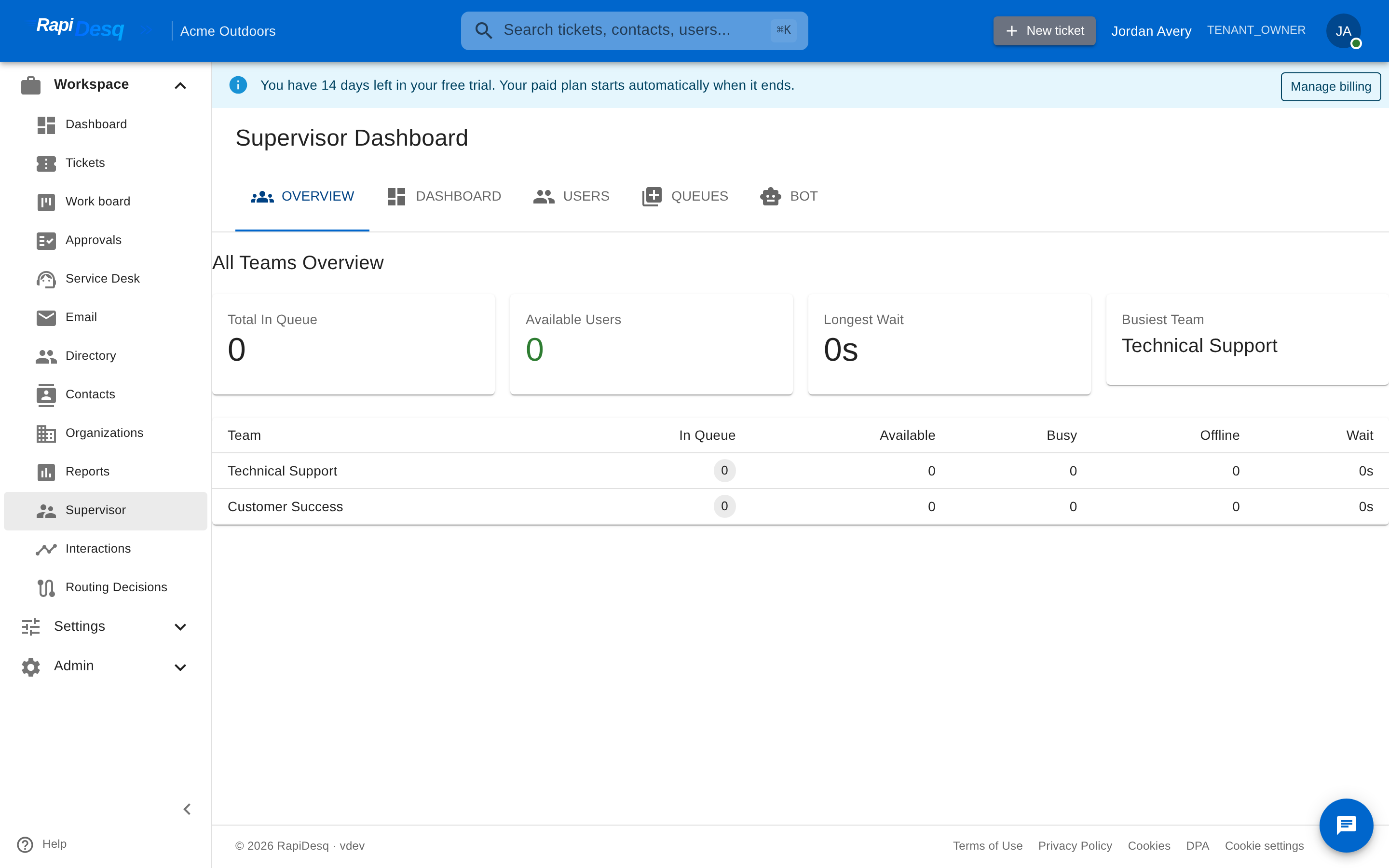 The Overview tab: cross-team queue metrics with a per-team breakdown.
Overview Tab
The Overview tab (All Teams Overview) aggregates the key numbers across every team you can monitor:
| Metric | What it means |
|---|---|
| Total In Queue | Total tickets waiting across all teams. |
| Available Users | Users currently available to receive new work, across all teams. |
| Longest Wait | How long the longest-waiting conversation has been in queue — the single best leading indicator of customer experience degradation. |
| Busiest Team | The team currently under the most queue pressure. |
Below the metric cards, a per-team table shows each team's In Queue count, Available / Busy / Offline user counts, and longest Wait. Clicking a team row drills into that team: it switches you to the Users tab with the team pre-selected.
Dashboard Tab
The Dashboard tab embeds the full analytics dashboard — metric widgets like queue status, SLA compliance, conversation volume, and user performance, with time-range and channel filters and a customizable layout. It is the same dashboard available from the Reports area, so any layout you save applies in both places. See Reporting & Dashboards for the full guide.
Users Tab
The Users tab (User Monitoring) is a live grid of users on the selected team, updated in real time as statuses and workloads change. A Team selector switches between teams, and a Status filter narrows the grid to Available, Busy (on a ticket), or Away (not available) users.
| Column | Shows |
|---|---|
| Name | The user's display name. |
| Status | The user's current display status (e.g., "Available", "Break", or any custom label your team has configured), shown with its configured color. |
| Capacity | A utilization bar showing how full the user's workload is, as a percentage of their concurrency limit. The bar changes color as it approaches capacity. |
| Active | Active conversations versus the user's maximum (e.g., "3 / 5"). An at-a-glance signal for who can take more work. |
Display statuses map to the underlying functional state the routing engine sees (Available, Not Available, On Ticket), so the grid shows both the human-friendly label and — through the status filter — the routing-relevant grouping. See Team Management for configuring statuses and capacity limits.
Queues Tab
The Queues tab (Queue Monitoring) shows the selected team's queue health in real time:
- Backlog — the number of conversations waiting. When the backlog is non-zero, a breakdown shows its composition: how many are pending (currently offered to users), how many are waiting (queued for assignment), and how many sit in the manual backlog (for teams using manual-queue assignment, where users pull work themselves).
- Total Users — everyone on the team.
- Available / Busy / Away / Offline — the availability breakdown of those users right now.
The composition matters: a backlog that is mostly pending offers will clear as users accept, while a backlog that is mostly waiting conversations with no available users needs intervention — more users going available, or a temporary routing change.
Bot Tab
When AI bots handle customer conversations, supervisors need visibility into what they are doing. The Bot tab has two parts.
Bot Performance
- Active Bot Conversations — how many conversations bots are handling right now.
- Resolution Rate (24h) — the percentage of recent bot conversations that resolved without escalating to a human, with a health indicator that flags when the rate drops.
- Recent Escalations (4h) — bot conversations that handed off to humans recently, with the time, the reason, and a link to the conversation.
Bot Conversations (Last 30 Days)
A browsable table of recent bot conversations, filterable by Outcome (Resolved, Escalated, Abandoned). Each row shows the conversation's topic, outcome, total turns (with the bot vs. customer split available on hover), AI credits consumed, duration, customer sentiment, any guardrail triggers, and when it started. This is the place to spot patterns: topics the bot resolves well, topics that consistently escalate, and conversations worth reviewing in full.
Best Practices
- Start at Overview, drill into the busiest team. The Longest Wait and Busiest Team cards tell you where to look first; one click on a team row takes you to its live person grid.
- Read the backlog composition, not just the number. Pending offers clear themselves; waiting conversations with no available capacity do not. React to the second, not the first.
- Watch capacity bars before queue depth grows. A team where every user's capacity bar is red will queue soon, even if the queue is empty right now.
- Communicate spikes early. If queue depth is rising, tell the team immediately through internal chat — users respond faster to a heads-up than to silently climbing numbers.
- Review bot escalation reasons regularly. The escalation list and the bot conversation table point directly at the topics where the knowledge base or bot configuration needs work.
Related Topics
- Team Management — configuring the teams, routing strategies, and user statuses the dashboard reflects.
- AI Bot Configuration — configuring the bots whose conversations appear on the Bot tab.
- Reporting & Dashboards — the analytics dashboard embedded in the Dashboard tab, plus downloadable reports.