AI Bot Configuration
RapiDesq's AI is platform-managed: you choose what the AI should do and how capable it should be, and the platform handles model selection and failover behind the scenes. This guide covers the AI capabilities available — the customer-facing chatbot, the agent-assist bot, and the analysis features — along with per-agent model tiers, knowledge base grounding, escalation rules, guardrails, and the unified Set up AI wizard that configures all of it in one pass.
Overview
RapiDesq's AI capabilities fall into three groups, each powered by its own AI agent that you can tune independently:
- Customer chatbot. A conversational assistant that handles incoming chats on your widget. It holds real multi-turn conversations, answers from the knowledge bases you connect to it, and hands off to a human team with full context when escalation rules trigger.
- Agent-assist bot. A conversational bot your users use from inside the workspace. It comes with configurable actions — each with its own description, prompt override, and conversation/ticket context settings — so agents can ask for help that's grounded in the ticket they're working.
- Analysis features. Ticket analysis, suggested replies, smart triage, summarization, action items, sentiment analysis, and auto-categorization. These run on tickets and conversations as work progresses, and each one is backed by its own agent with its own model tier.
Every agent has a model tier: Standard (faster, lower cost) or Advanced (higher quality for harder work). The platform recommends a tier per capability and pre-selects it; you can change it at any time. Model selection and failover within a tier are handled by the platform — there is nothing to install, connect, or maintain. Usage is billed in AI credits.
You never configure models, endpoints, or infrastructure. Pick a tier per agent and the platform takes care of which model serves each request and what happens during an outage. The only AI decisions you make are product decisions: what the AI should do, what it should know, and when it should hand off to a human.
Agents also power AI work on tickets, not just conversations. An AI lane in Ticket Automation Rules binds one of these agents to a set of ticket statuses, so an AI worker picks up every ticket that lands there and drives it toward a status you choose. The agent supplies the persona and the model tier exactly as it does here; the automation rule adds the per-rule instructions and the budgets.
The AI Settings Page
Everything AI lives under Admin > AI Settings, organized into tabs:
| Tab | What it does |
|---|---|
| Agents | The list of AI agents — one per capability you've enabled. Create, edit, test, and tune each agent's model tier, prompts, knowledge access, and (for bots) conversation behavior. |
| Features | Maps each AI feature (chatbot, suggested replies, summarization, and so on) to the agent that powers it, with enable/disable per feature. Teams can have their own overrides, so different teams can run different agents for the same feature. |
| Knowledge Bases | The content your AI answers from. See the Knowledge Base guide. |
| Usage | Monthly AI usage: requests and credits consumed, broken down by feature. |
| Analytics | Trends in AI activity over time. |
| Quality | Review how the AI is performing — rated responses and questions the AI couldn't answer well, which point you at knowledge base gaps. |
| Rate Limits | Caps on AI request volume so a spike can't run away with your credits. |
| Guardrails | Topic restrictions, personal-information protection, and prompt injection detection. Covered below. |
| Credits | Credit balance, purchases, and auto-refill. See AI Credits & Billing. |
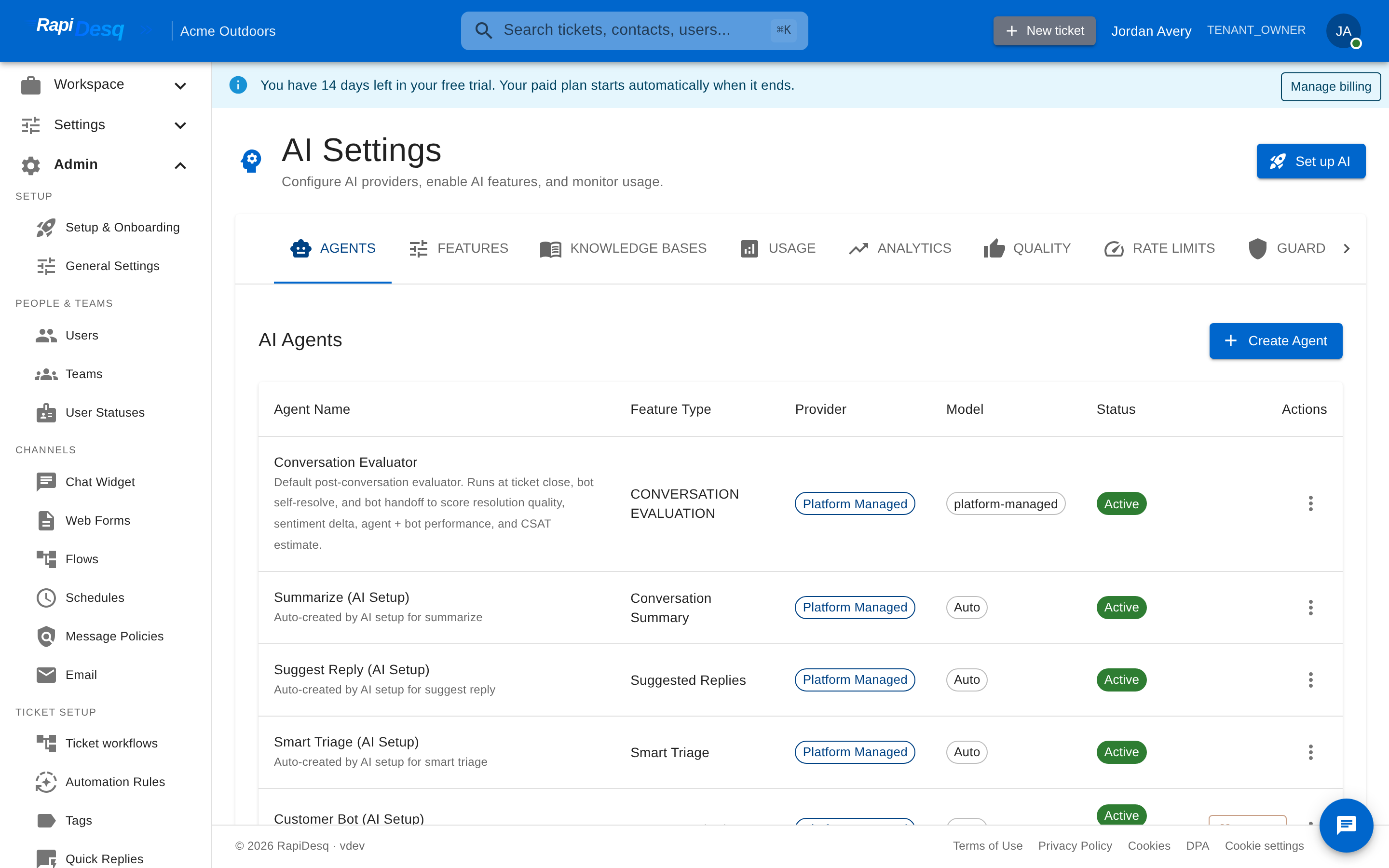 The Agents tab lists every AI agent with its capability, model tier, and status.
The Set up AI Wizard
The fastest way to get AI running is the Set up AI button on the AI Settings page. The wizard configures every capability in one pass:
- Capabilities — choose what you'd like AI to help with. Each capability is turned on with a sensible default, and capabilities that answer from your own content are marked "Uses your knowledge."
- Models — each selected capability gets its own AI agent with the recommended model tier pre-selected. In Simple mode you accept the recommendations; in Advanced mode you pick Standard or Advanced per agent and can open a per-agent Advanced section to tune the system prompt, user prompt template, temperature, max tokens, and top-p now so you never have to edit the agent later.
- Knowledge — if you already have knowledge bases, your AI uses them automatically. Otherwise you can create one inline with a name and a first source: a web page URL (optionally crawling linked pages on the same domain, with max pages and max depth inputs) or pasted text. You can also skip and add content later.
- Chatbot — set the chatbot's greeting message, choose the team it hands off to, and connect it to your chat widget so inbound chats reach the bot. If you don't have a widget yet, the bot is still created and you can connect it afterward.
- Review — confirm your choices and finish. The wizard is safe to re-run; it updates the agents it created rather than duplicating them.
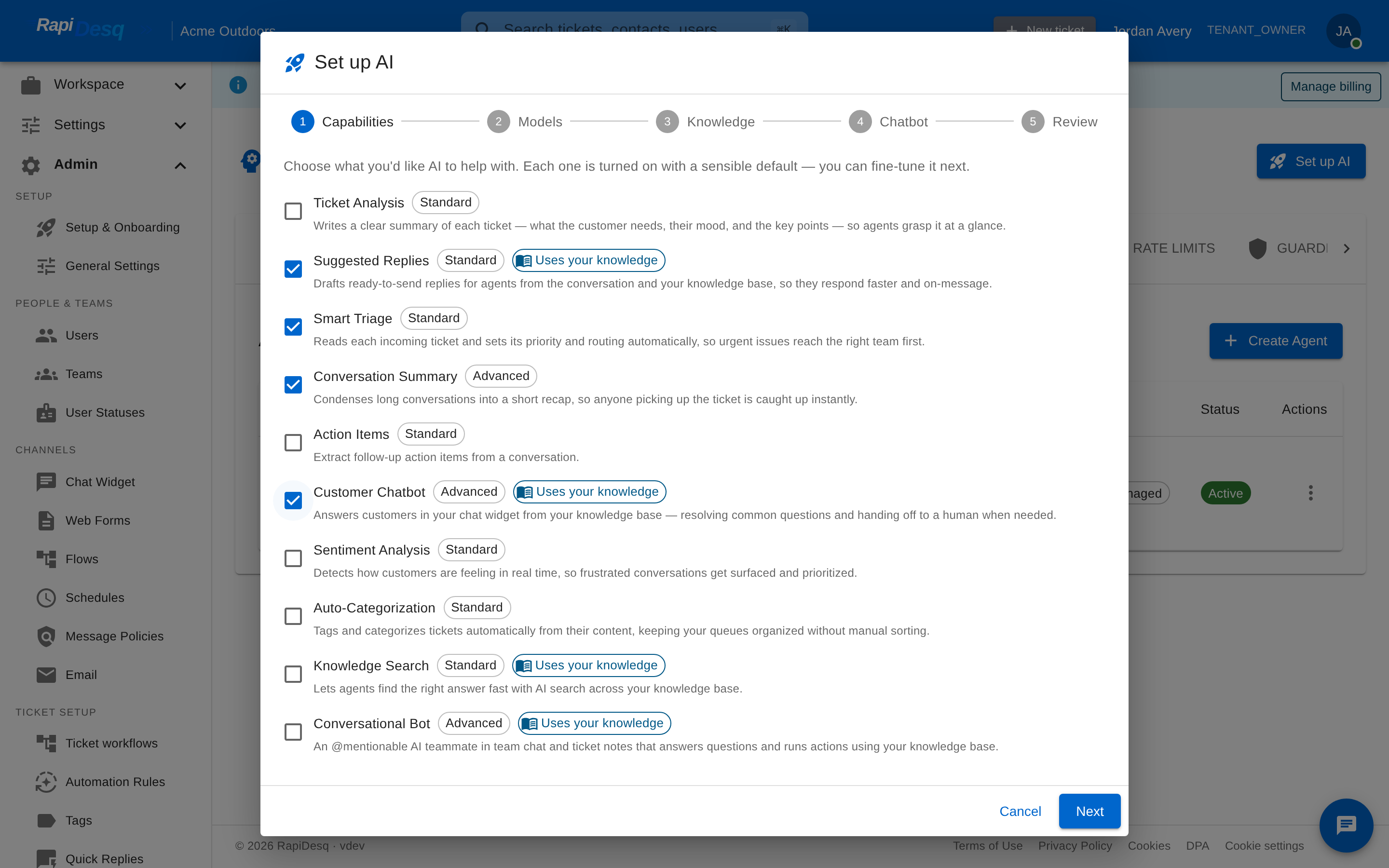 Step one of the Set up AI wizard: pick the capabilities you want, each pre-configured with a sensible default.
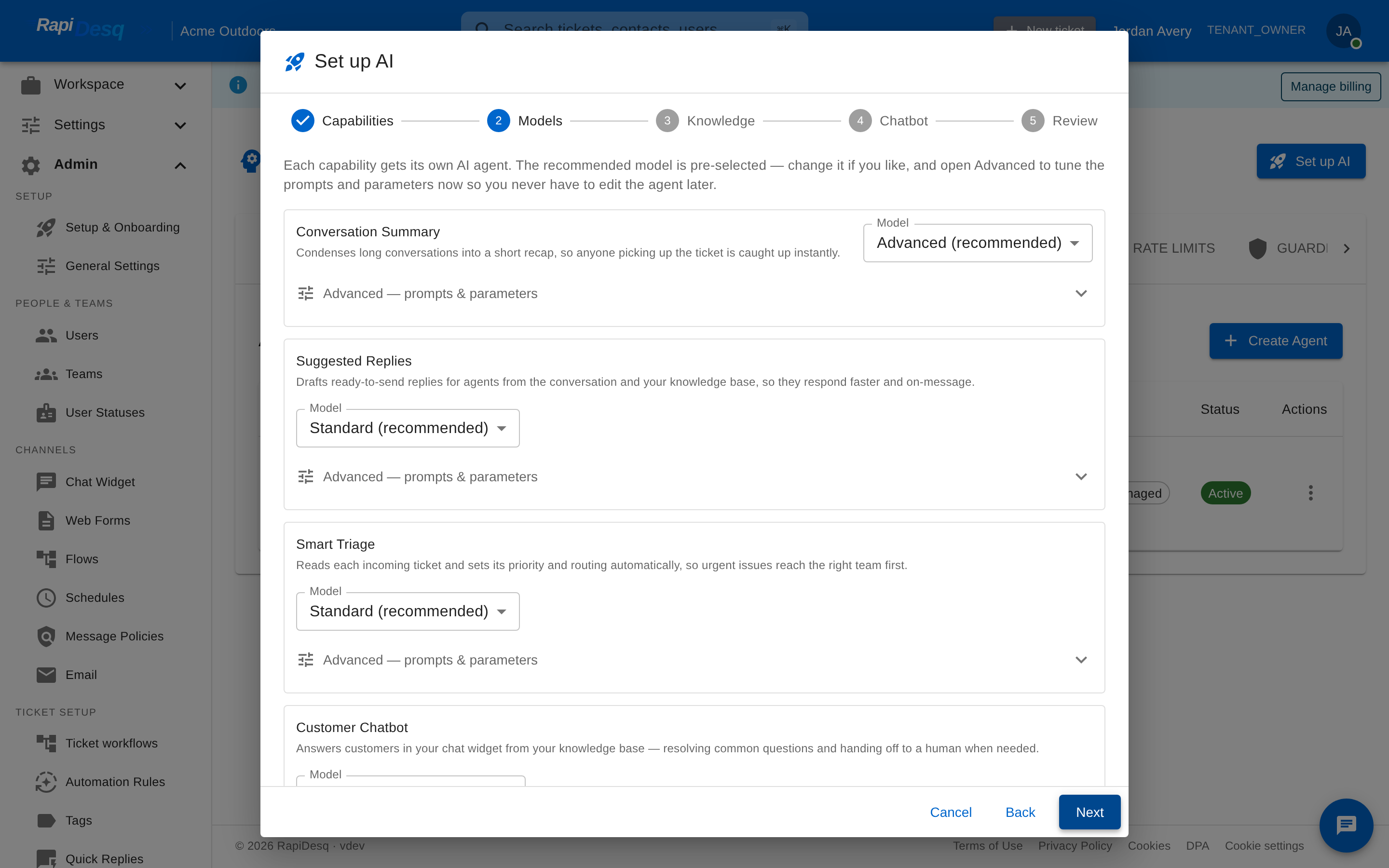 Step two: every capability gets its own agent with the recommended model tier pre-selected — switch any of them between Standard and Advanced, or open the per-agent Advanced section to tune prompts and parameters.
Creating and Editing Agents
Beyond the wizard, you can create individual agents from AI Settings > Agents. The agent wizard walks through the type of agent (chatbot, agent-assist bot, or an analysis feature), its model tier, its prompts, its knowledge access, and — for bots — type-specific conversation settings. Existing agents open in an edit panel with the same sections.
Bot identity and messages
| Field | Description |
|---|---|
| Name | The internal name shown in admin views and reports. |
| Display name | The name customers see in the chat widget (for example, "Support Assistant"). We recommend names that read as an assistant, not a person — customers should never be unsure whether they're talking to a bot. |
| Greeting message | The first message the bot sends when a conversation begins. |
| Farewell message | What the bot says when a conversation wraps up. |
| Handoff message | What the customer sees when the bot transfers the conversation to a human. |
Model tier
Each agent runs on a model tier you select:
- Standard — faster and lower cost. The recommended tier for high-volume, well-bounded work like summarization and auto-categorization.
- Advanced — higher quality for harder work. The recommended tier for open-ended customer conversations and nuanced analysis.
The recommended tier for each capability is pre-selected wherever a tier choice appears. Tier choice also affects credit consumption — Advanced operations cost more credits than Standard ones.
Prompts and parameters
Every agent ships with a recommended system prompt and user prompt template. You can edit both, along with temperature, max tokens, and top-p, from the agent's advanced settings. The system prompt is where you express the agent's role, scope, tone, and rules in plain language — it is the single biggest lever on quality:
- Role and context — who the bot is and what situation it's in.
- Scope — what it should and shouldn't try to help with, and what to do with out-of-scope questions.
- Tone — how it should sound for your audience.
- Rules — specific musts and must-nots, such as "never promise a refund; escalate refund requests to a human."
The first draft of a system prompt is never the best version. Launch, review real conversations in the Quality tab for the first few days, and refine. Look for questions the bot got wrong, topics it should have escalated sooner, and places where it made assumptions it shouldn't have.
Knowledge Grounding
Bots and knowledge-dependent features answer from the knowledge bases you make available to them. In each agent's knowledge section, every knowledge base has an include/exclude toggle, so different agents can draw on different content:
- Narrow scope — a billing bot with only billing documentation included. Everything it says is grounded in billing-relevant content. Best for specialized bots.
- Broad scope — a general support bot with all customer-facing knowledge bases included. Covers more questions at the cost of some precision.
If the bot can't find relevant content, your prompt and escalation rules determine what happens next — configured well, the bot acknowledges the gap and escalates rather than guessing.
The most common cause of a "bad bot" is thin or outdated knowledge base content. If customers keep getting unhelpful answers, check what the bot can actually search before rewriting its prompt. Often the fix is adding or updating an article.
Escalation
Every customer chatbot needs clear rules for when to hand off to a human. Escalation is configured in the bot's Escalation tab.
Escalation rules
Escalation rules are an ordered list — the first matching rule wins. Each rule has a trigger, conditions, and a target:
| Trigger | Fires when |
|---|---|
| Keyword | The customer's message contains any of the trigger phrases you list (for example "speak to a human", "agent", "refund"). |
| Intent | The conversation matches one of the intents you list, even when the customer doesn't use exact keywords. |
| Sentiment | Customer sentiment crosses the level you choose (for example, escalate at Frustrated or only at Angry). |
| Low confidence | The bot's confidence in its answers drops below your threshold — a signal it's out of its depth. |
| Conversation length | The conversation exceeds a turn count without resolution. |
| Timeout | The conversation runs longer than a time limit you set. |
| Custom | A condition you define yourself. |
Where escalation routes to
Each rule targets a specific team, a conversation flow (for additional triage, such as a business-hours check), or your default routing. A default escalation team catches anything the rules don't.
Handoff settings
- Transfer type — warm (the bot stays present while the user joins) or cold (the bot exits when the agent takes over).
- Include AI summary — attach an AI-generated summary of the bot conversation so the user picks up with context instead of reading the full transcript. The customer never has to repeat themselves.
- Business hours — the bot can respect a schedule and behave differently outside hours: collect a message, show your hours, offer a callback, or escalate anyway.
Guardrails
The Guardrails tab applies safety controls to every AI-generated response, independent of any single agent's prompt.
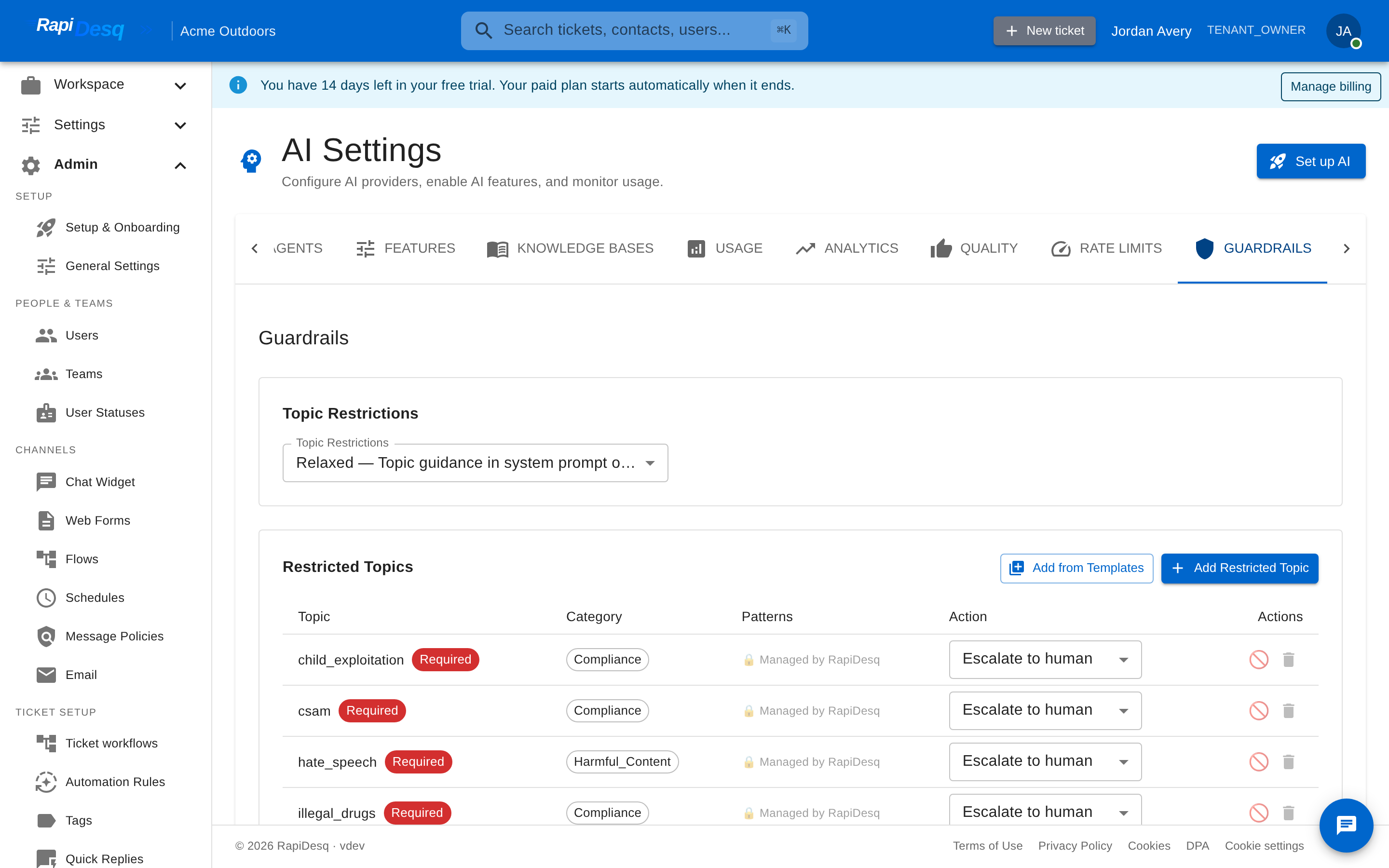 Guardrails: topic restrictions, PII protection, and prompt injection detection in one place.
Topic restrictions
Define topics the AI must not engage with, regardless of how a customer phrases the question. A tenant-wide strictness level sets the default enforcement:
- Relaxed — topic guidance is added to the AI's instructions.
- Conservative — responses are filtered after generation, and violating responses are replaced.
- Strict — input is classified before the AI ever sees it, and restricted topics escalate to a human immediately.
Individual topics can override the default with their own action. You can add topics from a template library or define your own. Certain required compliance topics are managed by RapiDesq, are always present, and cannot be deleted — you can raise their enforcement but never lower it below the required floor. A guardrail event log shows what was caught and when.
Personal information protection
Customer messages often contain personal information. PII protection masks this before it reaches the AI, at one of two levels: Standard masks payment data, government IDs, and bank account numbers; Strict masks all detected personal information, including names, emails, and phone numbers. Agents who take over an escalated conversation still see what they need to help the customer.
Prompt injection detection
Messages crafted to subvert the bot ("ignore your previous instructions and…") are detected and blocked before they can change the bot's behavior. Legitimate customer messages pass through unchanged; attempts are logged in the guardrail events view.
Guardrails catch the clearly out-of-bounds cases. For everything else — tone, scope, rules of engagement — the agent's prompt does the work. Don't rely on guardrails to compensate for vague instructions.
Attaching the Chatbot
A chatbot serves customers once it's connected to an entry point:
To a chat widget
Connect the bot to your chat widget — the Set up AI wizard offers this directly, or configure it from channel routing. Every new chat starts with the bot; when it escalates, the conversation routes to the configured team.
To a conversation flow
Use a Bot Conversation node inside a conversation flow. The bot handles a segment of the conversation, with separate next steps for completion and escalation, so the flow stays in control of routing. Flows can invoke different bots at different points — for example, a business-hours check ahead of the bot.
Testing and Quality Review
Before connecting a bot to customers, test it from the agent panel in AI Settings — send it real questions and review the responses, including the bot's confidence in each answer. Try the most common questions you expect, out-of-scope questions (to verify escalation), and questions that should be answered from specific knowledge base content. The Knowledge Bases tab's Test Search shows you exactly which content a question retrieves.
Once live, the Quality tab is your ongoing review loop: rated responses and questions the AI couldn't answer well, which tell you where to refine prompts, adjust escalation, or fill knowledge base gaps. The Usage tab shows where AI activity and spend are going.
Best Practices
Start with a tightly scoped bot
Your first chatbot should have a narrow role — just billing, or just order status. Narrow scope means focused knowledge, a clearer prompt, fewer edge cases, and easier quality review. Broaden once it's working well.
Escalate generously, especially early
When in doubt, the bot should escalate. A customer handed off to a human is a neutral outcome; a customer stuck with an unhelpful bot is a bad one. Tighten escalation later, once the Quality tab shows you where the bot is reliably right.
Invest in knowledge base quality
The biggest lever on bot quality is the content it can search. When you see a pattern of bad responses, the fix is usually in the knowledge base, not the bot.
Monitor credit consumption
The Usage tab shows consumption per feature. Watch for surprises: a feature that spikes might be handling unexpected traffic or too many out-of-scope questions. Early detection is cheaper than discovering it at the end of a billing cycle.
Be honest about the bot's identity
Don't use the bot to impersonate a human. Give it a display name and greeting that read as an assistant. Customers who know they're talking to a bot and get help anyway come away with a positive experience; customers who feel misled don't come back.
Related Topics
- Knowledge Base — building and maintaining the content your AI answers from.
- AI Credits & Billing — how AI usage is metered, how rollover works, and how to monitor spend.
- Ticket Automation Rules — putting an agent to work on tickets: AI lanes bind an agent to a status lane, alongside deterministic no-AI rules.
- Conversation Flows — using Bot Conversation nodes inside flows and orchestrating bot-to-human handoff.
- Chat Widget — connecting the chatbot to your website's chat.