Conversation Flows
Conversation flows are the automation backbone of RapiDesq. Using the visual flow builder, you design step-by-step interaction sequences that greet contacts, gather information, integrate with external systems, hand conversations to AI bots, and route to the right team — all without writing code.
Overview
A conversation flow is a directed graph of steps (also called nodes) that defines what happens when a contact starts an interaction. Each step performs a specific action — displaying a message, asking a question, calling an API, running a bot conversation, or routing to a team — and then passes control to the next step based on its configuration.
Flows are created and edited in the visual flow builder, a drag-and-drop canvas where you place nodes, configure their properties, and draw connections between them. The builder gives you a clear, visual representation of every path a conversation can take.
Flows connect to your customer-facing channels. When you assign a flow to a chat widget, email channel, or web form, it runs automatically whenever a new conversation arrives on that channel. This means you design the automation once, then deploy it to any channel with a single configuration change.
The flow builder's node palette covers six categories — messages, media, logic, routing, integrations, and AI — with nearly twenty node types in total. Whether you need a simple greeting-and-route sequence or a sophisticated multi-branch automation with API lookups and an AI bot up front, the flow builder has you covered.
Accessing the Flow Builder
To create or edit a conversation flow:
- Navigate to Admin > Conversation Flows in the left-hand menu.
- You will see a list of all your flows, showing each flow's name, assigned channel, and published status.
- Click Create Flow to start a new flow, or click on an existing flow's name to open it for editing.
- The visual flow builder canvas opens. From here you can:
- Drag new nodes from the node palette onto the canvas.
- Click a node to open its configuration panel on the right.
- Draw connections between nodes by dragging from one node's output port to another node's input port.
- Delete nodes or connections by selecting them and pressing the delete key.
- Click Save to save your changes as a draft, or Publish to make the flow live.
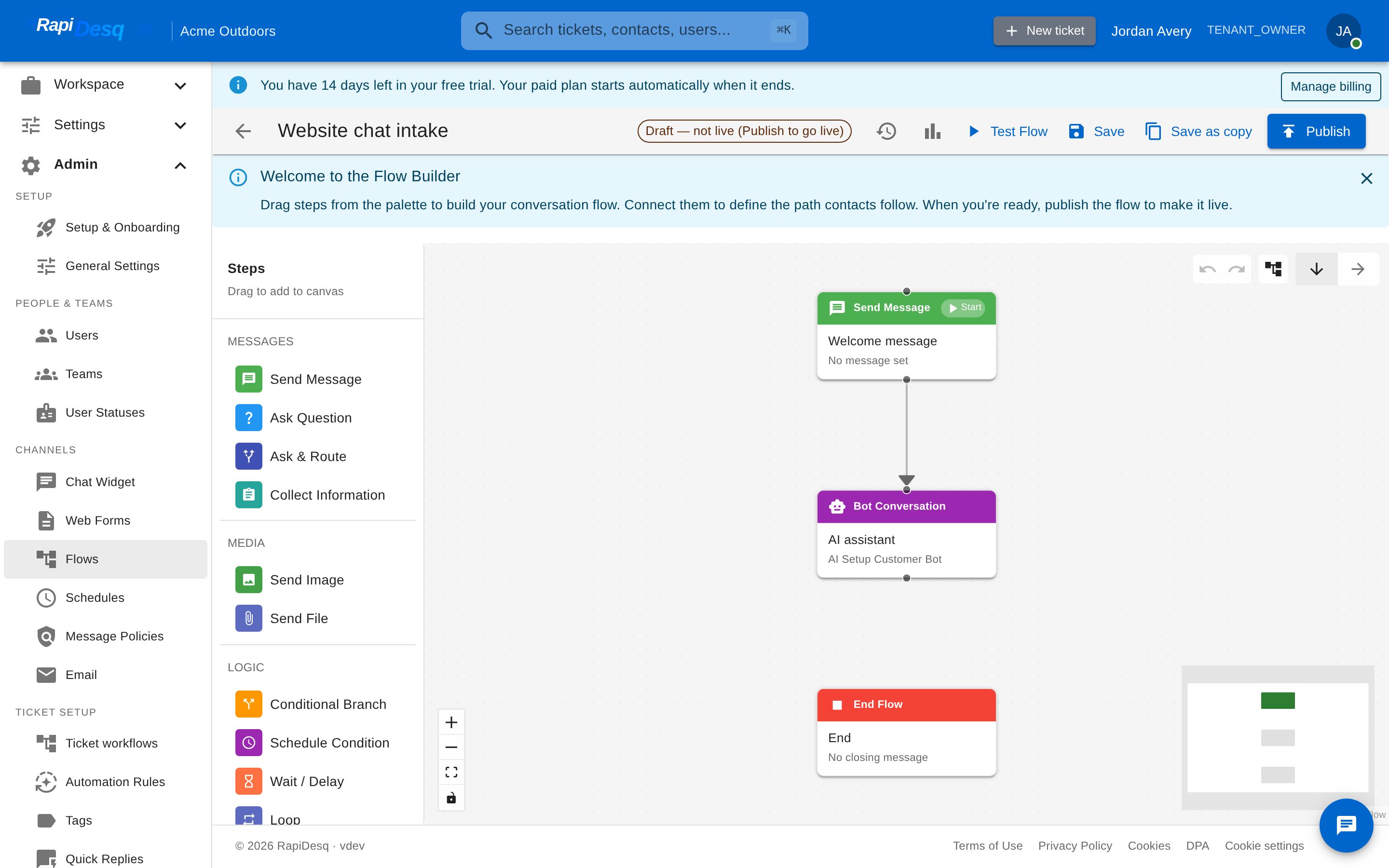 The flow builder: drag steps from the palette on the left, connect them on the canvas, then save and publish.
Node Types Reference
The node palette is organized into the same categories you see in the builder: Messages, Media, Logic, Routing, Integrations, and AI. Combine them to build exactly the interaction you need.
Send Message
Displays a text message to the contact. No response is expected or collected — the flow immediately proceeds to the next connected step.
When to use it: Greetings, status updates, informational messages, farewell messages, or any point where you need to communicate something to the contact without waiting for a reply.
Configuration:
- Message content — The text displayed to the contact. Supports variable interpolation using
{{variableName}}syntax, so you can personalize messages with data collected earlier in the flow.
Ask Question
Prompts the contact with a question and waits for their response. The contact's answer is stored in a named variable that can be referenced by any subsequent step in the flow.
When to use it: Collecting a single piece of information such as a name, order number, issue description, or a selection from a list of options.
Configuration:
- Question text — The prompt displayed to the contact.
- Variable name — The name used to store the contact's response (e.g.,
customerName,orderNumber). This variable can be referenced in later steps as{{orderNumber}}. - Question type and choices — Free-text by default; provide choices to present the answer options as buttons instead.
- Invalid input message — What the contact sees when their response doesn't match the expected input, before they try again.
Collect Information
Displays one of your forms inline within the chat interface to collect multiple pieces of structured data at once, with validation, directly inside the conversation.
When to use it: Gathering several related fields at once — such as name, email, and a description of the issue — rather than asking for each piece one at a time. This is faster for the contact and produces cleaner, validated data.
Configuration:
- Form — The form to present, chosen from the forms configured in your tenant.
- Introduction message — Optional text shown before the form.
- Field mappings — Map each submitted form field into a flow variable for use in later steps.
- Retries and fallback — How many correction attempts to allow, the message shown on validation errors, and what to do if the form can't be completed (for example, fall back to default routing).
Send Image
Sends an image to the contact, with an optional caption.
When to use it: Showing rather than telling — a screenshot of where to find a setting, a product photo, a diagram.
Send File
Sends a file attachment to the contact, with an optional caption.
When to use it: Delivering documents during the conversation — a PDF guide, a form to fill out, a price list.
Conditional Branch
Evaluates one or more conditions against collected data and flow variables, and routes the conversation down the appropriate path. Each condition creates a separate output branch, functioning as an if/else if/else decision tree.
When to use it: Routing the conversation differently based on contact responses, API results, or any other variable data. This is the primary decision-making node in the flow builder.
Configuration:
- Conditions — One or more conditions, each built from a variable, a comparison operator, and a value. See Conditional Logic below for the full operator reference.
- Default path — The branch followed when none of the defined conditions match (the "else" case).
Output: One branch per condition, plus a default branch. The flow follows the first condition that evaluates to true.
Schedule Condition
Branches the flow based on whether the current time falls within one of your business-hours schedules. This node has two output paths: one for during hours and one for outside hours.
When to use it: Providing different experiences based on time of day. During business hours you might route directly to a team, while after hours you might collect the contact's information and create a ticket for follow-up.
Configuration:
- Schedule — The business-hours schedule to evaluate, chosen from the schedules configured in your tenant (days, hours, timezone, and holiday exceptions are defined on the schedule itself).
Wait / Delay
Pauses the flow for a configured duration before continuing to the next step.
When to use it: Pacing a sequence of messages, giving an external process time to complete, or spacing a follow-up after an earlier step.
Configuration:
- Delay — A value and unit for how long to wait.
- Wait message — Optional text shown to the contact while the flow waits.
Loop
Repeats a sequence of steps while a condition holds, with a hard iteration cap.
When to use it: Re-prompting until a valid answer is collected, retrying a lookup, or iterating a sub-sequence a bounded number of times.
Configuration:
- Continue condition — The expression that must remain true for another iteration to run.
- Max iterations — The upper bound on repetitions, so a loop can never run away.
- Body and exit steps — The step where each iteration begins and the step the flow continues to when the loop ends.
Auto Tag
Tags the ticket automatically based on the conversation content.
When to use it: Consistent categorization for reporting and routing without asking users to tag manually.
Configuration:
- Max tags — The most tags to apply in one pass.
- Candidate tags — Optionally restrict tagging to a list you define, so tags stay consistent with your taxonomy.
- Auto-apply — Whether tags are applied automatically or surfaced as suggestions.
Set Variable
Stores one or more values in the flow's execution context. Values can be literals or built from other variables. Once set, variables are available to all subsequent steps.
When to use it: Preparing data for later use — setting a default value, combining multiple variables into a single formatted string, or normalizing a value before a condition evaluates it.
Configuration:
- Assignments — One or more variable-name/value pairs. Values support interpolation with
{{variableName}}syntax.
Subflow
Executes another flow as a nested subroutine. The parent flow pauses, the referenced subflow runs, and then the parent flow resumes.
When to use it: Reusing common sequences across multiple flows. If several flows share the same contact-information collection sequence or after-hours handling, extract it into its own flow and reference it with a Subflow node.
Configuration:
- Flow — The flow to execute as a subflow.
- Input and output mappings — Which parent variables the subflow receives, and which subflow results map back into parent variables when it completes.
- Wait for completion and timeout — Whether the parent waits for the subflow, and for how long.
Route to Team
Transfers the conversation to a specific team's user queue. Once this step executes, the conversation enters the team's queue and the routing engine uses the team's configured user selection strategy to assign an available user.
When to use it: Any time the conversation needs to be handed off to a live person. This is typically the terminal step for a flow path, after information has been collected and the appropriate team has been determined.
Configuration:
- Team — The team to route the conversation to.
- Handoff message — Optional text shown to the contact as the transfer happens.
Output: The conversation is placed in the selected team's queue. All data collected during the flow (variables, conversation history, form submissions) is passed to the user for context.
Update Ticket
Modifies the ticket during flow execution, enriching it with data collected during the conversation before it reaches a user.
When to use it: Setting ticket priority based on the contact's issue category, adding tags for tracking, setting the subject, or attaching a note summarizing what the flow collected.
Configuration:
- Status / Priority / Subject — Set any of the ticket's core fields.
- Tags — Add or remove tags for categorization and reporting.
- Note — Attach an initial note (with internal or public visibility), optionally generated from the data the flow collected.
Search Tickets
Runs a query against your existing tickets and exposes the results as flow variables. It does one thing — find matching tickets — so you can branch on the outcome with a Conditional Branch and then update, link, or create as the situation calls for.
When to use it: Deduplicating intake. Before creating a fresh ticket, check whether the same issue is already on record — an open report from the same contact, an active outage umbrella, or a previously logged defect with a similar description — so a new report can be appended to the existing ticket instead of spawning a duplicate.
Match modes:
- Exact — structured filters: status, priority, the current contact or team, channel, tags, custom-field values, and created/updated time windows. Use this when "the same issue" is defined by precise criteria.
- Text similarity — a full-text "similar description" match. The text you supply (typically the description the contact just gave) is turned into a search query and existing tickets are ranked by how closely their subject and description match. A match threshold gates how strong a match has to be before it counts.
- Semantic — meaning-based similarity that catches matches even when the wording differs. Coming later; when it ships it slots in behind the same match-mode selector with no change to how you build the flow.
Configuration:
- Match mode — Exact or Text similarity (Semantic coming later).
- Description query — For Text similarity, the text to match on. Supports
{{variableName}}interpolation, so you typically point it at a description collected earlier (for example{{collectedData.description}}). - Criteria — For Exact mode, the structured filters to apply (status set, priority, tags, custom fields, time window, and so on).
- Scope — How wide to look: just this contact's tickets, the team's, or all of your tenant's. Searches never cross tenant boundaries.
- Status set — Which ticket states to consider, including how far back to include recently closed tickets so a reopened issue is still found.
- Match threshold and limit — The minimum similarity score that counts as a match (Text similarity), and the maximum number of results returned.
- Result variable names — What to call the variables this step writes, so downstream steps can read them.
Output: A single exit. The step writes the results to flow variables — by default ticketFound (true when at least one match meets the threshold), foundTicketId (the top match), foundTicketCount, foundTicketIds (every match), and topMatchScore. Pair it with a Conditional Branch on {{ticketFound}} to fork the found and not-found paths.
ticketFound, then Update Ticket the existing record on the found path (or Link to Tracking Ticket for an outage) and create a new one otherwise. The Smart Ticket Intake wizard preset wires this whole branch for you — see Example 5.
Link to Tracking Ticket
Links the current ticket to an umbrella (tracking) ticket, so a new report joins an open outage or release instead of spawning a duplicate. When the umbrella is later resolved, the linked report is resolved and its customer notified along with every other child — without a user ever touching it.
When to use it: Anti-duplicate intake during an active outage or release. After a search step has found an open umbrella, this step attaches the in-flight conversation's ticket to it.
Configuration:
- Target umbrella — chosen one of three ways: a specific umbrella (an explicit Outage/Release/Incident ticket), a variable holding an umbrella id (for example
{{foundTicketId}}from a preceding Search Tickets step), or the single open match (the one open umbrella matching your criteria, such as the current open outage). - Ticket to link — the current execution's ticket by default, or a ticket referenced by a variable.
Output: A single exit. This is a side-effect step — in Test mode it is simulated and no real link is created. Linking is idempotent, so re-running the step on an already-linked ticket is a no-op.
Notify User
Sends an internal notification to specific users or a role within RapiDesq. This does not send a message to the contact — it notifies your internal team members.
When to use it: Alerting supervisors about high-priority conversations, notifying specific users about escalations, or sending internal updates when certain flow conditions are met.
Configuration:
- Recipients — Specific users, or everyone holding a role.
- Notification type and message — The notification's severity and content. Supports variable interpolation.
- Action link — Optional link the notification opens, such as the ticket in question.
Output: The notification is sent. The flow continues to the next step without waiting for any response.
End Flow
Explicitly terminates the flow execution. The conversation ends from the automation's perspective.
When to use it: When the flow has fully resolved the contact's issue and no further action is needed, or to explicitly mark the end of a branch that should not route to a user.
Configuration:
- End message — Optional final message shown to the contact.
API Call
Makes an HTTP request to an external REST API and maps the response into flow variables. This node enables your flows to interact with external systems — looking up customer records, checking order statuses, verifying account details, or triggering actions in other platforms.
When to use it: Any time the flow needs data from or needs to trigger an action in an external system. Common use cases include CRM lookups, order management queries, identity verification, and webhook triggers.
Configuration:
- URL — The API endpoint to call. Supports variable interpolation (e.g.,
https://api.example.com/orders/{{orderNumber}}). - Method — The HTTP method: GET, POST, PUT, PATCH, or DELETE.
- Credential — A stored API credential for authentication, kept out of the flow definition itself.
- Headers and request body — Additional headers and a body payload (with content type) for write methods. Both support variable interpolation.
- Timeout and retries — How long to wait for a response and how many times to retry on failure.
- Response mappings — Map fields from the response into flow variables for later steps.
- Error variable — Where failure details are stored so a Conditional Branch can handle the error path.
See the External Integrations section below for detailed guidance on building API Call nodes.
Generate Ticket Description
Uses AI to generate a structured ticket description from the conversation history. Chat conversations are often messy and informal — this node transforms them into clean, structured summaries that agents can quickly understand.
When to use it: Before routing to a team, so the user receives a clear, well-organized summary rather than having to read through the entire conversation transcript.
Configuration:
- Auto-apply — Whether the generated description is applied to the ticket automatically.
This node consumes AI credits.
Bot Conversation
Hands the conversation to one of your AI bots for free-form, natural language dialogue. The bot engages in a back-and-forth conversation with the contact, answering from its connected knowledge bases, until it resolves the issue or its escalation rules trigger.
When to use it: Handling open-ended customer inquiries, answering frequently asked questions, troubleshooting common issues, or providing a first line of support before routing to a person.
Configuration:
- Bot — The bot to run, chosen from the bots configured in AI Settings. The bot's own configuration (greeting, knowledge bases, escalation rules, guardrails) applies.
- On complete / On escalate — Separate next steps for when the bot finishes successfully and when it escalates, so the flow stays in control of what happens next.
Output: The flow advances down the completion or escalation path when the bot conversation ends. The full conversation history is available to subsequent steps and to any agent who receives the conversation. Bot turns consume AI credits.
Flow Variables & Data
Flow variables are the mechanism for passing data between steps. Every flow execution maintains a context — a set of named variables that any step can read from or write to.
How Variables Are Created
Variables are created by several node types:
- Ask Question — Stores the contact's response in the configured variable name.
- Collect Information — Stores each mapped form field's submitted value in its configured variable.
- Set Variable — Explicitly sets one or more variables to specified values.
- API Call — Stores mapped response fields (and any error details) in flow variables.
- Search Tickets — Writes the match results (
ticketFound,foundTicketId,foundTicketCount, and related variables) for downstream steps to read. - Subflow — Output mappings bring subflow results back into parent-flow variables.
Referencing Variables
Once a variable is set, it can be referenced in any subsequent step using the {{variableName}} interpolation syntax. This works in:
- Message content in Send Message and Ask Question nodes.
- API Call URLs, headers, and request bodies.
- Conditional Branch condition values.
- Notify User message content.
- Set Variable value expressions.
Variable Scope and Persistence
Variables are scoped to the flow execution. They persist for the lifetime of the conversation's flow execution, which means:
- Variables set early in the flow are available to all subsequent steps, regardless of which branch the flow takes.
- Variables mapped out of a subflow are available in the parent flow after the subflow completes.
- If a flow is interrupted (e.g., the contact disconnects and returns), the execution state — including all variables — is persisted and restored when the flow resumes.
- When the flow ends (via Route to Team or End Flow), the collected data is attached to the conversation record for user reference and analytics.
customerEmail, issueCategory, or orderLookupResult rather than generic names like data1 or response. Descriptive names make your flow easier to understand and maintain.
Conditional Logic
The Conditional Branch node is the primary decision-making mechanism in the flow builder. It evaluates conditions against flow variables and directs the conversation down different paths based on the results.
Condition Structure
Each Conditional Branch node contains one or more conditions. Conditions are evaluated in order from top to bottom — the flow follows the first condition that evaluates to true. If no condition matches, the flow follows the default (else) path.
Each condition is built in the expression builder from three parts:
- Variable — The flow variable to evaluate.
- Operator — How to compare the variable's value.
- Value — The value to compare against (not required for the "is empty" and "is not empty" operators).
Comparison Operators
| Operator | Description | Example |
|---|---|---|
| equals | Exact match | issueCategory equals billing |
| not equals | Does not match | customerTier not equals free |
| greater than | Numeric comparison | orderTotal greater than 100 |
| greater than or equal | Numeric comparison, inclusive | itemCount greater than or equal 5 |
| less than | Numeric comparison | waitTime less than 5 |
| less than or equal | Numeric comparison, inclusive | attempts less than or equal 3 |
| contains | Variable value includes the specified text | issueDescription contains refund |
| starts with | Variable value begins with the specified text | orderNumber starts with ORD- |
| ends with | Variable value ends with the specified text | email ends with @company.com |
| is empty | Variable has no value or is blank | customerEmail is empty |
| is not empty | Variable has a value | orderLookup.trackingNumber is not empty |
Creating Multiple Paths
A single Conditional Branch node can have many conditions, each leading to a different path. For example, a branch evaluating issueCategory might have:
- Condition 1:
issueCategoryequalsbilling→ Route to Billing Team - Condition 2:
issueCategoryequalstechnical→ Route to Technical Support - Condition 3:
issueCategoryequalssales→ Route to Sales Team - Default: Route to General Support
You can also chain multiple Conditional Branch nodes in sequence to build complex, multi-level decision trees. For example, first branch on issue category, then within the technical support branch, add another condition node to branch on severity level.
AI in Flows
Two nodes in the AI category bring your platform-managed AI into flows. Both consume AI credits.
Free-Form AI Dialogue (Bot Conversation)
The Bot Conversation node hands full conversational control to an AI bot. Unlike the structured Ask Question node, the bot engages in open-ended, multi-turn dialogue with the contact. Key characteristics:
- Multi-turn — The bot maintains context across exchanges, allowing a natural back-and-forth dialogue.
- Grounded — The bot answers from the knowledge bases connected to it in AI Settings.
- Bounded — The bot follows its configured escalation rules and guardrails, and the flow's separate completion and escalation paths keep routing decisions in the flow's hands.
- Transparent — The full bot conversation history is available to users if the conversation is routed to a team, so agents have complete context.
Automated Ticket Descriptions (Generate Ticket Description)
Chat conversations are often informal, fragmented, and filled with back-and-forth. The Generate Ticket Description node transforms the raw conversation history into a clean, structured ticket description: a concise summary of the issue, key details from the conversation, and the context a user needs to resolve it quickly.
This is particularly valuable for after-hours flows where a ticket is created from the conversation but no user is immediately available — the user who picks up the ticket the next day gets a clear, actionable description rather than a raw chat transcript.
External Integrations
The API Call node connects your flows to any external system that exposes a REST API. This enables real-time data lookups and actions within the flow.
Configuring an API Call
- Set the URL — Enter the full endpoint URL. Use variable interpolation to include dynamic values:
https://api.yourcrm.com/contacts?email={{contactEmail}}. - Choose the HTTP method —
GETfor retrieving data,POSTfor creating or triggering actions,PUT/PATCHfor updating records. - Select a stored credential — Authentication is handled by a credential stored once and referenced by the node, so secrets never live inside the flow definition.
- Add headers and a request body (for POST/PUT/PATCH) — Write JSON with variable interpolation:
{ "customerEmail": "{{contactEmail}}", "issueDescription": "{{issueDescription}}", "priority": "{{priority}}" } - Map the response — Define response mappings that pull the fields you need from the response into named flow variables (e.g., map the order's status into
orderStatus), and name an error variable for the failure path.
Using API Responses
After an API Call executes, the mapped variables are available like any other flow variable. Use them in Send Message nodes to display personalized information, in Conditional Branch nodes to make routing decisions, or in Update Ticket nodes to enrich the ticket.
Error Handling
API calls can fail for many reasons — the external service may be down, the request may be malformed, or authentication may expire. The node retries up to its configured retry limit; beyond that, design your flows to handle failure gracefully:
- After an API Call node, use a Conditional Branch to check the error variable or whether an expected mapped variable is empty.
- If the call failed, route the conversation to a user rather than leaving the contact stuck. A Send Message node explaining that the lookup could not be completed provides a better experience than silence.
Common Use Cases
- CRM lookup — Look up the contact in your CRM by email to retrieve their account details, subscription tier, or recent interactions.
- Order status — Query your order management system with the contact's order number to display real-time status and tracking information.
- Account verification — Verify the contact's identity by checking their provided details against your system of record before granting access to sensitive information.
- Ticketing system sync — Create or update records in external ticketing systems alongside RapiDesq tickets.
- Data lookup — Query an external API to find relevant information based on the contact's issue, and display the results in a message.
Assigning Flows to Channels
A flow only runs when it is assigned to a channel. Flows can be assigned to three types of channels:
Chat Widget
Each chat widget can have one flow assigned to it. When a contact starts a new conversation through the widget, the assigned flow runs automatically.
To assign a flow to a chat widget:
- Navigate to Admin > Chat Widgets and select the widget to configure.
- In the widget settings, find the Conversation Flow option.
- Select the published flow to assign.
- Save the widget configuration.
See the Chat Widget Setup guide for full details on widget configuration.
Email Channel
Flows can be assigned to email channel routing to automate the handling of incoming emails. When a new email arrives, the assigned flow processes it and routes to the appropriate team.
See the Email Channel guide for configuration details.
Web Form
Web form submissions can trigger a flow to handle the incoming request. The form data is available as variables within the flow, enabling routing and processing based on what the contact submitted.
See the Web Forms guide for configuration details.
Hot-Swapping Flows
One of the key benefits of channel-based flow assignment is that you can change the active flow without modifying any embed code or channel configuration beyond the flow selection. This means you can:
- Switch from one flow to another instantly.
- A/B test different flows by swapping them on specific widgets.
- Deploy seasonal or campaign-specific flows and revert when they are no longer needed.
Versioning & Publishing
RapiDesq uses a draft/published model for flow versioning, enabling you to safely iterate on flows without disrupting live conversations.
Draft vs. Published
- Draft — A saved version of the flow that is not yet live. You can make changes, test, and iterate on drafts freely. Drafts do not affect any active conversations.
- Published — The live version of the flow. When a new conversation starts on a channel assigned to this flow, it runs the published version. Only one version can be published at a time.
Safely Editing Live Flows
To make changes to a live flow:
- Open the flow in the builder. Your changes are automatically saved as a draft.
- Edit and test your changes in draft mode.
- When satisfied, click Publish to make the new version live.
Until you click Publish, the currently published version continues to serve all new conversations.
In-Progress Conversations
When you publish a new version of a flow, conversations that are already in progress are not affected. They continue running on the version that was active when they started. Only new conversations use the newly published version. This ensures that contacts are never disrupted mid-conversation by flow changes.
Building Common Flows
The following examples walk through practical flows that address common support scenarios. Use them as starting points and customize them for your needs.
Example 1: Basic Support Triage
This flow greets the contact, asks about their issue category, and routes them to the appropriate team.
- Send Message — "Welcome to RapiDesq support. We're here to help."
- Ask Question — "What do you need help with?" with choices: Billing, Technical Support, Account Management, Other. Store the response in
issueCategory. - Conditional Branch — Evaluate
issueCategory:issueCategoryequalsBilling→ Route to Team (Billing)issueCategoryequalsTechnical Support→ Route to Team (Engineering Support)issueCategoryequalsAccount Management→ Route to Team (Account Management)- Default → Route to Team (General Support)
This simple pattern ensures that every contact reaches the right team without requiring users to manually triage and transfer conversations.
Example 2: After-Hours Handling
This flow provides different experiences depending on whether the contact reaches out during or outside business hours.
- Send Message — "Hello! Thanks for contacting us."
- Schedule Condition — Check the business-hours schedule:
- During hours path:
- Ask Question — "What can we help you with?" (store in
issueDescription) - Route to Team — Route to General Support
- Ask Question — "What can we help you with?" (store in
- Outside hours path:
- Send Message — "Our team is currently offline. We'll create a ticket and follow up with you as soon as possible."
- Collect Information — Present a contact form (name, email, issue description) and map the fields to
contactName,contactEmail,issueDescription - Generate Ticket Description — Produce a structured description for the ticket
- Update Ticket — Set priority to Normal, add tag
after-hours - Send Message — "Thank you, {{contactName}}. We've created a ticket and will follow up at {{contactEmail}} during business hours."
- End Flow
- During hours path:
This pattern ensures after-hours contacts still have a good experience and that their issues are captured for follow-up.
Example 3: AI-First Intake
This flow lets an AI bot handle what it can and prepares clean, categorized tickets for everything it can't.
- Send Message — "Hi there! I'm an AI assistant and I'll do my best to help you. If I can't resolve your issue, I'll connect you with a human agent."
- Bot Conversation — The AI bot engages in free-form dialogue, answering from its knowledge bases. Its escalation rules (keywords, intents, sentiment, low confidence) decide when it's done.
- On complete → End Flow — the bot resolved the issue.
- On escalate → continue below.
- Auto Tag — Tag the ticket based on the conversation content, restricted to your standard category tags.
- Generate Ticket Description — Turn the bot conversation into a clean, structured ticket description.
- Route to Team — Route to General Support (or chain a Conditional Branch first to route by collected data).
With this pattern, the AI bot handles what it can, and conversations that need human attention arrive at the right team tagged and summarized — saving agents significant triage time.
Example 4: Anti-Duplicate Outage / Release Intake
During an active outage or release, many customers report the same problem. Instead of spawning hundreds of duplicate tickets, this flow links each new report to the open umbrella ticket so they all resolve and notify together the moment the umbrella is resolved.
- Search Tickets — look for an open Outage or Release umbrella matching the reported issue. Store the result in
foundTicketId. - Conditional Branch — evaluate whether an open umbrella was found:
- Found → Link to Tracking Ticket — link this conversation's ticket to
{{foundTicketId}}, then send a reassuring message and End Flow. No user work is needed; the customer is notified automatically when the umbrella resolves. - Not found → Create Ticket / Route to Team — handle it as a normal new report.
- Found → Link to Tracking Ticket — link this conversation's ticket to
The Smart Ticket Intake wizard preset can generate this branch for you as an editable graph, so you don't have to wire it by hand.
Example 5: Smart Ticket Intake (Defect Reconciliation)
When several customers report the same defect over time, you usually want every new report to land on the one ticket your team is already tracking — not a fresh duplicate each time. This flow collects a description, searches for a ticket about the same problem, and either appends the new report to it (reopening it if it was already closed) or creates a new ticket when nothing matches. This is the update-or-create deduplication pattern.
- Collect Information — Present a form that captures the issue, mapping the description into a variable such as
description. - Search Tickets — Use Text similarity mode with the description query set to
{{collectedData.description}}, scoped and thresholded so only a genuinely similar ticket counts as a match. The result lands inticketFoundandfoundTicketId. - Conditional Branch — Evaluate
{{ticketFound}}:- Found → Update Ticket — target the matched ticket with
{{foundTicketId}}, append the new report to it, and reopen it if it had been resolved or closed so the follow-up isn't lost. - Not found → Create Ticket / Route to Team — handle it as a normal new report.
- Found → Update Ticket — target the matched ticket with
The Smart Ticket Intake wizard preset builds exactly this graph for you. In the wizard's Reconcile with existing tickets section you choose the match mode, the scope, which collected field to match on, the match threshold, and whether a closed match should reopen — then open the result in the editor to fine-tune any step by hand.
Tips & Best Practices
Design Principles
- Start simple, iterate often — Begin with a straightforward greeting-and-route flow. Once it is working reliably, gradually add AI, API integrations, and more branches. Complexity introduced all at once is hard to debug.
- Every path must terminate — Ensure every branch in your flow ends at either a Route to Team node or an End Flow node. Dead-end paths leave contacts stuck with no response.
- Always provide a human fallback — No matter how capable your AI or automation is, some contacts will need a human agent. Every flow should have a path to reach one.
- Use subflows for reusable logic — If you find yourself duplicating the same sequence of steps across multiple flows (e.g., contact information collection, after-hours handling), extract it into a subflow. This keeps your flows DRY and easier to maintain.
- Bound your loops — Loop nodes have a max-iterations cap for a reason. Set it deliberately, and give the exit path a graceful next step.
Data Collection
- Collect only what you need — Every question or form field adds friction. Only collect information that will be used for routing, personalization, or ticket creation.
- Use Collect Information for multiple fields — When you need several pieces of data, an inline form is faster and feels more natural than asking each question one at a time, and form validation catches errors at the point of entry.
- Plan the fallback — Configure what happens when a contact can't complete the form, so they end up with a human instead of stuck.
AI Usage
- Configure the bot, then place the node — The Bot Conversation node runs a bot you configure in AI Settings. Its knowledge bases, escalation rules, and guardrails determine the experience; the flow determines what happens before and after.
- Wire both bot exits — Always connect the bot's completion path and its escalation path. The escalation path is where tagging, ticket description generation, and team routing belong.
- Generate ticket descriptions for users — Users work faster when they receive a structured summary rather than a raw transcript. Add a Generate Ticket Description node before any Route to Team node.
Testing
- Test every path — Walk through every branch of your flow, including default/else paths and error conditions. Contacts will encounter edge cases that you did not anticipate if you only test the happy path.
- Verify API integrations with real data — Confirm that API Call nodes receive the expected responses and that your flow handles both success and failure cases.
- Test with different schedule times — If your flow uses Schedule Condition nodes, verify both the during-hours and outside-hours paths.
- Check variable interpolation — Make sure that
{{variableName}}references in your messages resolve correctly and that the displayed values make sense in context.
Monitoring and Optimization
- Review flow analytics — Monitor where contacts drop off, which branches are used most, and where the flow does not perform as expected. Use these insights to optimize the experience.
- Track execution history — The flow engine records the execution path for each conversation, showing which steps were executed and what data was collected. Review this when debugging unexpected behavior.
- Iterate based on user feedback — Users see the results of your flows every day. Ask them which conversations arrive well-prepared and which need better automation.
Related Topics
- AI Bot Configuration — configuring the bots that Bot Conversation nodes run, including knowledge grounding and escalation rules.
- AI Credits & Billing — how the AI flow nodes consume credits.
- Chat Widget — assigning flows to your website's chat.
- Email Channel — running flows on incoming email.
- Web Forms — triggering flows from form submissions.