Web Forms
Web forms let your customers submit structured requests directly from your website. Each submission automatically creates a ticket in RapiDesq, matches or creates a contact record, and routes the ticket to the right team, conversation flow, or AI bot — all without any manual intervention.
Overview
A web form is a configurable, embeddable form that acts as an intake channel for your contact center. When a customer fills out and submits a form, RapiDesq executes the following flow automatically:
- Customer submits the form embedded on your website.
- A ticket is created with the channel set to web form, carrying the submitted values.
- Contact lookup or creation — RapiDesq matches the submitted email address against existing contacts. If a match is found, the ticket is linked to that contact; otherwise a new contact record is created.
- Routing — the ticket is routed based on your form configuration: directly to a team, into a conversation flow for automated triage, or to an AI bot.
- User visibility — the ticket, including all submitted field data, appears in the user's ticket view alongside tickets from chat and email channels.
Creating a Form
To create a new web form, navigate to Admin > Channels > Web Forms and click Create Form. The form builder is a single page with inline sections for everything described below, alongside a live preview that renders the form exactly as visitors will see it — in desktop and mobile widths, light and dark backgrounds, and an optional live mode where a test submission creates a real ticket.
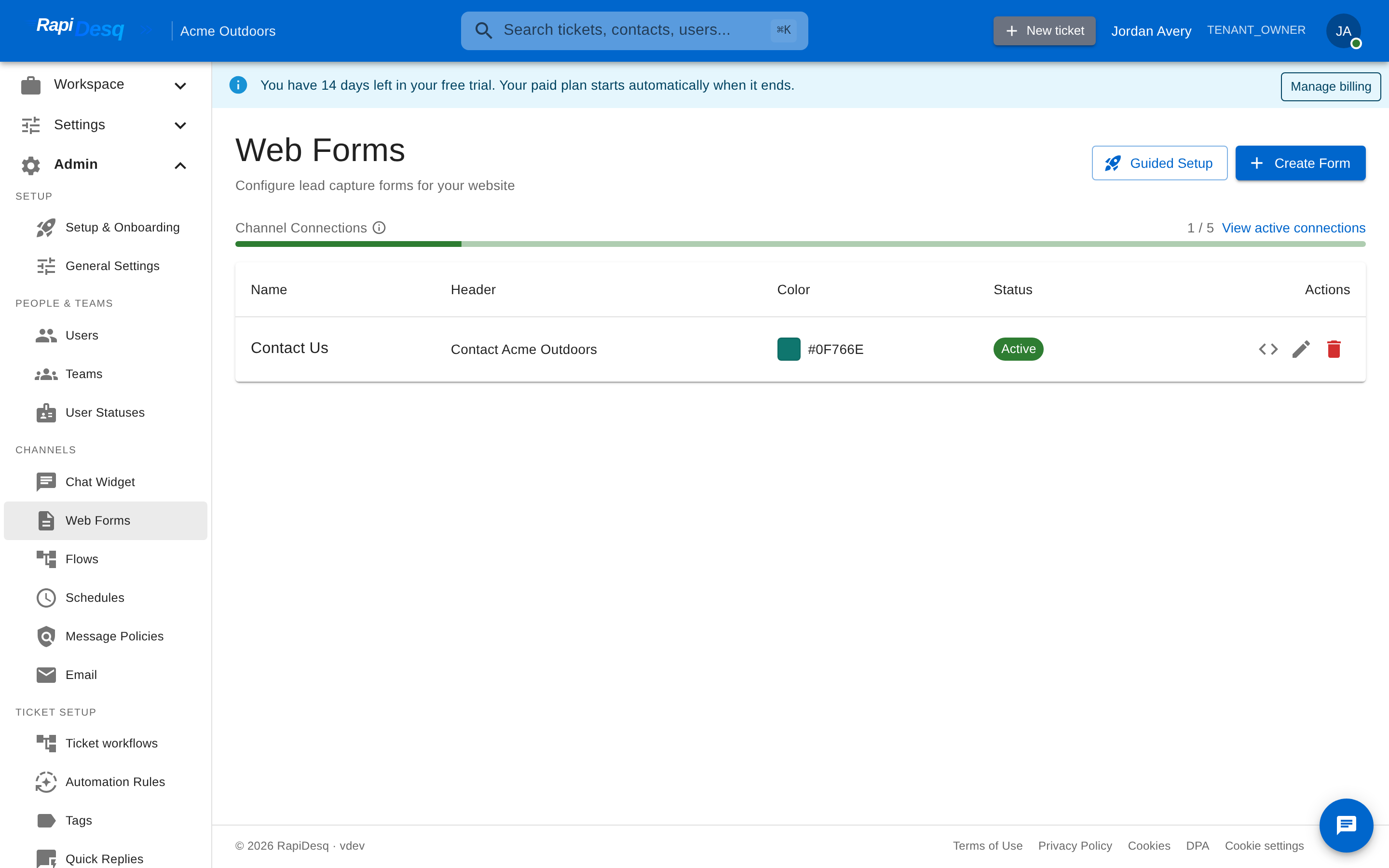 The Web Forms page in the admin portal, where forms are created, configured, and embedded.
Basic Settings
- Form Name — an internal label for the form, visible only to your team.
- Description — an optional internal description of the form's purpose.
- Form Active — (edit mode) controls whether the form accepts submissions. A deactivated form rejects submissions and visitors see the form's offline message instead.
Step-by-Step
- Go to Admin > Channels > Web Forms and click Create Form.
- Enter the Form Name and an optional Description.
- Choose a Routing destination: Direct to Team, Run a Flow, or Hand off to Bot (see Routing).
- Configure the Contact Fields and Data Fields the form should display (see Configuring Fields).
- Customize Appearance and Messages (see Form Appearance).
- Optionally configure Identity Verification and Allowed Domains.
- Click Create, then use Get Embed Code to add the form to your site (see Embedding Forms).
Configuring Fields
A form's fields come in two kinds: built-in contact fields that identify the person submitting, and data fields drawn from your tenant's central field library.
Contact Fields
The Contact Fields section configures which contact identity fields to display on the form. There are five structural fields, and each can be independently enabled and marked as required for this form:
- First Name
- Last Name
- Email — drives contact matching; enable it (and usually require it) so submissions link to contact records and your team can follow up.
- Phone
- Message — a free-text area for the customer's request.
Data Fields
The Data Fields section lets you add structured fields beyond contact identity. Rather than defining fields per form, you select them from your tenant's central field library, managed under Admin > Custom Data. Each field definition carries its own type and validation rules; the form simply references it.
- Select fields — check any active field from the library to include it on this form. The form shows each field's name, key, and type so you can pick the right one.
- Required per form — the same field can be required on one form and optional on another; the required flag is set per form.
- Display order — fields appear on the form in the order you add them.
- Centralized definitions — the field's type, options, and validation live on the definition in the library, so updating it there updates every form that references it.
Conditional Logic
Forms do not support conditional field visibility — every enabled field is shown to every visitor. If you need different handling based on what the customer selects (for example, routing billing questions differently from technical ones), route the form to a conversation flow and branch on the submitted values there.
Form Appearance
Customize the visual appearance of your form to match your brand. These settings are inline sections of the form builder, and the live preview updates as you type.
Appearance
- Primary Color — the accent color used for the form's interactive elements. Enter a hex value (e.g.,
#2563EB) or use the color picker. Choose a color that aligns with your brand and provides sufficient contrast. - Header Text — the title displayed at the top of the form. Defaults to "Contact Us"; customize it to match the form's purpose (e.g., "Get Support", "Request a Quote").
- Submit Button Text — the label on the submit button. Defaults to "Submit". Use an action-oriented label (e.g., "Send Request", "Get Help").
Messages
- Success Message — displayed after a successful submission in place of the form. Use it to confirm receipt and set response-time expectations (e.g., "Thank you! A support user will respond within 4 hours.").
- Offline Message — displayed when the form is not currently accepting submissions (for example, when the form has been deactivated).
Dark Mode
Turn on Enable Dark Mode Detection and the form follows the visitor's browser dark-mode preference. Four dark-mode colors are configurable: Dark Primary Color, Dark Background Color, Dark Header Background, and Dark Text Color. This keeps the embedded form visually consistent on dark-themed websites.
Routing
The Routing destination selector at the top of the form builder determines what happens after a customer submits the form. Choose exactly one destination:
Direct to Team
Every submission creates a ticket that goes straight into the selected team's queue. This is the simplest routing method.
- Tickets appear in the team queue immediately upon submission.
- Users on the team pick up and work tickets using your standard assignment workflow.
- Best for: simple intake scenarios where all submissions of a given type should go to the same team.
Run a Flow
Each submission enters a published conversation flow before being assigned. The flow can inspect the submission and take automated actions.
- The flow can branch on submitted values — this is how you build conditional handling, since forms themselves have no conditional logic.
- Use flow routing for automated triage (routing to different teams based on a category field), business-hours branching via Schedule Condition steps, or any scenario where you want automated processing before a user sees the ticket.
See Conversation Flows for details on building flows.
Hand off to Bot
Submissions are handed to an active AI bot for automated handling. The bot can respond using your knowledge base and escalate to a human when needed. If you have no active bots yet, create one under Admin > AI Settings — see AI Bots.
When to Use Each
| Scenario | Recommended Routing | Reason |
|---|---|---|
| Single-purpose form (e.g., "Contact Support") | Direct to Team | All submissions are the same type and go to the same team. No conditional logic needed. |
| Multi-category form with a category dropdown | Run a Flow | The flow can read the category value and route to different teams based on the selection. |
| Different handling in and out of business hours | Run a Flow | A Schedule Condition step branches between in-hours and after-hours paths. |
| Common questions answerable from your knowledge base | Hand off to Bot | The bot can resolve routine requests instantly and escalate the rest. |
| Simple feedback or survey form | Direct to Team | Low urgency, no conditional routing needed. A single team reviews all submissions. |
Identity Verification
Like the chat widget, a web form can require signed identity tokens so that submissions from logged-in users on your site carry a verified identity. This ensures submissions are matched to the right contact record reliably and lets users trust who submitted the request.
- Enable identity verification in the form's Identity Verification section.
- Choose a signing algorithm — RSA (RS256/RS384/RS512), ECDSA (ES256/ES384/ES512), or EdDSA.
- Paste your public key in PEM format. You keep the matching private key on your server; RapiDesq never holds your signing material.
- Your backend signs a token for each logged-in user, and your page provides it alongside the form. RapiDesq verifies the signature when the form is submitted.
You can also configure Claim Mappings to map token claims onto contact fields or custom fields. See the chat widget identity verification guide for the token format and a backend signing example — the mechanism is the same.
Embedding Forms
Once your form is saved and active, embed it on your website with a single script tag — the same lightweight pattern as the chat widget.
Getting the Embed Code
On the Web Forms page, click the Get Embed Code action next to your form. An integration dialog opens with two tabs:
- Embed Code — the script snippet, with a copy button. Paste it into your website's HTML just before the closing
</body>tag where you want the form to render. - REST API — generated documentation for submitting this form's data programmatically, for cases where you want to build your own UI and post submissions directly.
The embed snippet looks like this, with your real form ID, tenant ID, and hosts filled in:
<script
  src="https://<your-rapidesq-host>/form.js"
  data-form-id="YOUR_FORM_ID"
  data-api-url="https://<your-rapidesq-api-host>"
  data-tenant-id="YOUR_TENANT_ID"
  async>
</script>
The script loads asynchronously and renders the form with your configured fields, branding, and messages. Because all configuration lives in RapiDesq, you can change fields, colors, and routing at any time without touching the embed code.
Allowed Domains
The Allowed Domains section restricts form embedding and submission to specific domains. This is a security measure that prevents unauthorized sites from embedding your form and collecting submissions under your tenant.
- Add the domains where the form may run (e.g.,
example.com). Submissions from other origins are rejected. - Leave the list empty to allow all domains (not recommended for production use).
From Submission to Ticket
When a customer submits a form, RapiDesq creates a ticket carrying the submission. Understanding this helps you design forms that produce clean, actionable tickets.
- Contact matching — the submitted email is used to look up an existing contact. If no contact is found, a new one is created. The ticket is linked to the contact, giving users the customer's full interaction history.
- Submitted values — the contact fields and data field values are attached to the ticket and visible to users working it.
- Channel — the ticket's channel is set to web form, enabling filtering, routing, and reporting by submission channel.
Availability & Offline Behavior
Forms do not carry their own schedule. When a form is not accepting submissions — for example, when it has been deactivated with the Form Active toggle — visitors see the form's Offline Message instead of the form, and any submission attempts are rejected with that same message.
For business-hours-aware handling of submissions, route the form to a conversation flow and use a Schedule Condition step: during business hours the flow can route to a team immediately, and outside hours it can set expectations and queue the ticket for the next business day. See Business Hours & Schedules.
Tips & Best Practices
Form Design
- Keep forms short. Only ask for information your team actually needs to begin working the ticket. Shorter forms have higher completion rates.
- Use required fields deliberately. Mark only fields that are genuinely necessary for initial triage as required. The email field should almost always be required; a phone number may not be.
- Enable the Message field so customers can describe their request in their own words — it usually becomes the most useful context for the user.
Data Quality
- Define reusable fields once. Because data fields live in the central library, a "Product" dropdown defined once stays consistent across every form that uses it — far more useful for routing and reporting than free-text answers.
- Use dropdown-type field definitions for controlled vocabularies. Dropdowns prevent typos and inconsistencies in values you intend to branch or report on.
Security
- Always configure Allowed Domains for production forms. This prevents unauthorized embedding and reduces the risk of spam or phishing.
- Deactivate unused forms. Turn off Form Active for forms that are no longer needed rather than deleting them, so you retain their history.
- Use identity verification for forms behind a login, so submissions carry a verified identity.
Testing
- Use the builder's live preview mode to make a real test submission and verify: the ticket is created, the contact is matched or created, all field values appear correctly, and the ticket reaches the expected team, flow, or bot.
- Test on the actual embedded page. Verify the form renders correctly, that Allowed Domains is not blocking your site, and that the success message appears after submission.
- Test both light and dark mode if dark mode detection is enabled.
Operations
- Use different forms for different purposes. A sales inquiry form and a support request form can collect different fields, use different branding, and route to different destinations — all independently configured.
- Monitor submission volume. If a form generates high volume, consider adding a category data field and switching to flow routing for automated triage, or handing routine requests to a bot.